











































 Home
Home
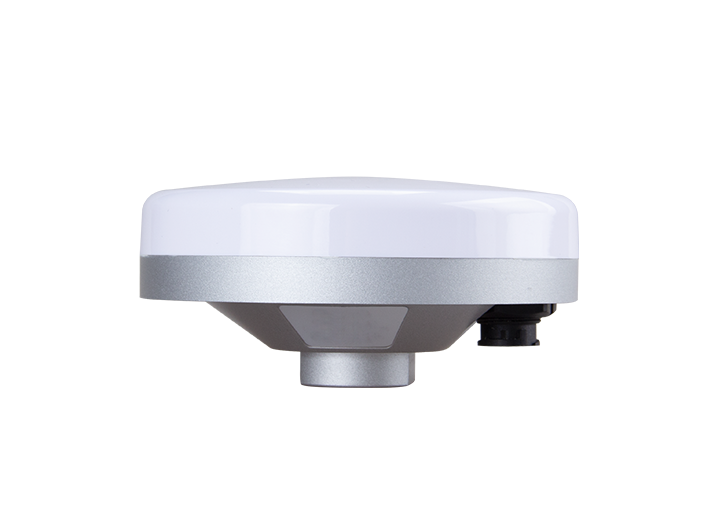
P2 GNSS Receiver
learn more






 2026-06-03
 Chloe
Chloe


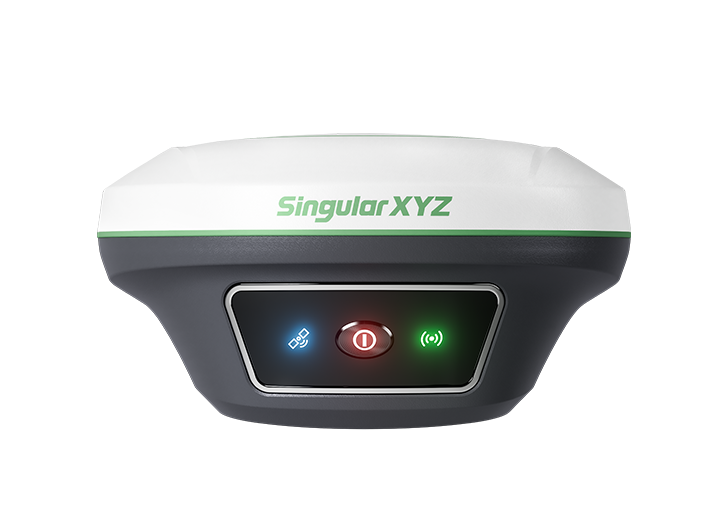
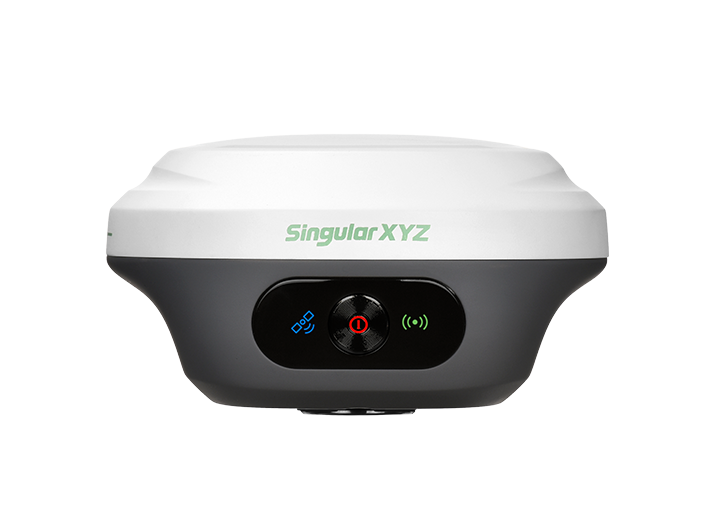
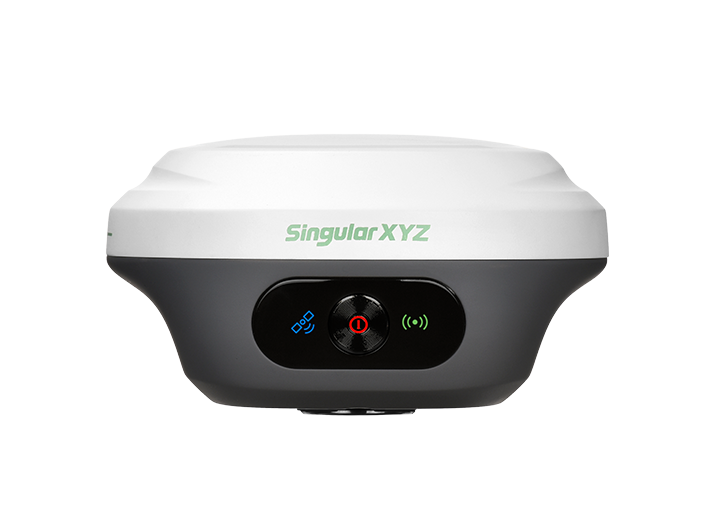
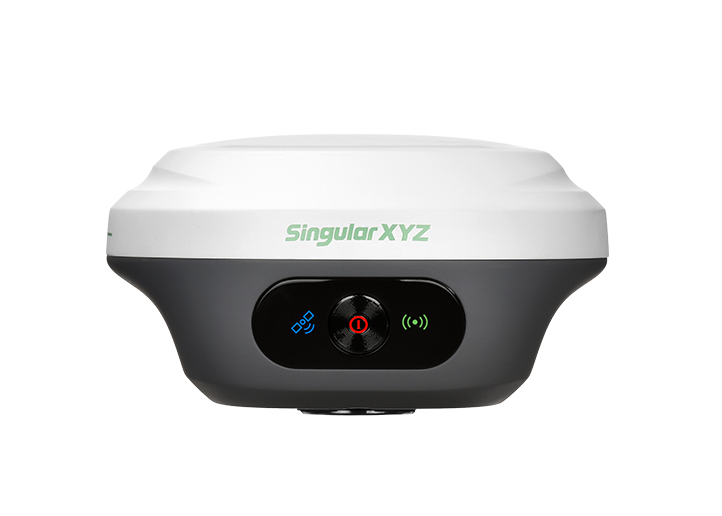
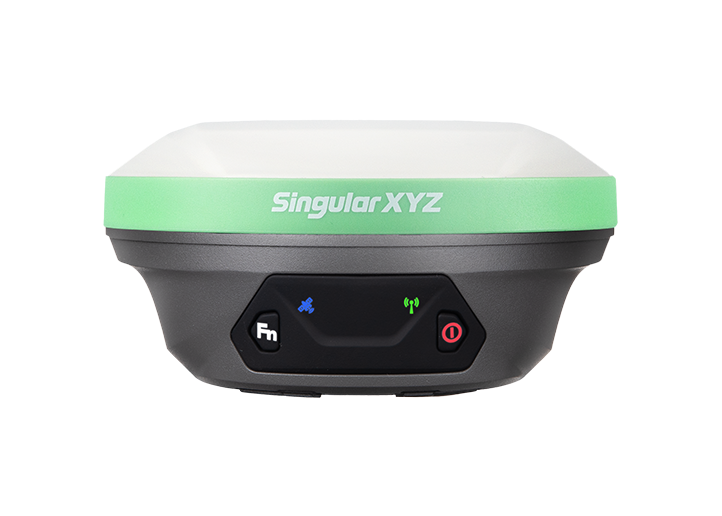
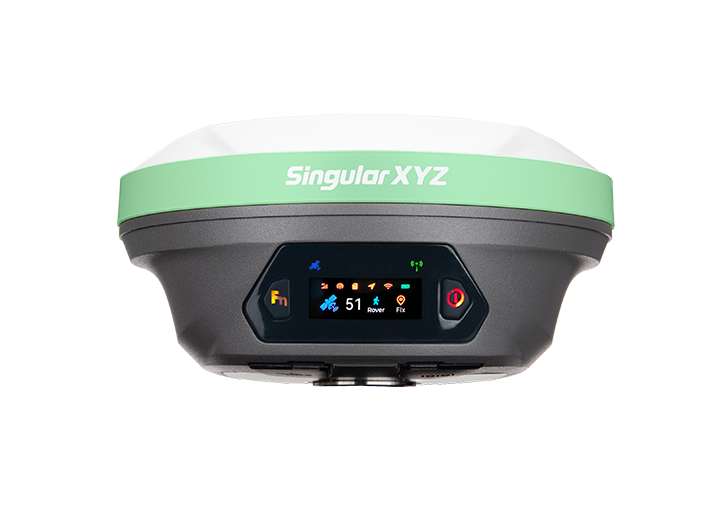
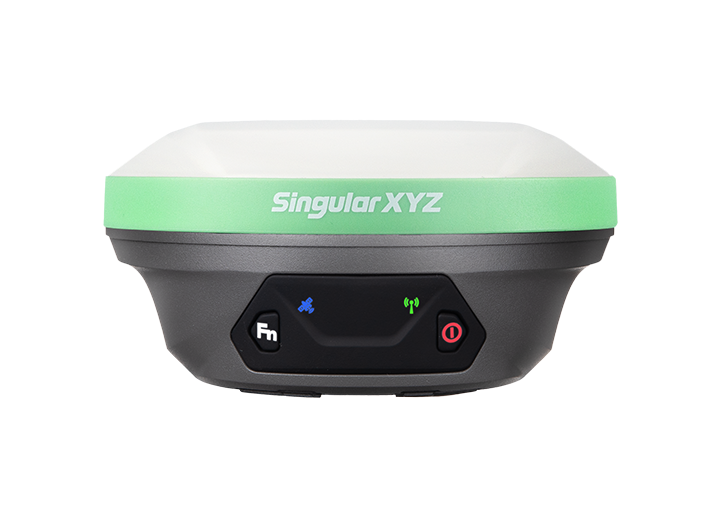
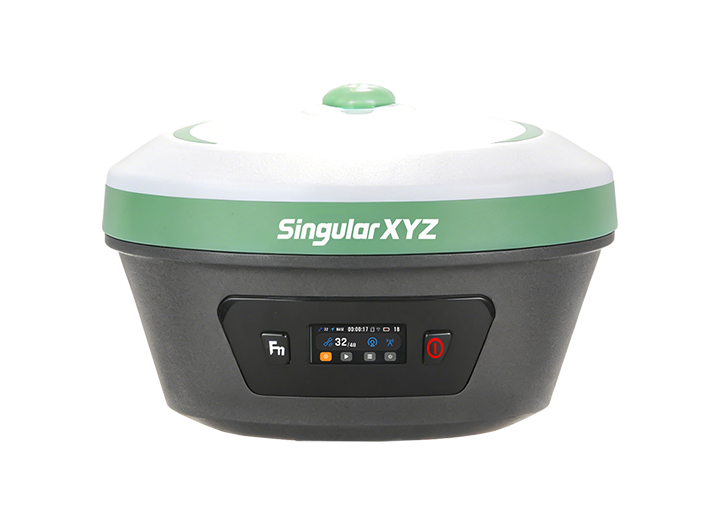
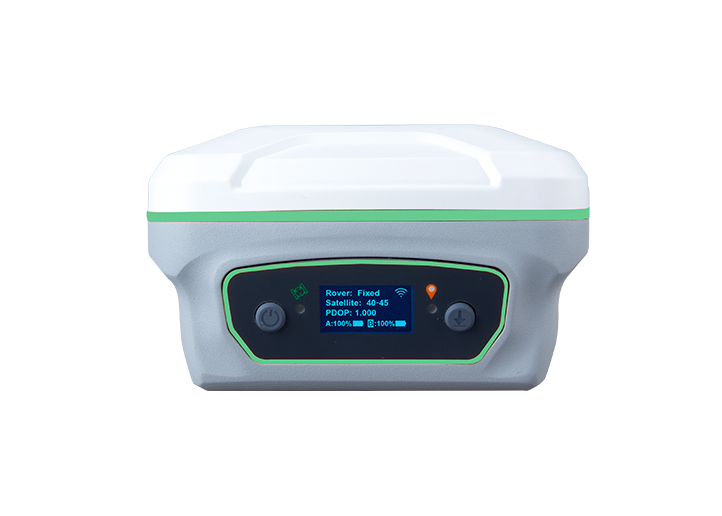
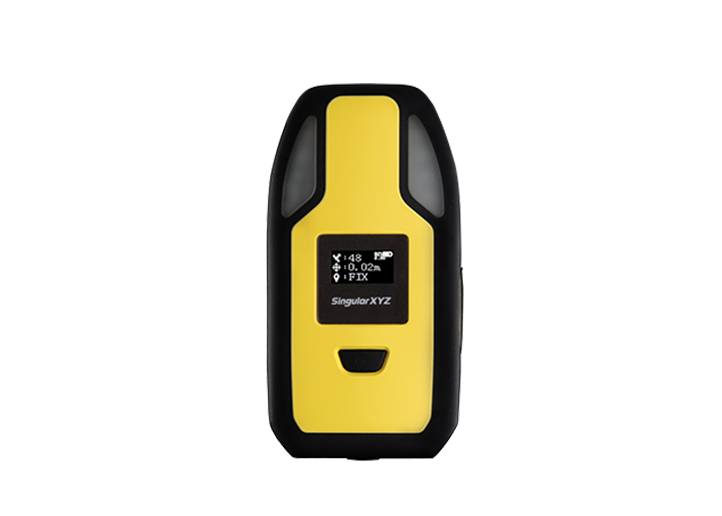
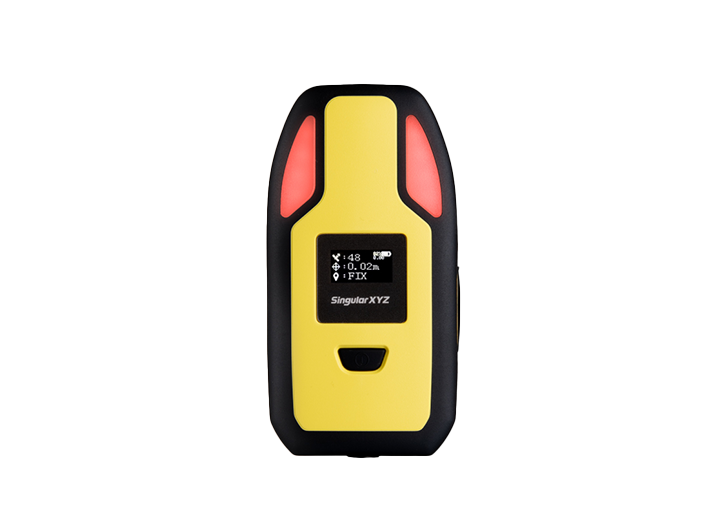
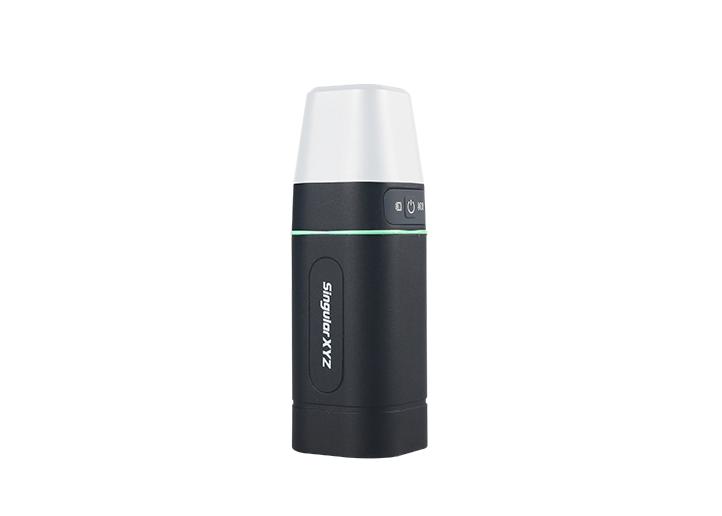
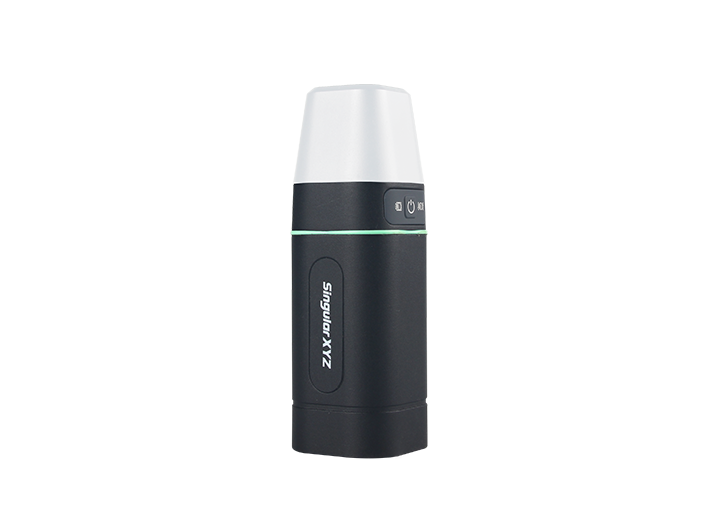
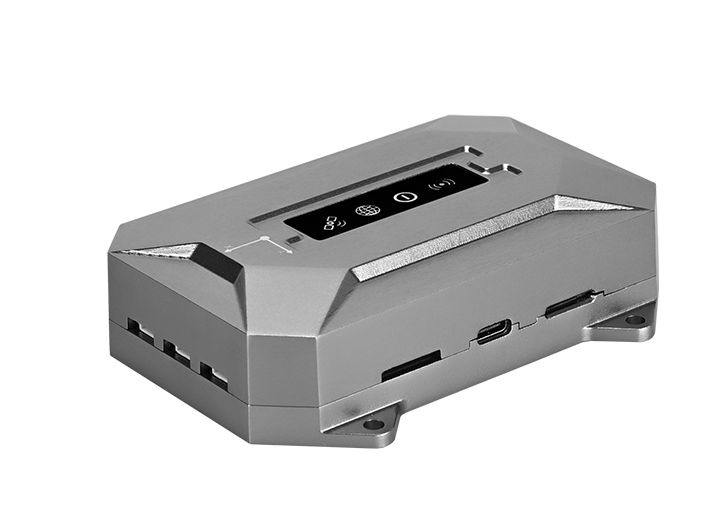
With the latest P2 function upgrade update, SingularXYZ has introduced a new standalone geo-fencing function, allowing users to configure boundaries and receive alerts directly on the receiver without relying on a cloud platform. Together with the existing SingularThings cloud-based geo-fencing solution, users can now choose the deployment method that best suits their project requirements.
This blog introduces how to create a geo-fence boundary and configure the standalone geo-fencing function on the P2 GNSS Receiver.
Before using the geo-fencing function, you first need to create a boundary file.
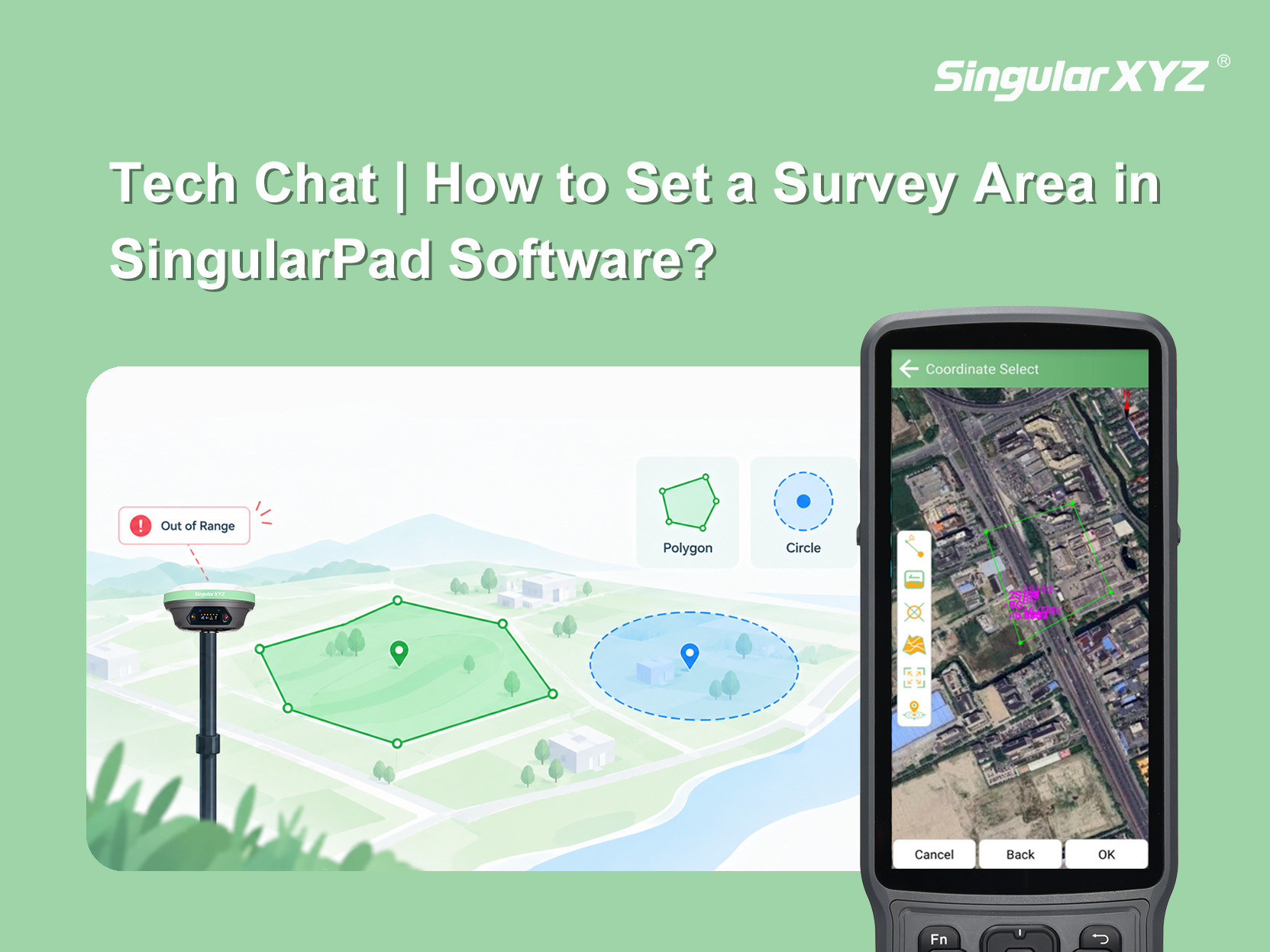
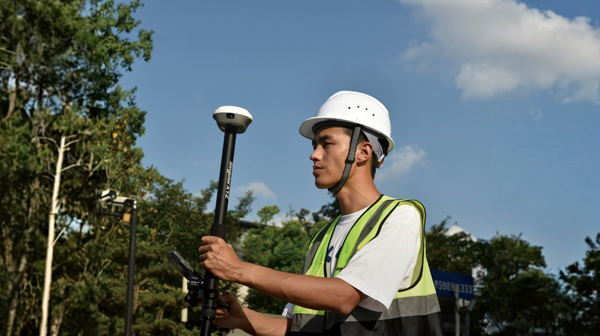
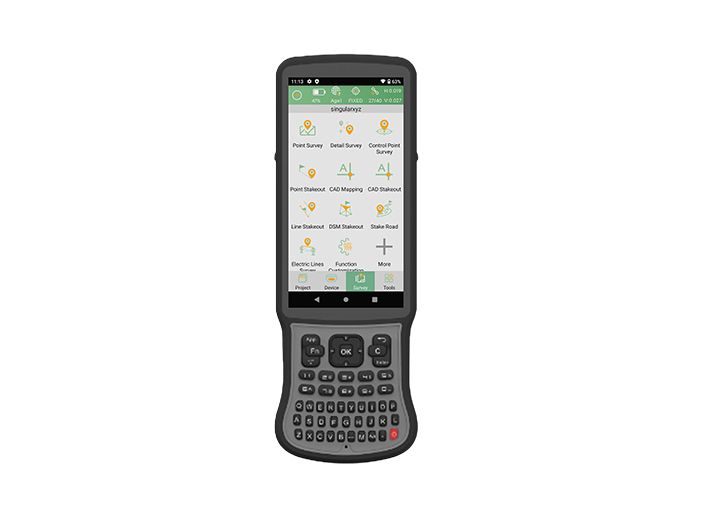
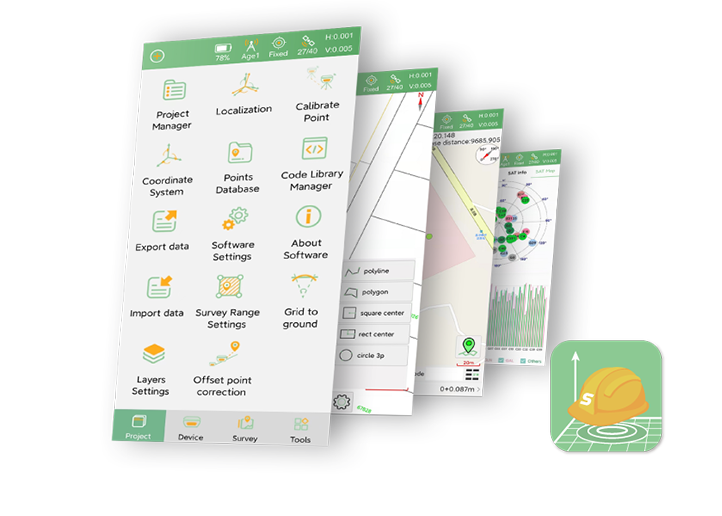
Use a P2 or any RTK receiver with SingularPad to measure the boundary of the target area by collecting the polygon vertices in sequence.
Configure the RTK and obtain a stable fixed solution. Go to Survey >> Point Survey, measure all boundary points around the area in sequence and save them to the project.
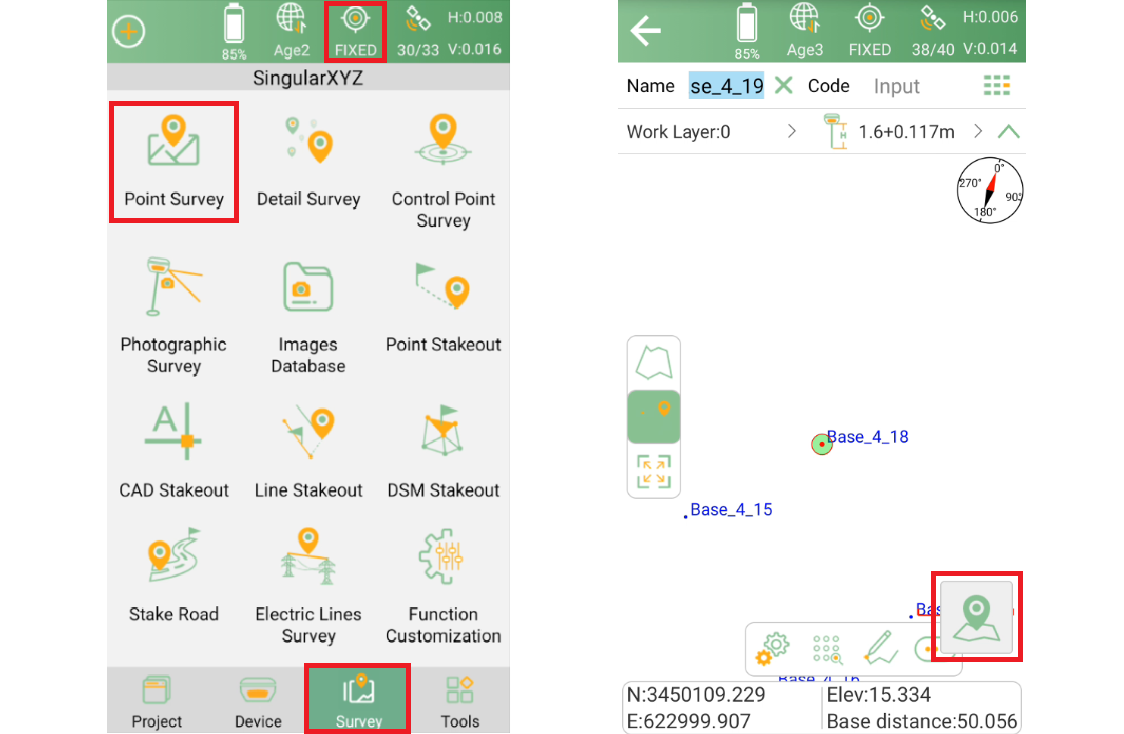
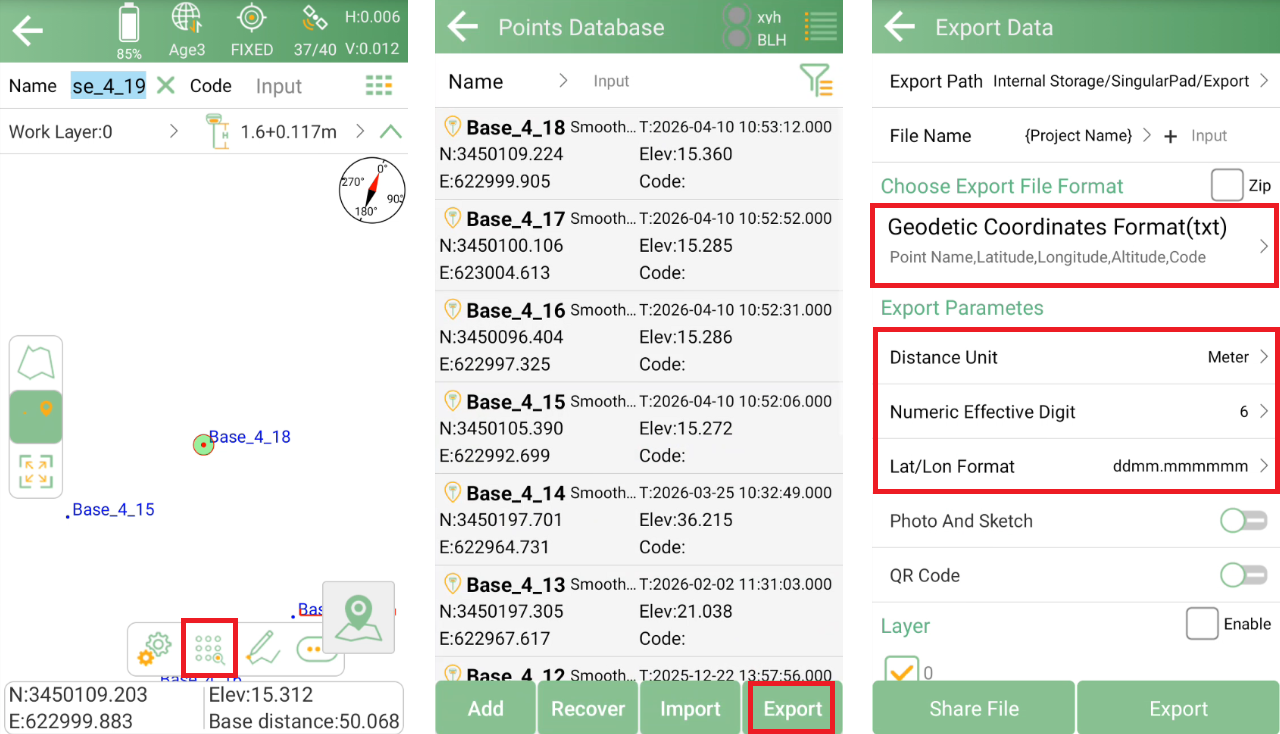
After the survey is completed, go to the Point Database and export the measured boundary points in Geodetic Coordinate format. Before exporting, configure the following settings:
Distance Unit: Meter
Numeric Effective Digit: 6
Lat/Lon Format: ddmm.mmmmmm
The exported file will be used as the geo-fence boundary file and imported into SingularNav in the next step.
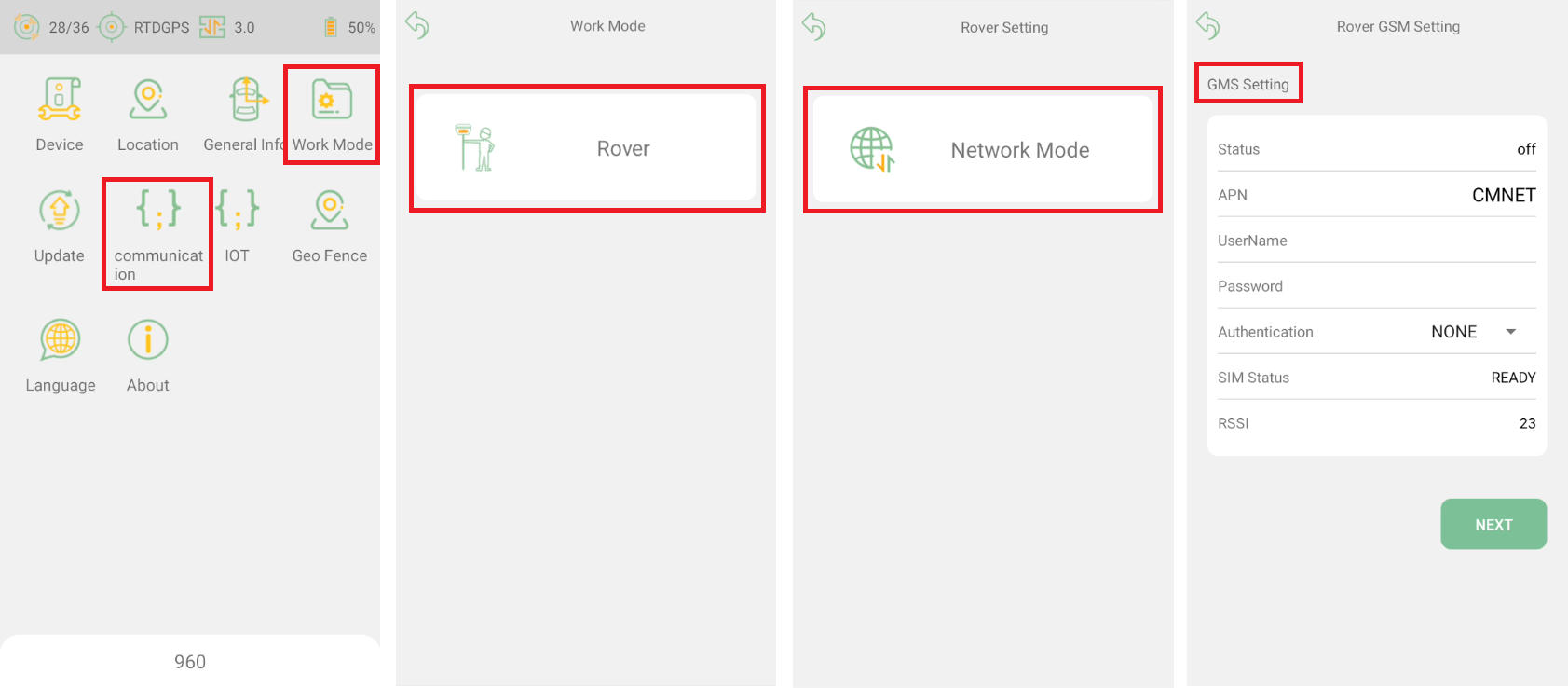
Insert a SIM card into the P2 GNSS Receiver. Open SingularNav and connect to the receiver via Bluetooth in the Communication interface. Then go to Work Mode >> Rover >> Network Mode, configure the APN settings according to the SIM card provider.
After the APN is configured, enter your local CORS service information and connect to the correction service. Once the receiver obtains a Fixed RTK solution, the system is ready for geo-fence monitoring.
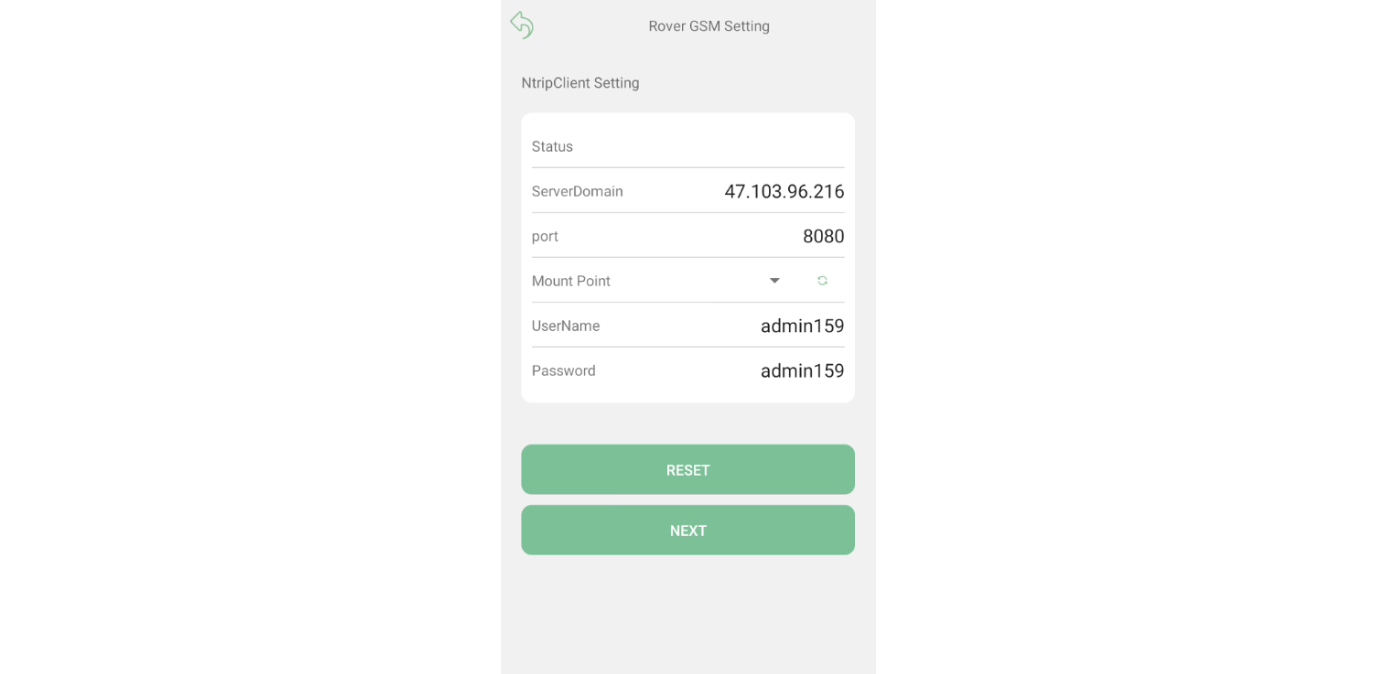
Note: Geo-fence detection relies on RTK positioning accuracy. It is recommended to use the function only after a Fixed solution is achieved to ensure reliable boundary detection and alert performance.
Open the Geo-Fence function in SingularNav and import the boundary file exported from SingularPad.
After importing the boundary, configure the desired alert settings, including:
LED alerts
Buzzer alerts
Vibration alerts
You can also define whether alerts are triggered when:
Entering the designated area
Exiting the designated area
Once the configuration is complete, tap Start to activate the geo-fencing function.
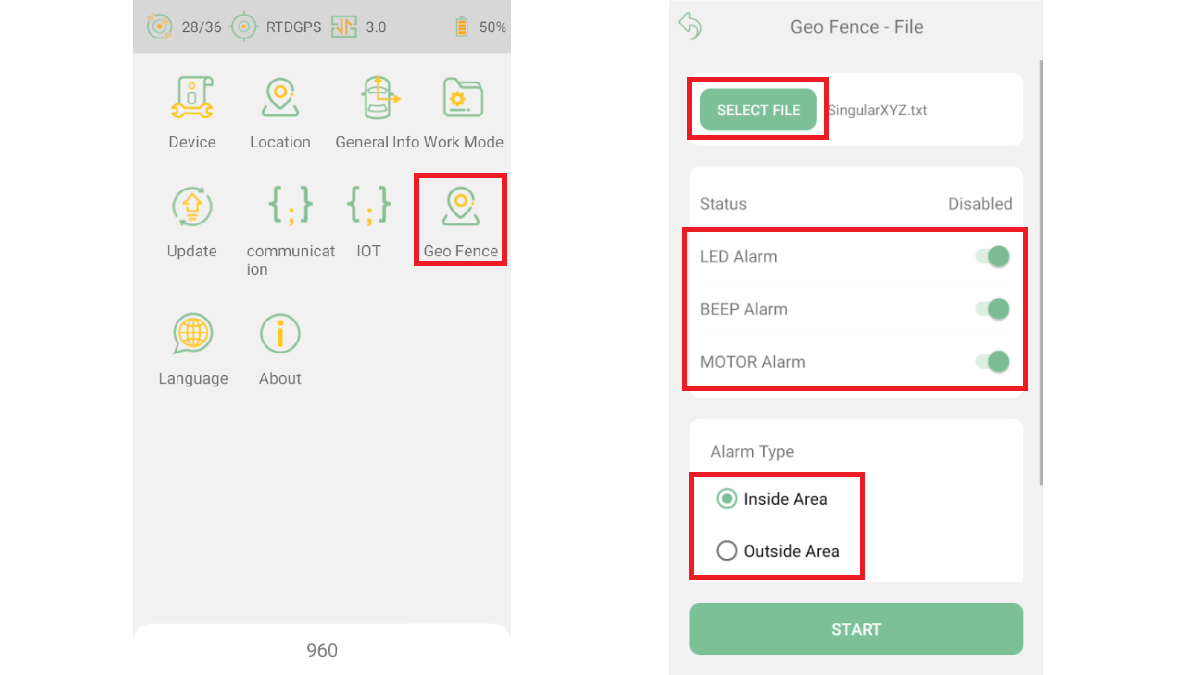
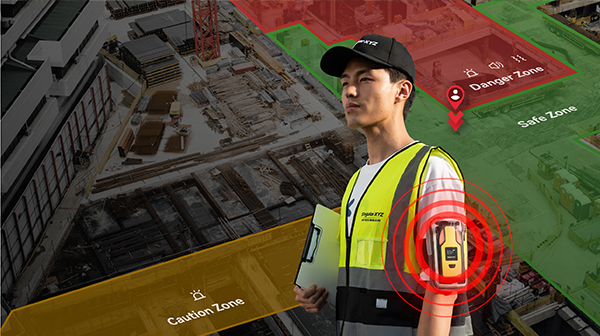
After activation, the P2 continuously compares its RTK position with the imported boundary.
Whenever the receiver enters or leaves the geo-fenced area according to the configured rule, it immediately generates an alert through the selected notification method, helping users respond quickly to potential safety risks.
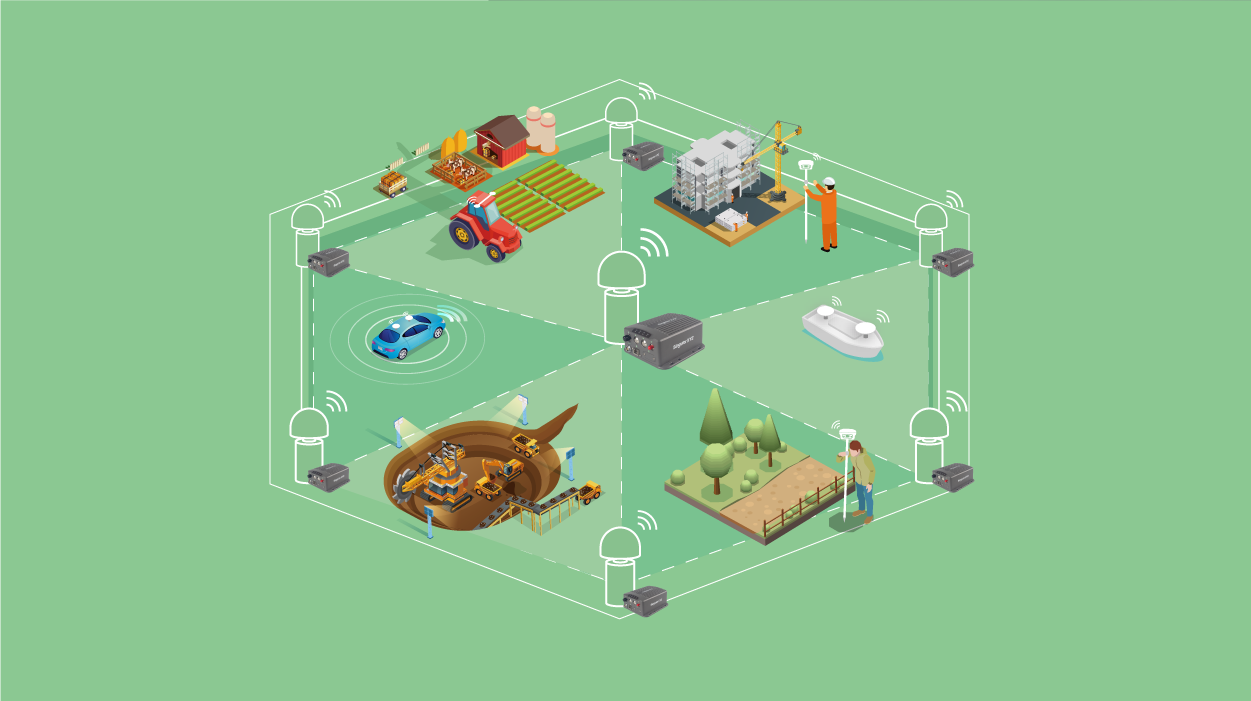
This standalone solution is ideal for applications such as construction site safety management, restricted area monitoring, temporary work zones, and personnel protection in hazardous environments.
The new standalone geo-fencing function provides a simple and efficient way to deploy boundary monitoring directly on the P2 GNSS Receiver, enabling real-time alerts without requiring a cloud connection or platform configuration.
For projects that require centralized management, remote monitoring, multi-user coordination, or customized workflows, the SingularThings cloud-based geo-fencing solution remains available. By offering both standalone and cloud-based deployment options, the P2 gives users the flexibility to choose the most suitable geo-fencing approach for their specific application.