







































































 Home
Home
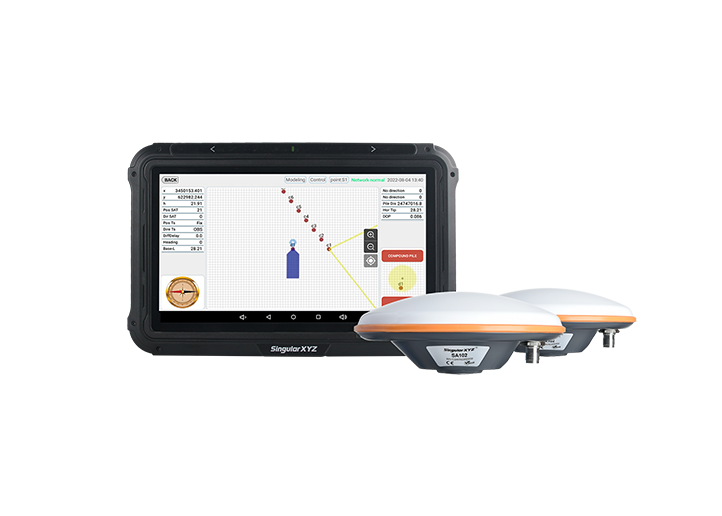
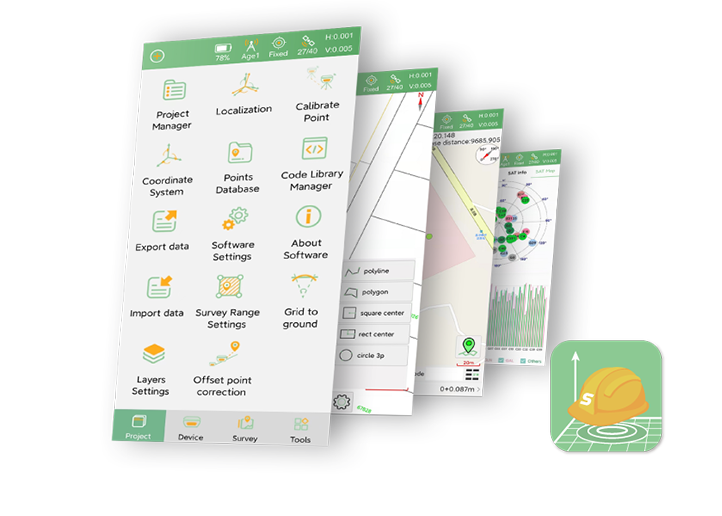
SingularPad Field Surveying Software
learn more






 2026-06-30
 Linden


In daily surveying workflows, data exchange between different platforms is a common requirement. Users often need to import coordinate files from external devices into SingularPad, or export field data for office processing and reporting.
While SingularPad already provides a wide range of built-in import and export formats, these may not always match project-specific requirements. For example, some workflows involve client-defined file structures, legacy equipment formats, or customized deliverable standards.
To handle these cases, SingularPad offers a Custom Import/Export Format feature, allowing users to define how data fields are interpreted and structured. This ensures flexible compatibility with different external systems and workflows.
In this blog, we will walk through how to create custom import and export formats in SingularPad.
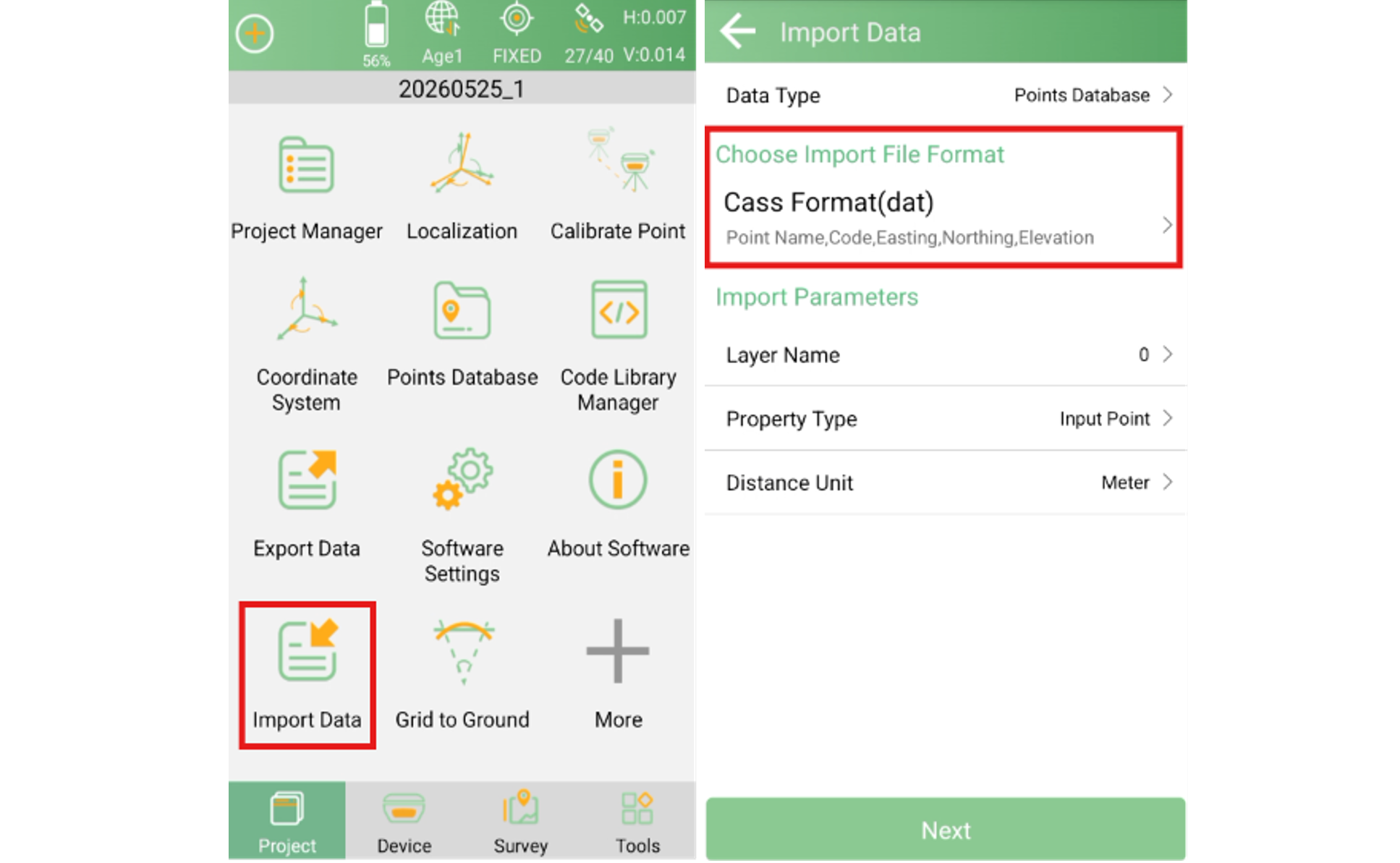
Go to Import Data, then tap Choose Import File Format to open the format selection panel.
Tap New at the bottom of the format list. This will open the Custom Format configuration page.
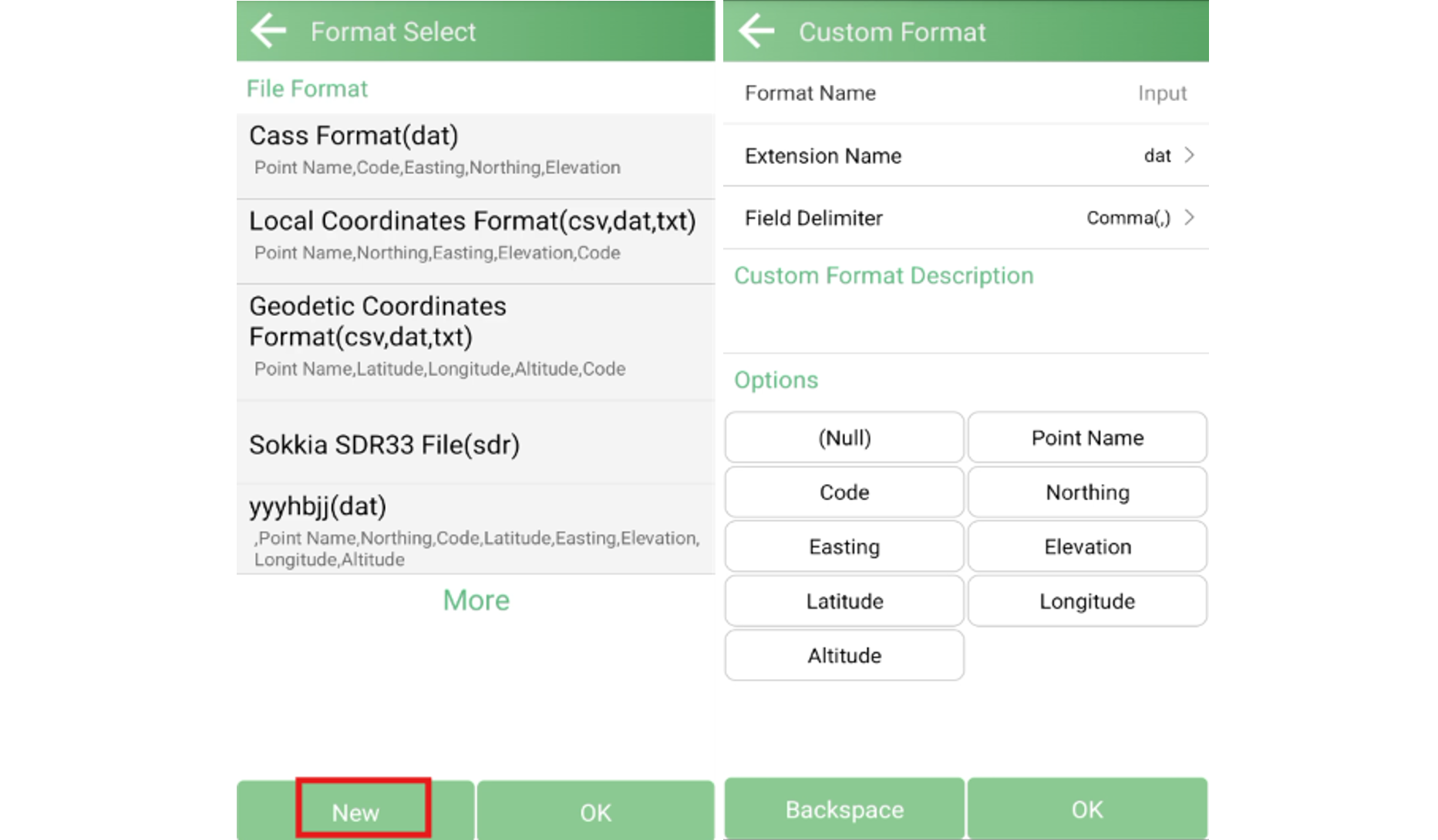
Set up the format according to your source file structure:
File Extension
Select the file extension that matches your source file (e.g., .csv, .txt, .dat). SingularPad supports a variety of common extensions to accommodate different data sources.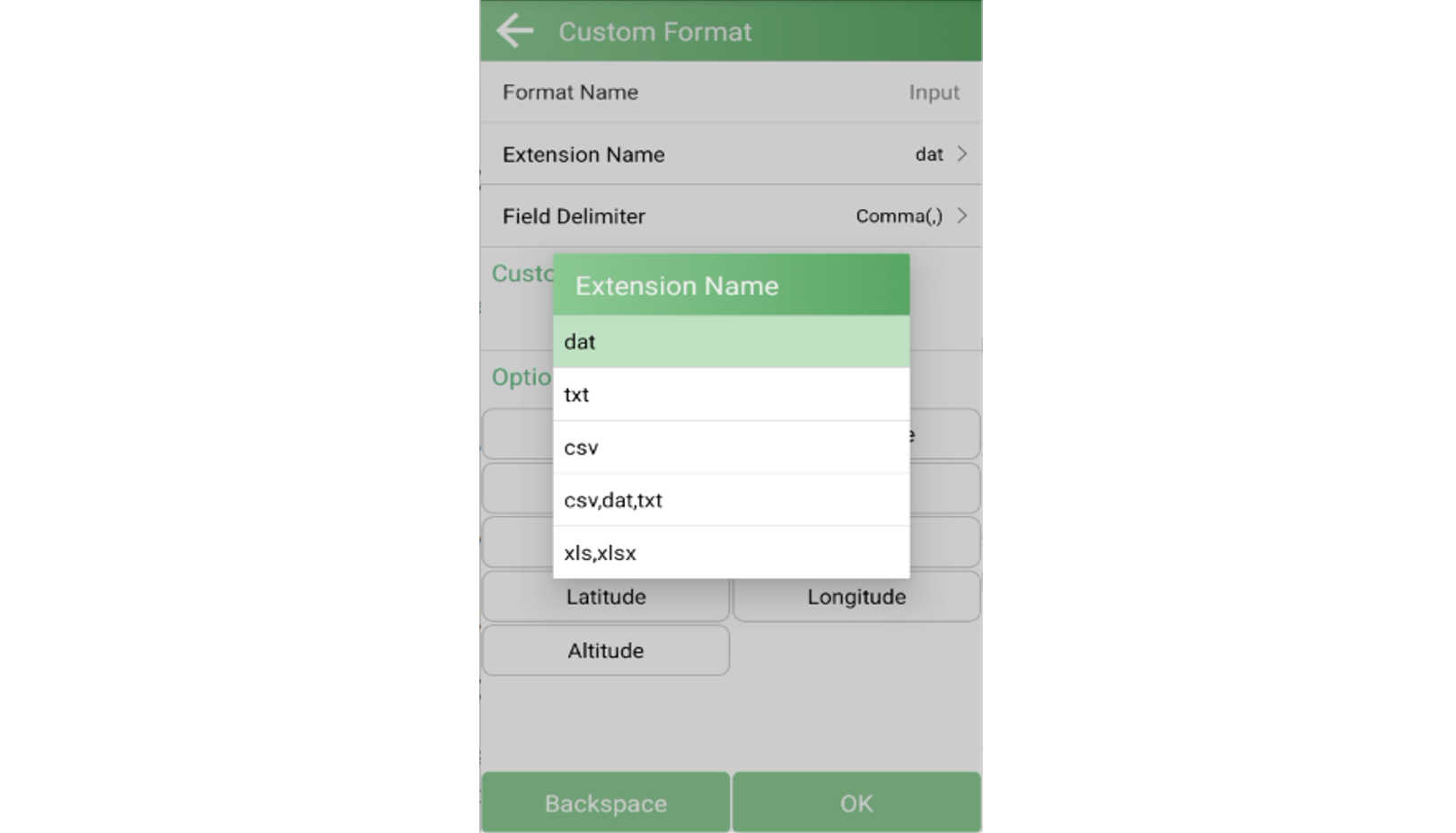
Field Delimiter
Choose the delimiter used in your source file to separate fields. Common options include comma, semicolon, tab, and space. Selecting the correct delimiter is critical for accurate field parsing.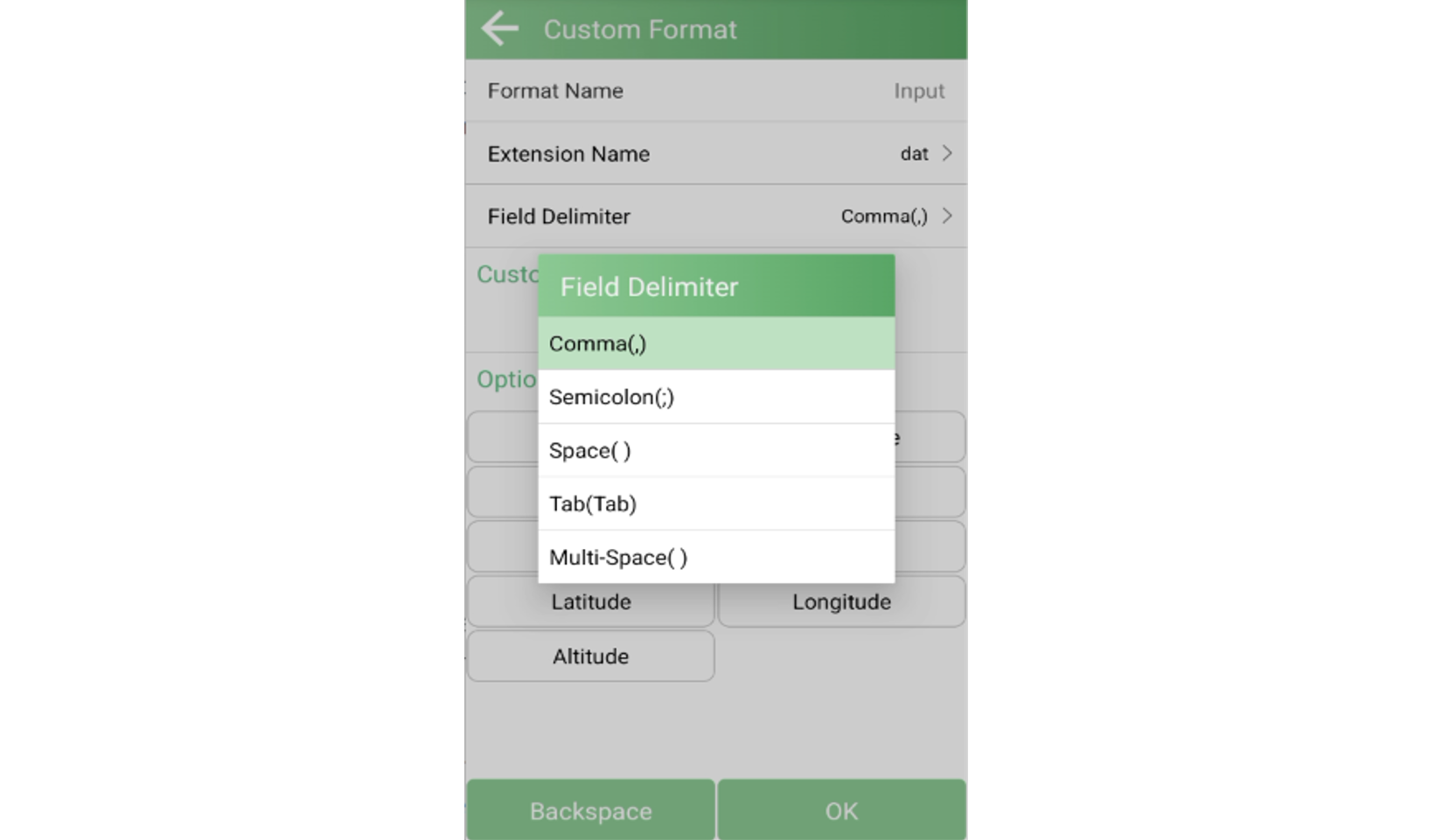
Options
From the Options displayed on screen, select the options that correspond to the columns in your source file. Each ptions tells SingularPad how to interpret a specific column—whether it represents a point name, northing, easting, elevation, code, or other survey attribute.
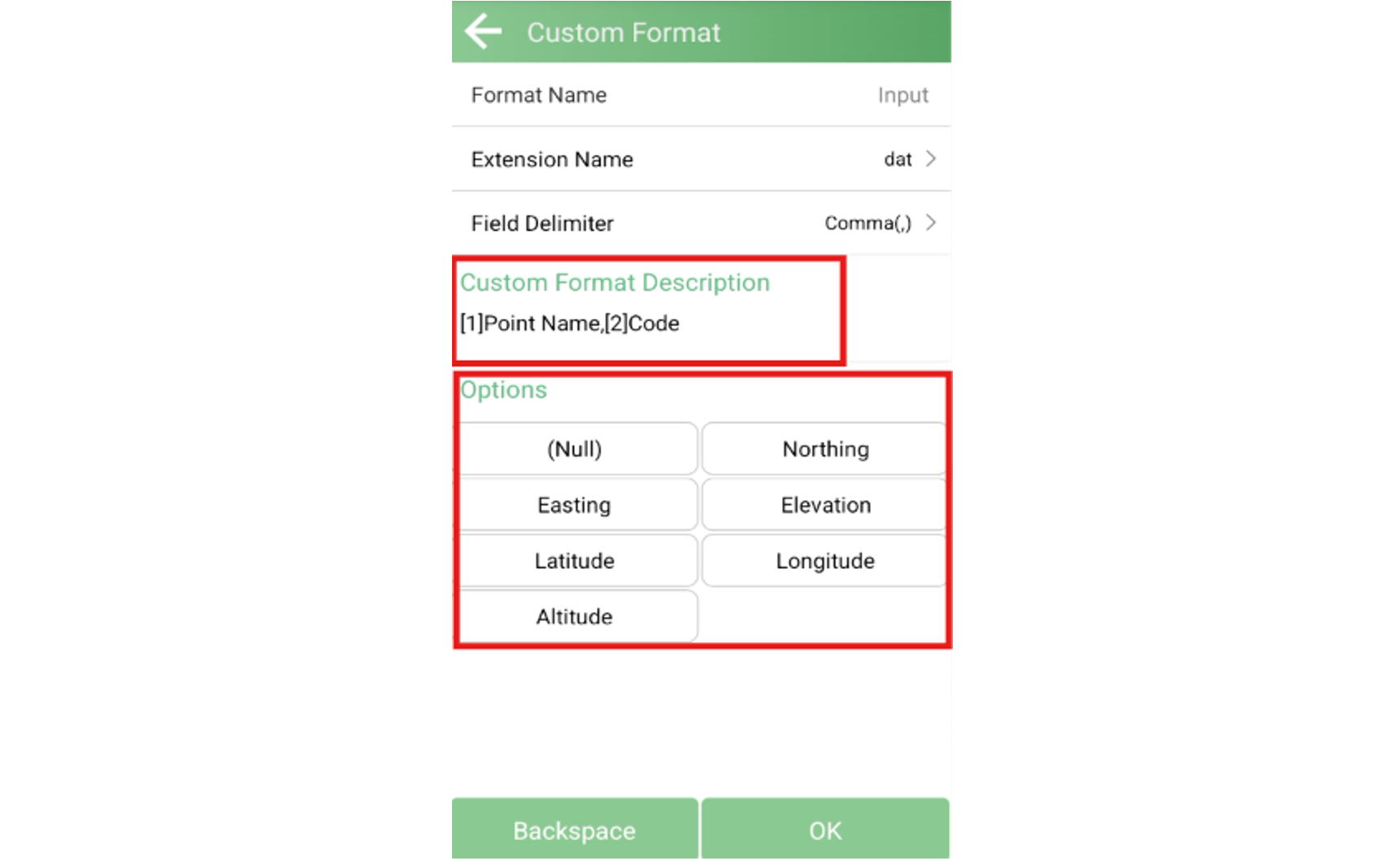
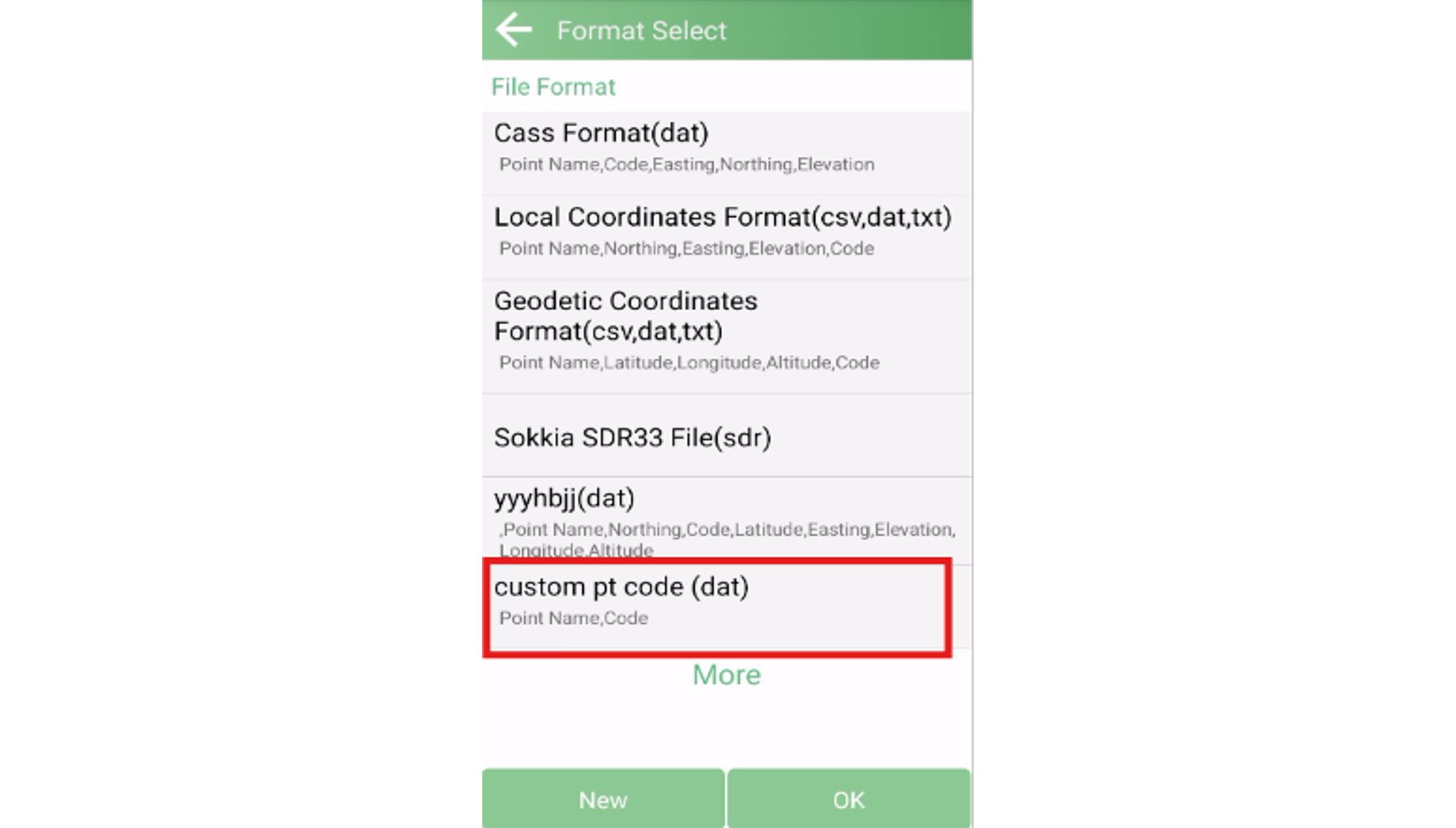
Give the format a clear name and tap OK to save it. The new custom format will then appear in the import format list for future use.
Compared to import settings, export formats provide more flexibility, allowing users to define how field data should be structured for external use.
Go to Data Export, select the data type you want to export, then tap New to create a custom format.
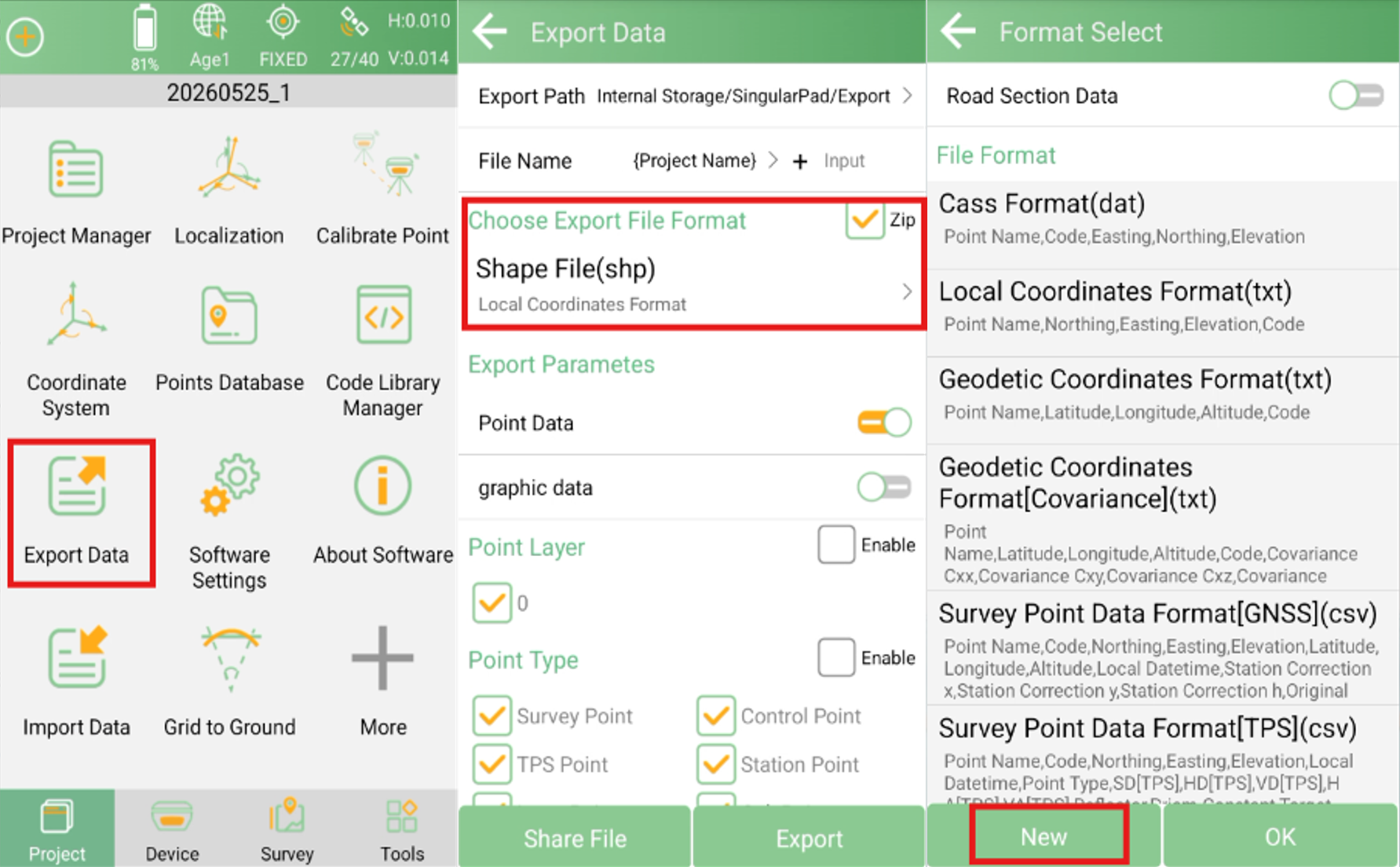
File Extension & Delimiter
Same as import settings, choose the file extension and field separator that best suit the target system.
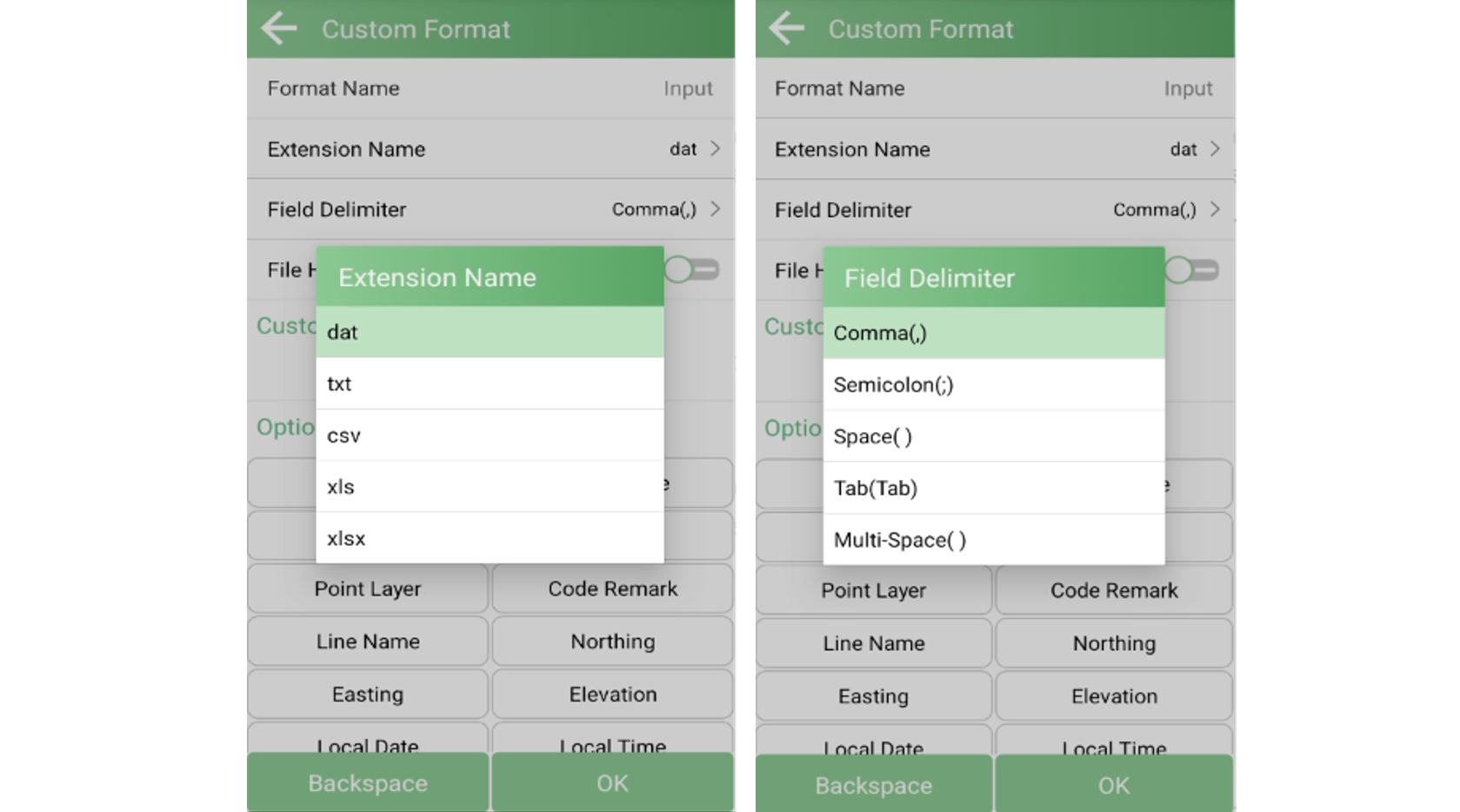
File Header Row
Toggle whether the exported file includes a header row with column names. This is particularly useful when the output will be opened in spreadsheet applications or imported into databases, as it makes each column immediately identifiable.
Export Fields
Browse the options list and select the options you want to include in the export. SingularPad provides a comprehensive set of exportable fields covering coordinate data, measurement observations, point attributes, and more. Add each desired field to the format description in the order you want it to appear in the output file.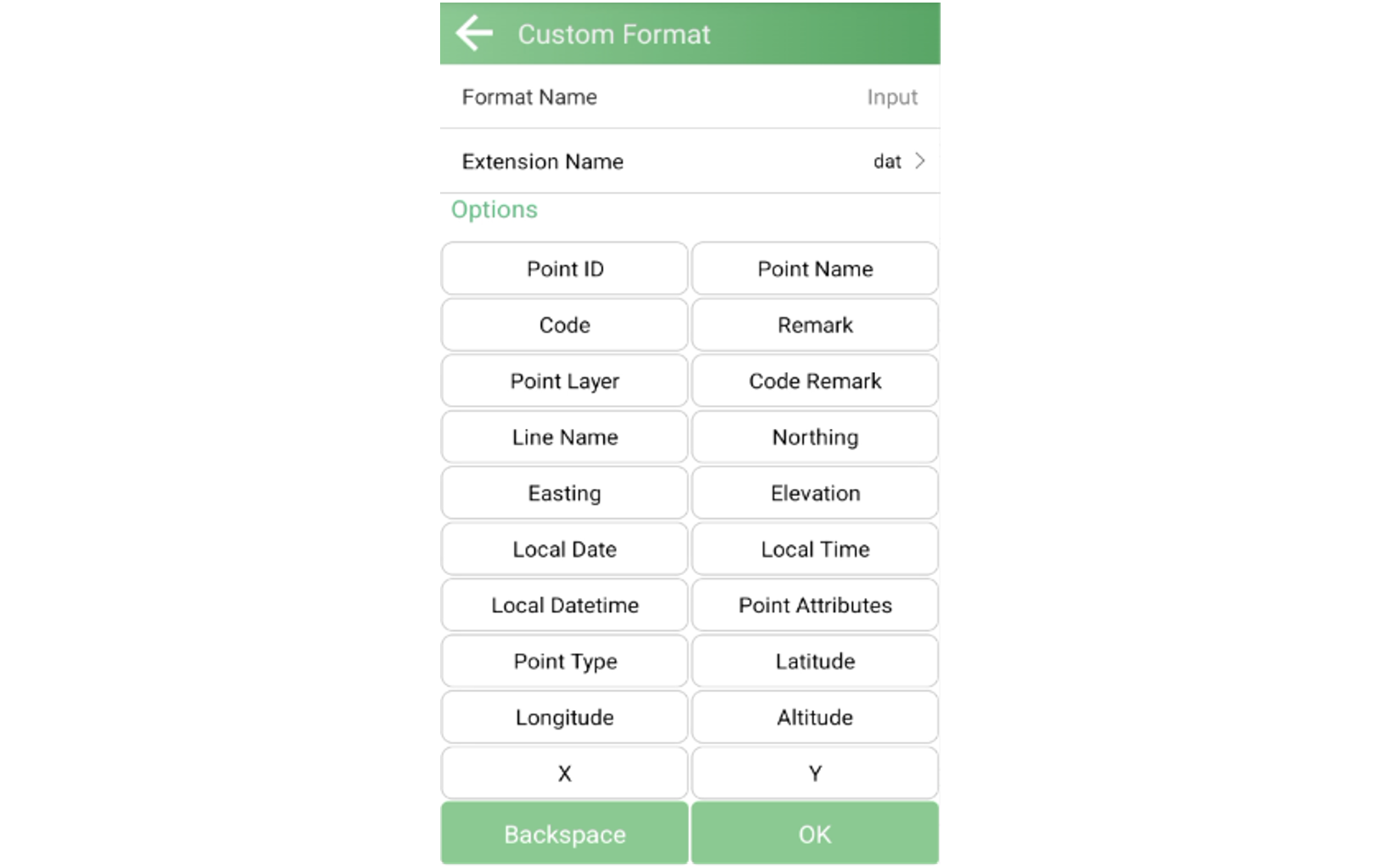
Step 3. Save and Apply
Name the format clearly and tap Confirm. The format will be available for all future export operations.
Use clear format names
Names like “CSV_Point_NEZ_Code” are easier to identify than generic labels such as “Format 1”.
Validate before large exports
Always validate your custom format using a small dataset before applying it to full project data.
Confirm field structure with clients
Even when coordinate data is correct, mismatched field order can still cause issues in downstream processing.
SingularPad's custom import and export format feature gives you the flexibility to handle virtually any data structure your projects demand. By correctly configuring extension names, delimiters, and field mappings, you can ensure seamless data exchange between SingularPad and external systems—reducing manual rework and minimizing the risk of data errors.
If you have any questions about configuring custom data formats or need assistance, feel free to reach out to our support team.