

























































 Home
Home

Horus Visual & Laser
GNSS Receiver
GNSS Receiver
learn more








 2026-02-09
 Satoshi


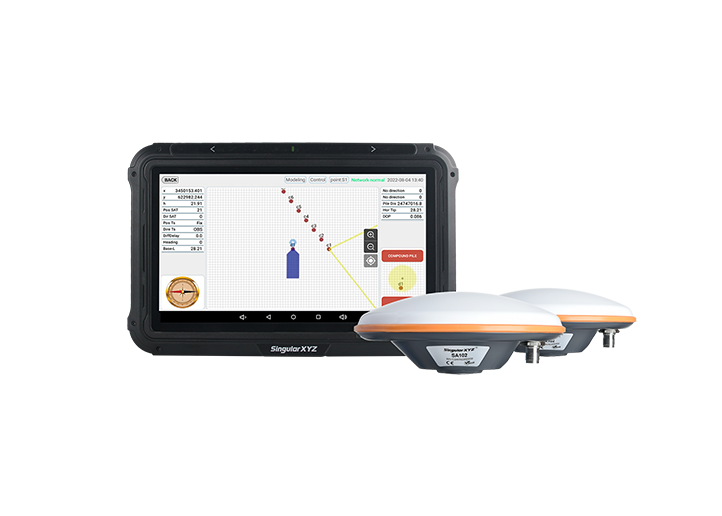
Volume calculation is a common task in engineering surveying, such as earthwork estimation, stockpile measurement, and site preparation. Compared with traditional manual calculations, the volume calculation function in SingularPad is fast, intuitive, and accurate, helping users significantly reduce field and office workload.
This blog introduces the standard workflow for performing volume calculations in SingularPad, from field data collection to final volume computation.
Before performing volume calculation, the boundary of the target area must be measured to generate a calculation surface. This example demonstrates Auto Point Surveying, although standard point measurement can also be used.
Tap Point Survey to enter the point survey interface.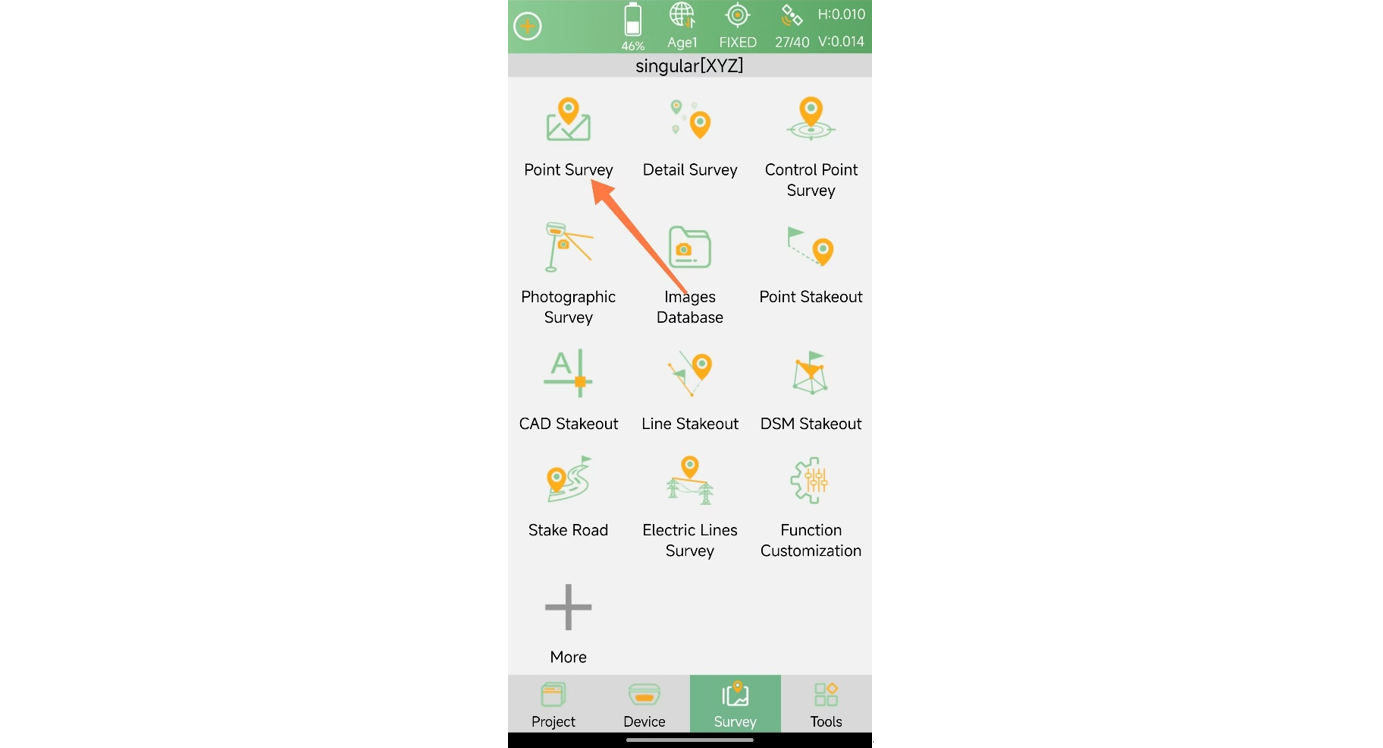
Tap the gear icon at the bottom of the measurement interface to open Tool Bar settings.
Find Auto Point Surveying, add it to the toolbar, and tap OK.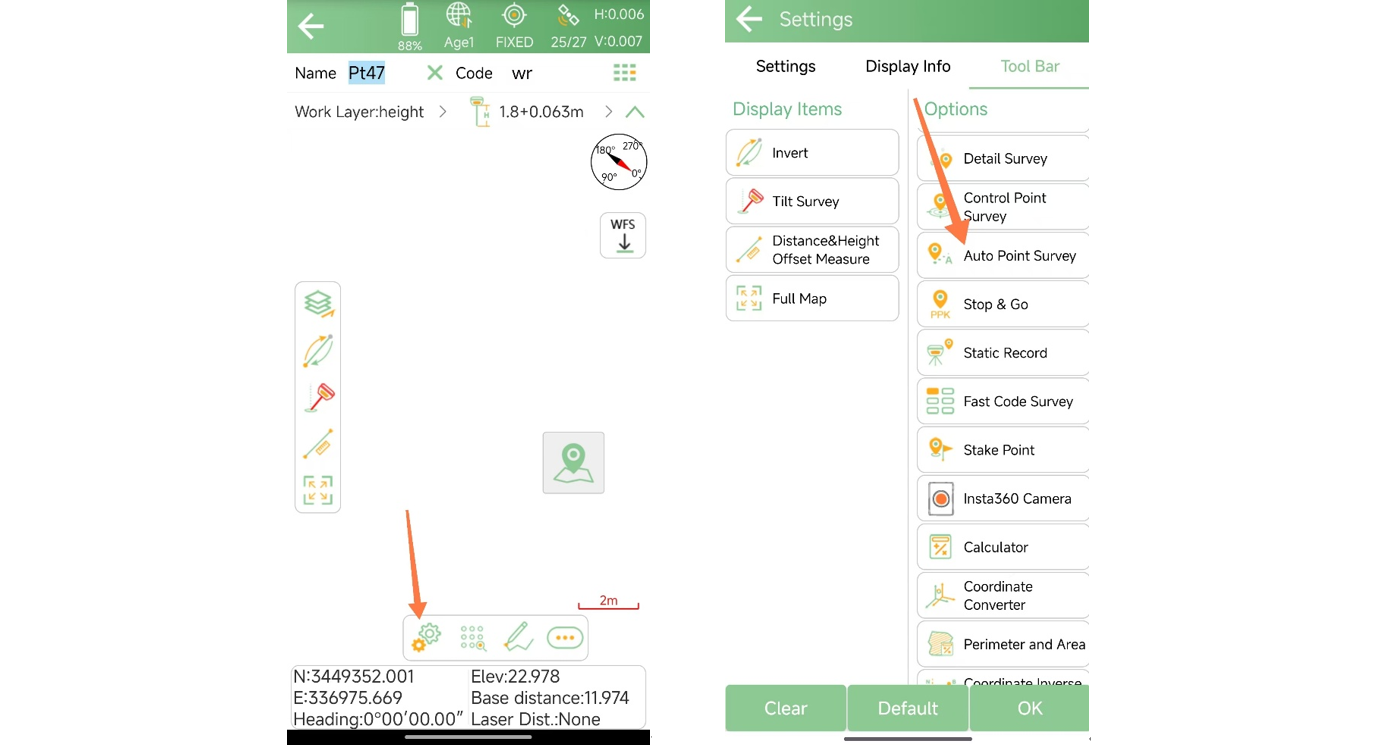
Tap the Auto Point Survey button and configure the parameters as needed.
(The IMU function must be enabled before configuration.)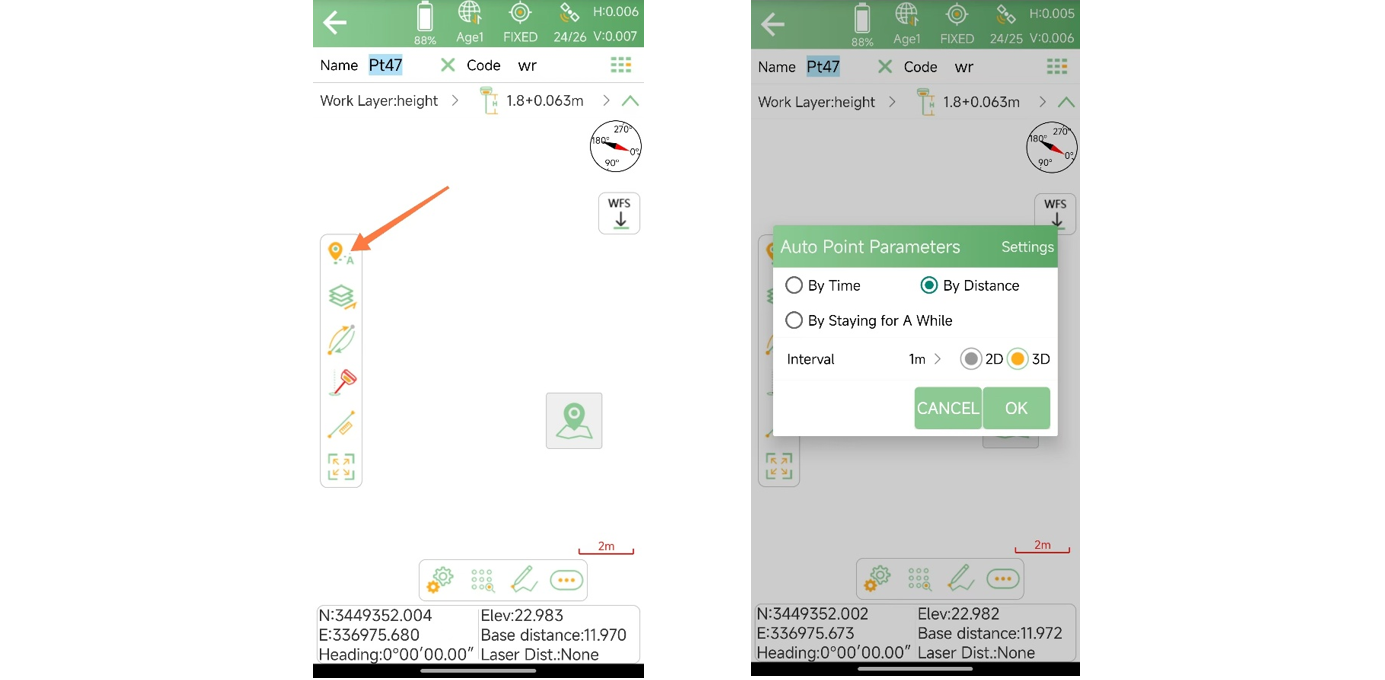
Note: A higher point density results in a more accurate volume calculation.
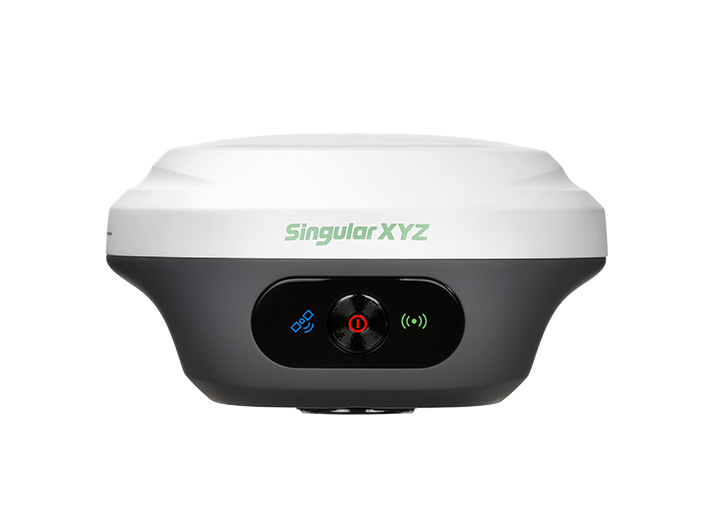
After configuration, tap OK. The RTK device will begin automatic measurement.
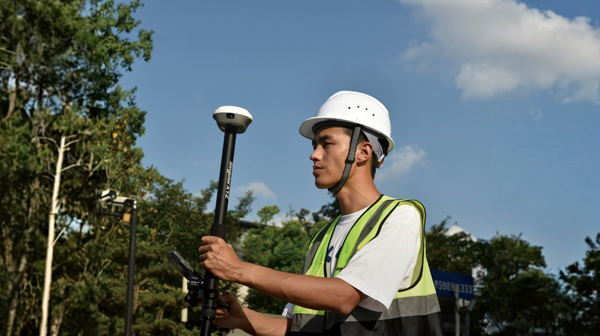
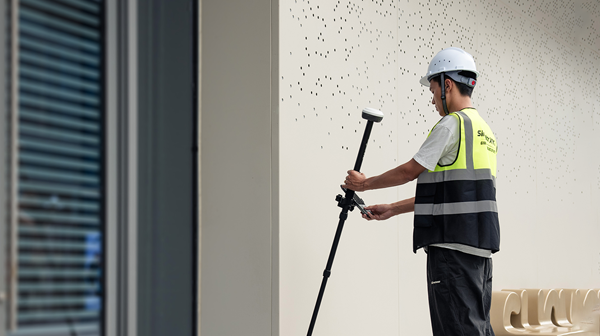
Walk around the entire site with the RTK device to collect points along the boundary of the area.
Once measurement is complete, tap the Stop Measurement icon in the lower-right corner.
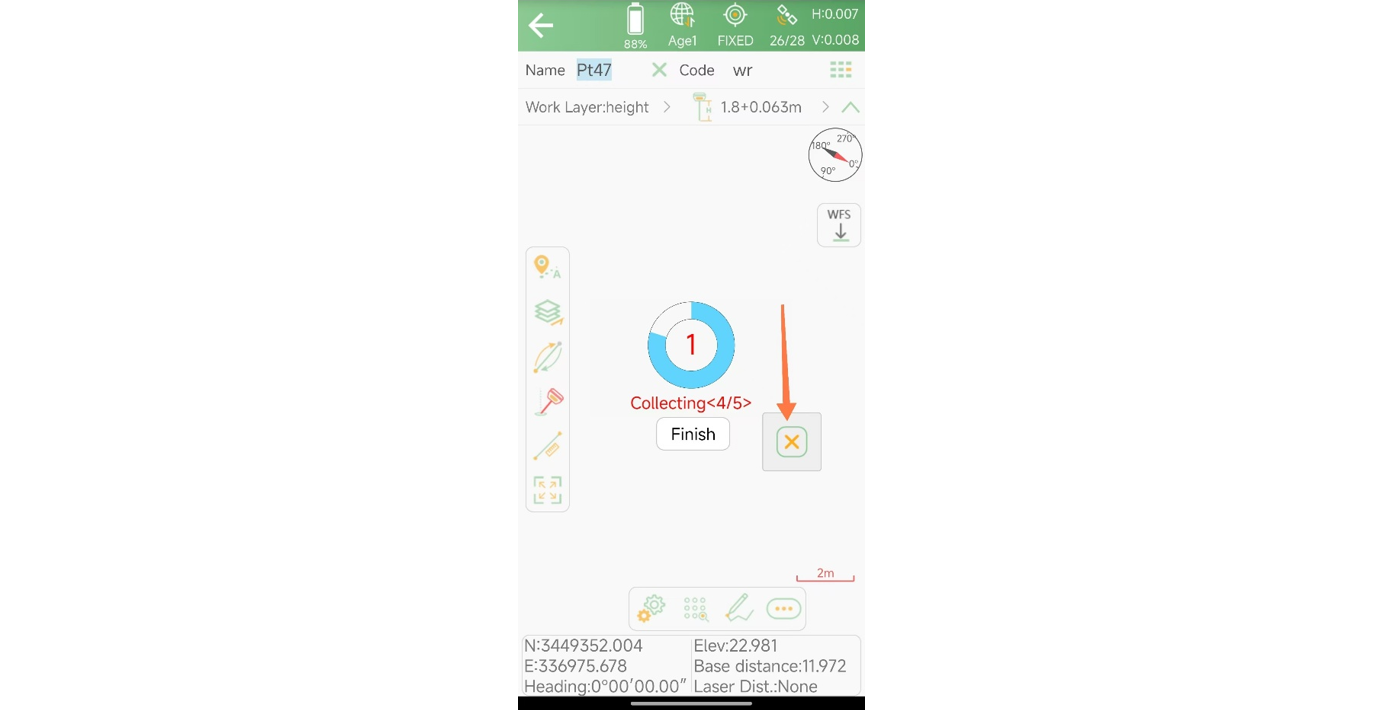
After completing the field measurement, return to the main interface.
Go to Tools and open the Volume Calculation function.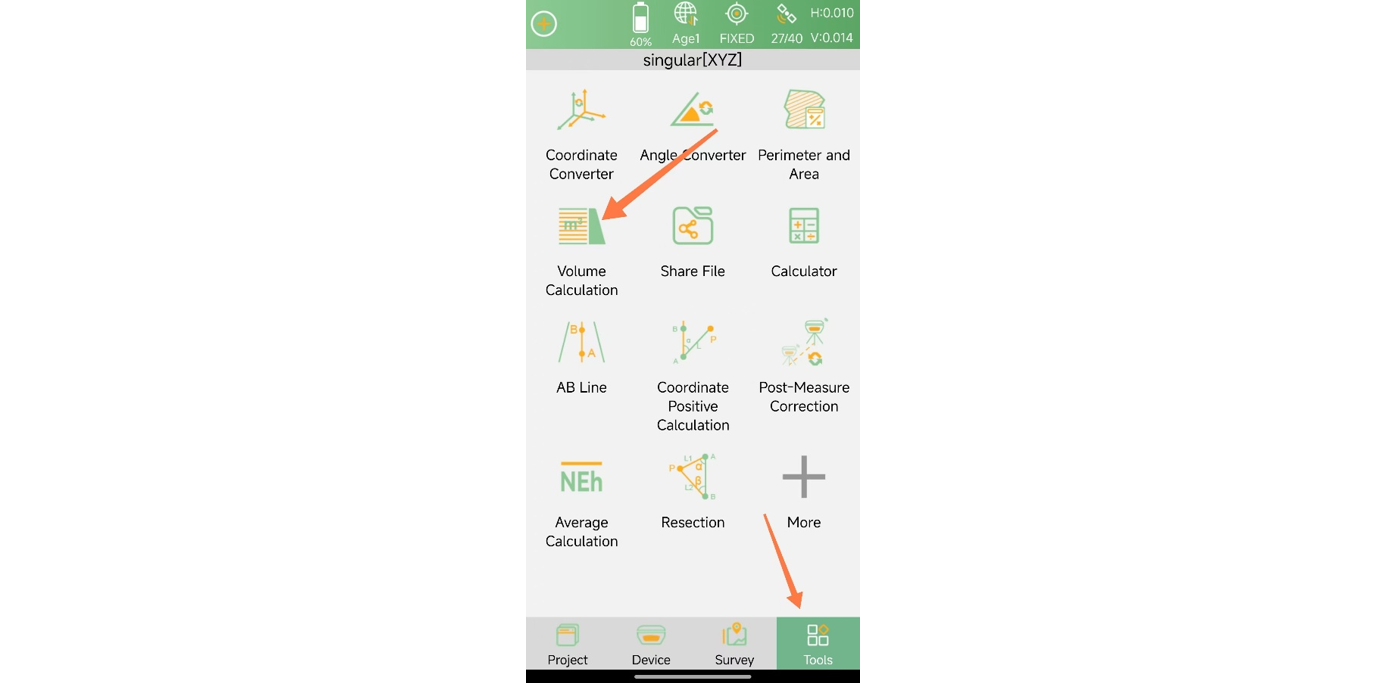
Select the measured points to create a region, which will be used as the calculation surface.
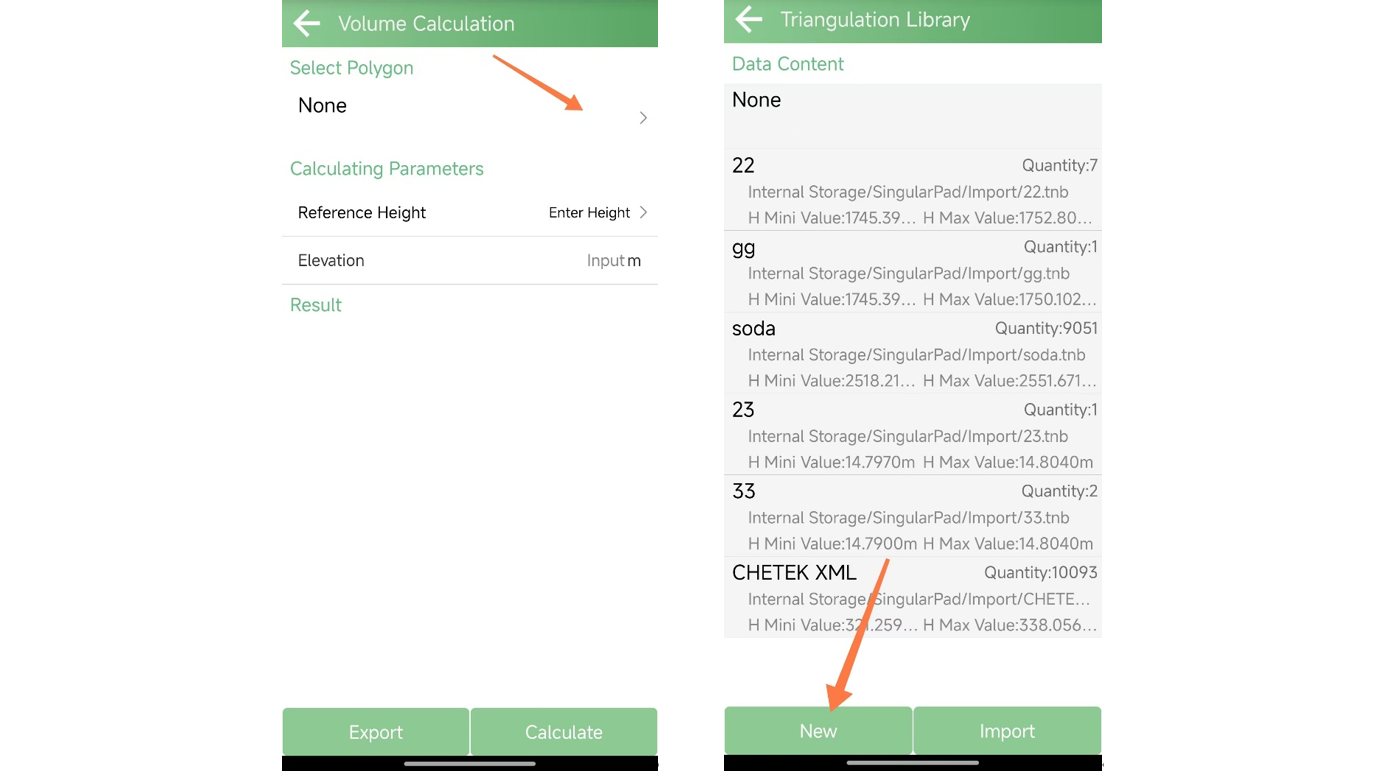
After creating the calculation region, the next step is to define the reference plane, which is essential for earthwork volume calculation.
In practice, earthwork volume is not calculated from a single surface. Instead, the software calculates the volume as the difference between the measured surface and a reference plane. The reference plane represents the target or baseline elevation used to determine cut or fill quantities.
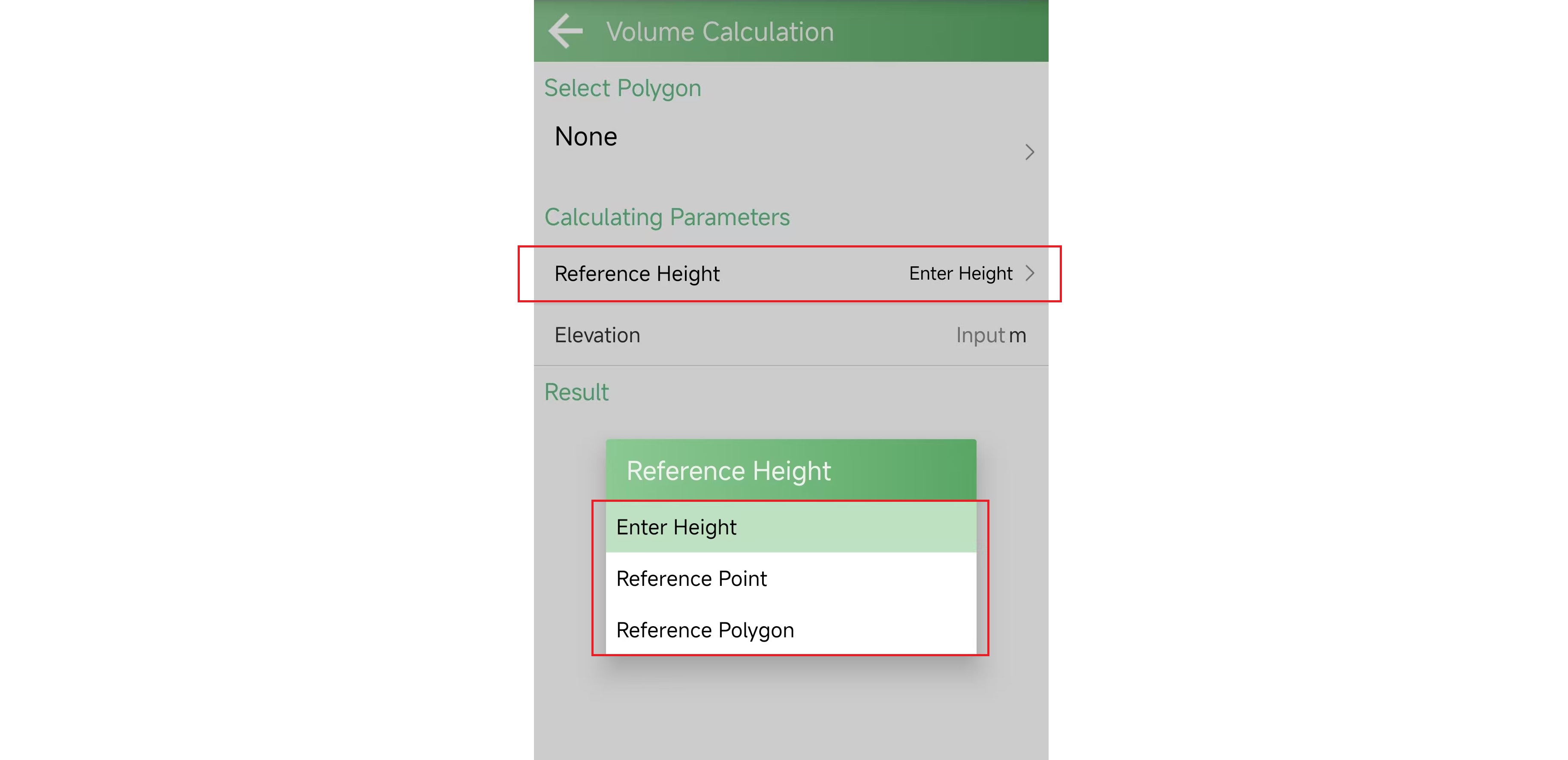
To support different engineering scenarios, SingularPad provides three methods for defining the reference plane:
Enter a reference elevation
A fixed elevation value is entered manually, and a horizontal reference plane is generated at that height.
Select a reference point
The elevation of a selected point is used as the reference plane.
Select a reference polygon
An existing polygon is selected and used as the reference plane for volume comparison.
In this tutorial, we use inputting a reference elevation as an example.
After selecting the newly created region as the calculation surface, enter the reference elevation and tap Calculate. SingularPad will then compute the earthwork volume between the measured surface and the defined reference plane.
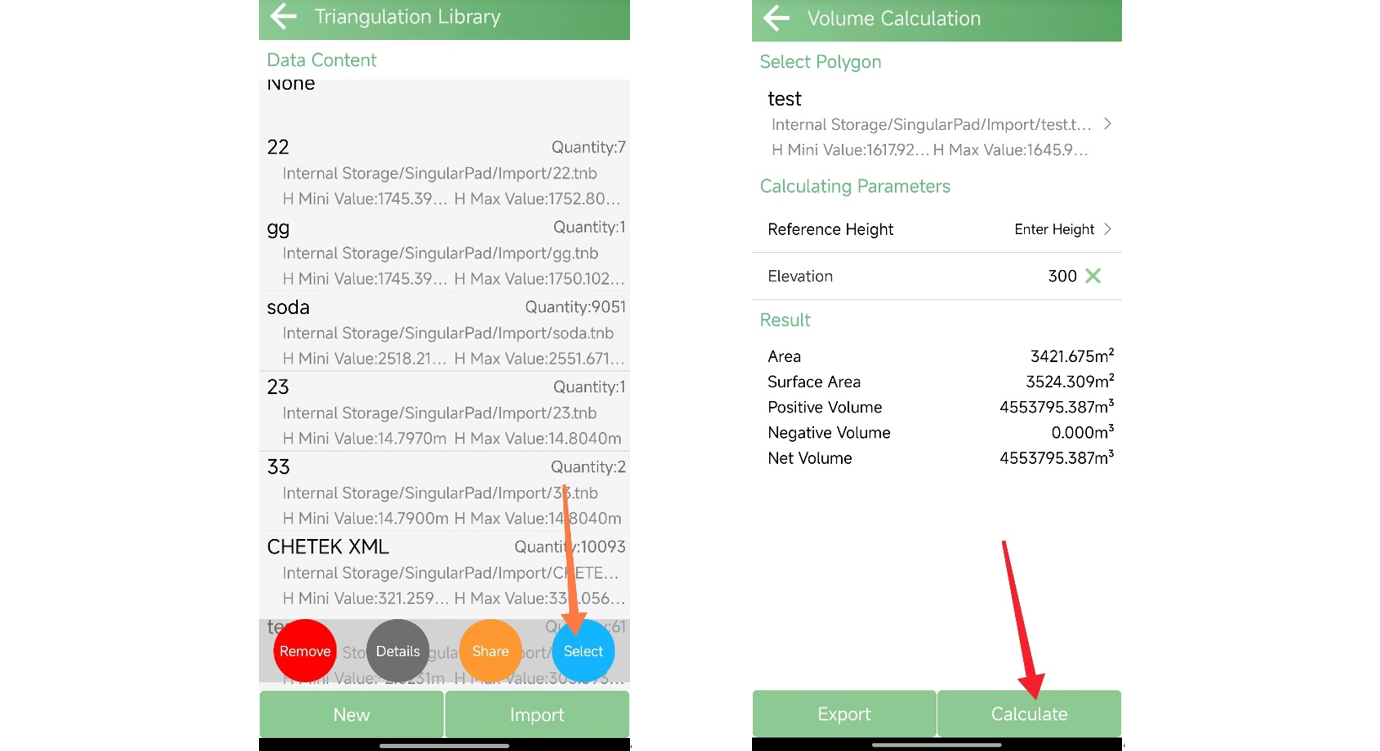
This completes the standard workflow for earthwork volume calculation in SingularPad.
By properly measuring the calculation area and correctly defining the reference plane, users can quickly obtain reliable cut-and-fill volume results for a wide range of engineering applications.
We hope this guide helps you make more effective use of the volume calculation function in SingularPad.