
















































































 Home
Home
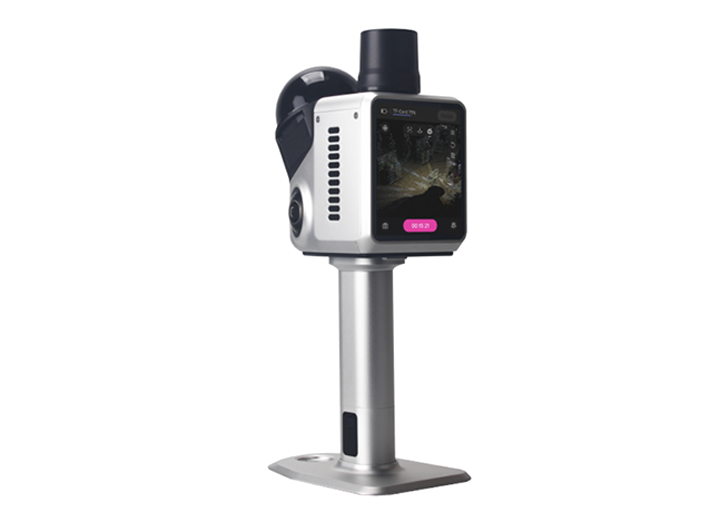
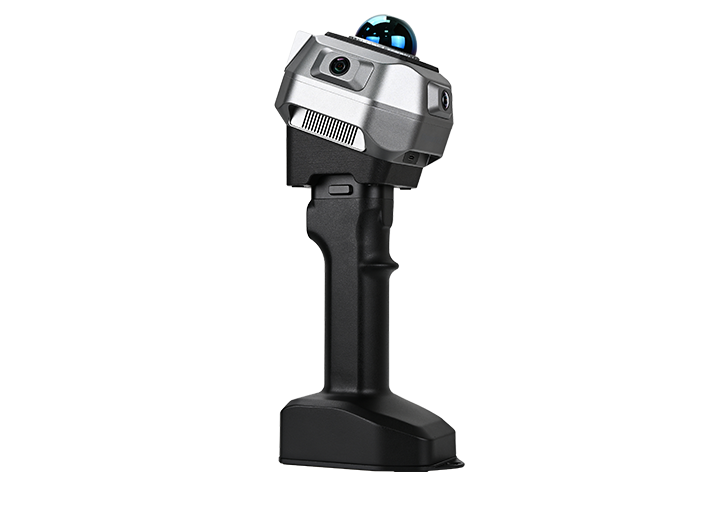
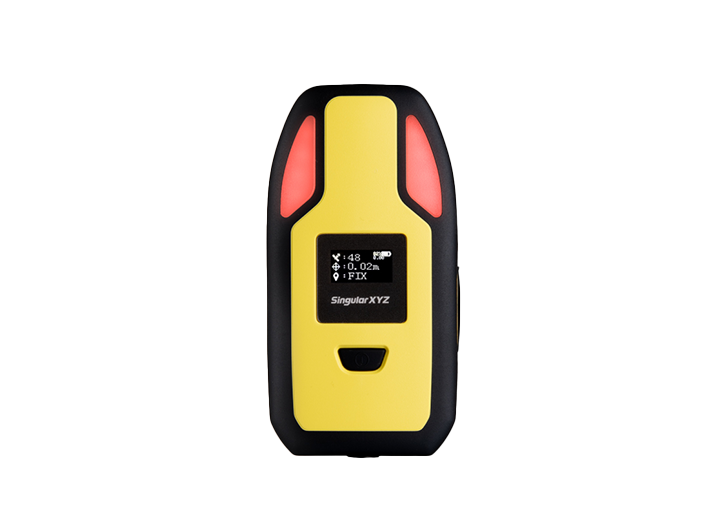
H1 Handheld 3D Laser Scanner
learn more






 2026-02-16
 Kimberly


The SingularXYZ H1 scanner is designed for efficient measurement and large-scale data acquisition across a wide range of applications. As new features are introduced and system performance is continuously optimized, the H1 firmware is updated through multiple iterations.
To ensure stable operation and access to the latest functions, keeping the system firmware up to date is recommended. This blog post provides a step-by-step guide on how to upgrade the H1 scanner system firmware.
If your H1 system firmware version is earlier than 5.0.4, please contact the SingularXYZ technical team to obtain the appropriate firmware upgrade package.
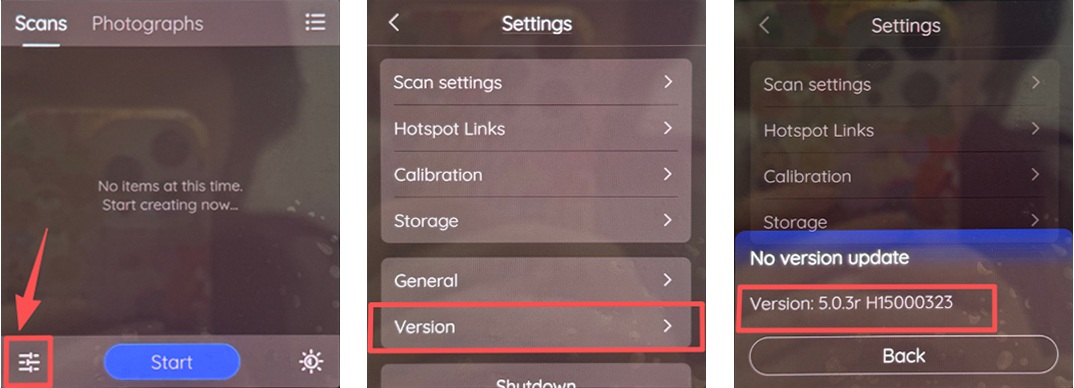
To check your current system firmware version, follow the steps below:
Before starting the upgrade, prepare the following:
A USB flash drive with a Type-C interface
The H1 firmware upgrade package provided by SingularXYZ
Create a folder named "upgrade" in the root directory of the USB drive, and place the firmware upgrade package inside this folder.

Power off the H1 scanner.
Insert the USB flash drive containing the upgrade package into the H1.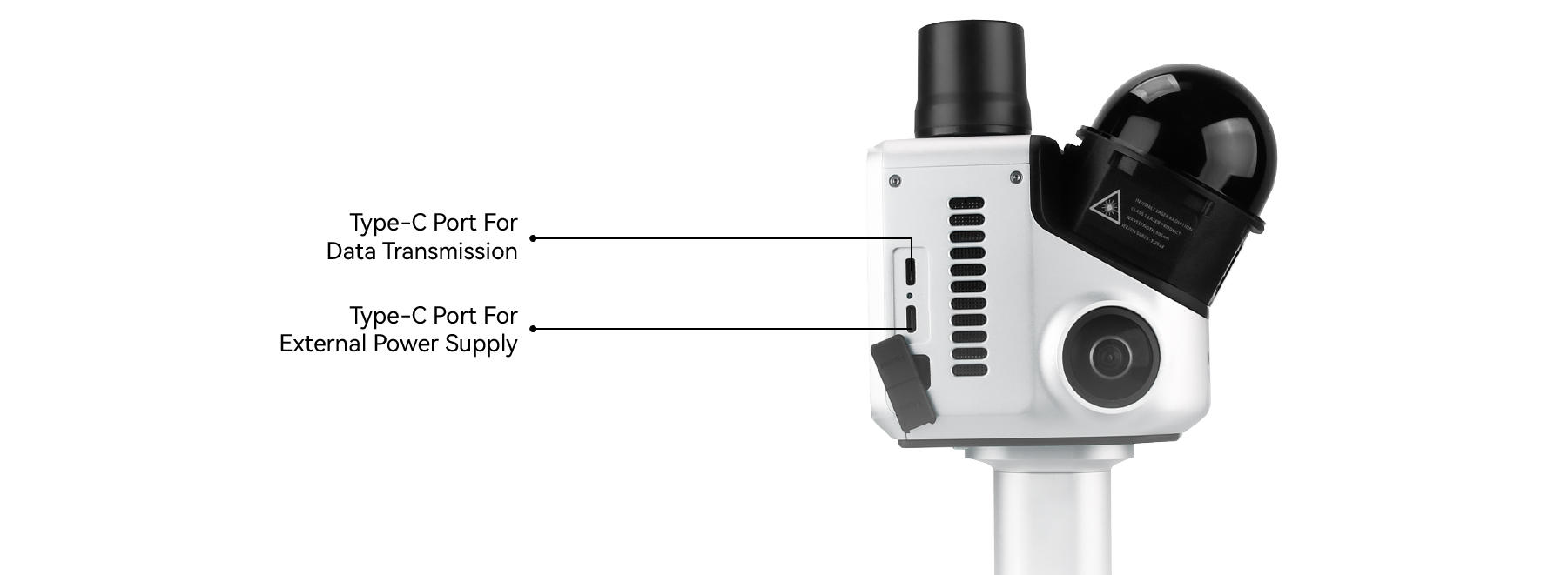
Power on the device.
The H1 will automatically detect the upgrade package and display a system upgrade prompt on the screen.
Tap "Upgrade Now" to start the firmware upgrade process.
Wait for the upgrade to complete.
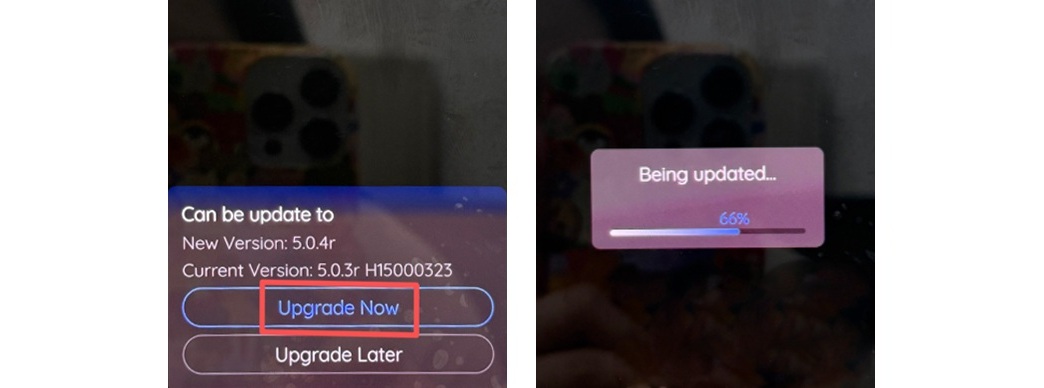
Do not power off the device or remove the USB drive during the upgrade.
Once the upgrade is complete, the H1 will restart automatically.
After rebooting, check the system firmware version again using the same method described earlier to confirm that the upgrade was successful.
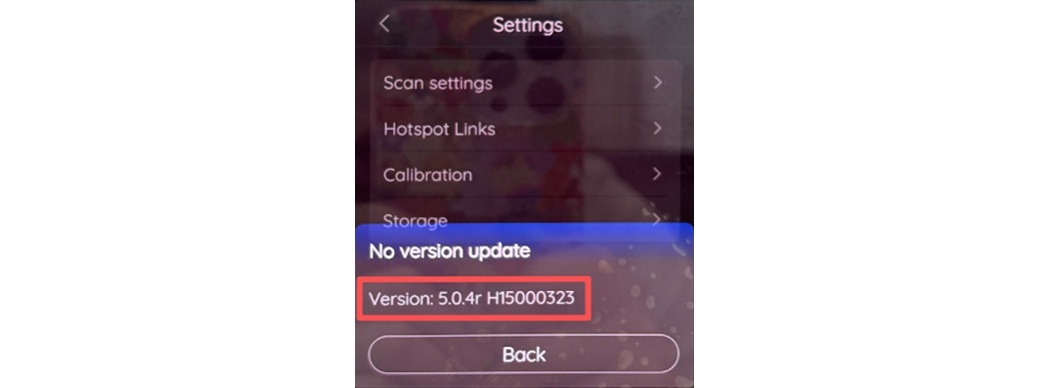
Notes
Ensure the USB drive is properly formatted and the folder name is exactly upgrade.
Interrupting the upgrade process may result in system malfunction.
If the upgrade prompt does not appear, verify the firmware version, file placement, and USB compatibility.
This completes the firmware upgrade process for the H1 scanner.
If you encounter any issues during the upgrade, please contact the SingularXYZ support team for assistance.