



































































 Home
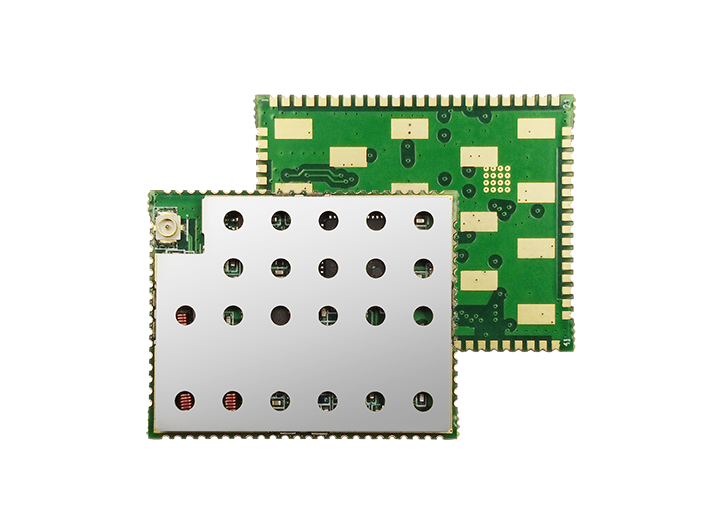
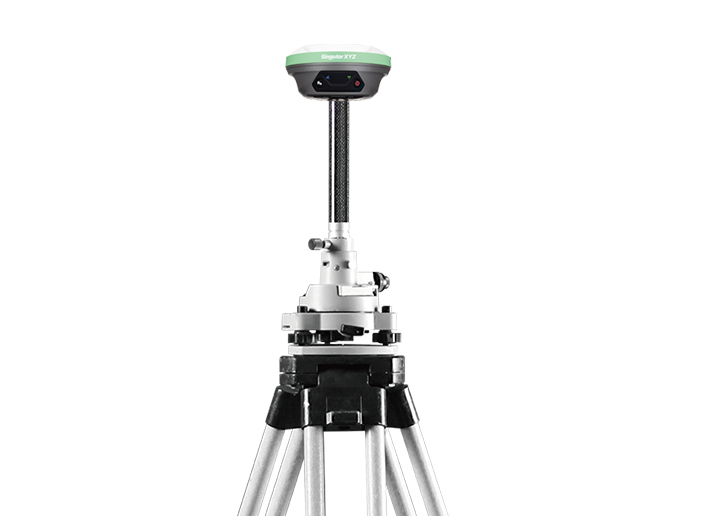
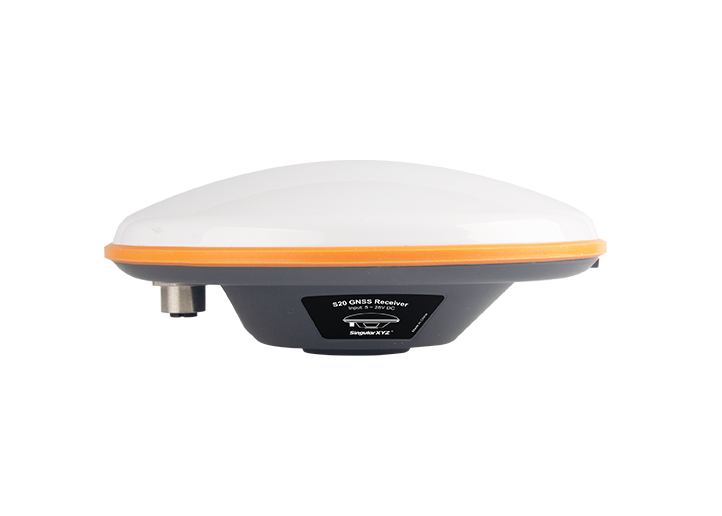
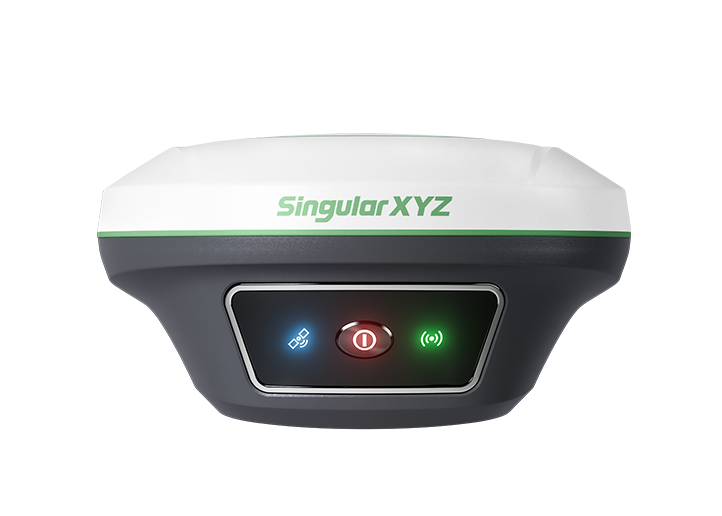
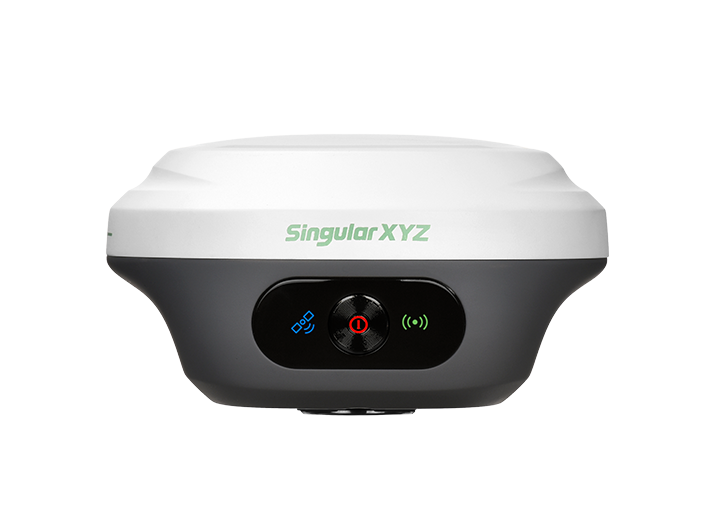
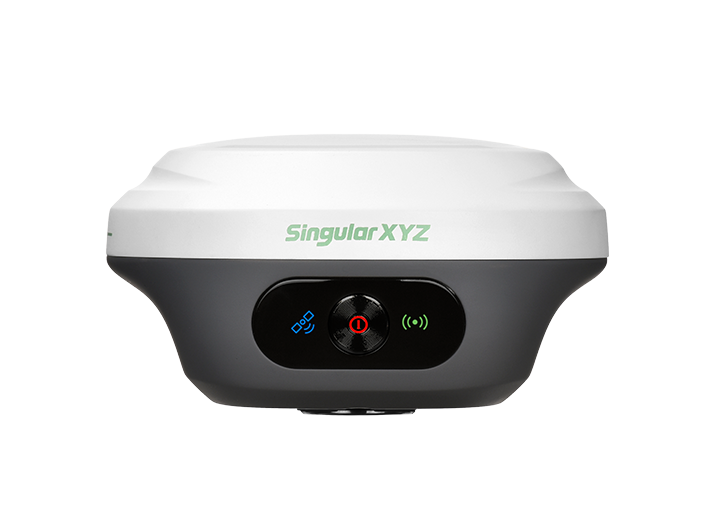
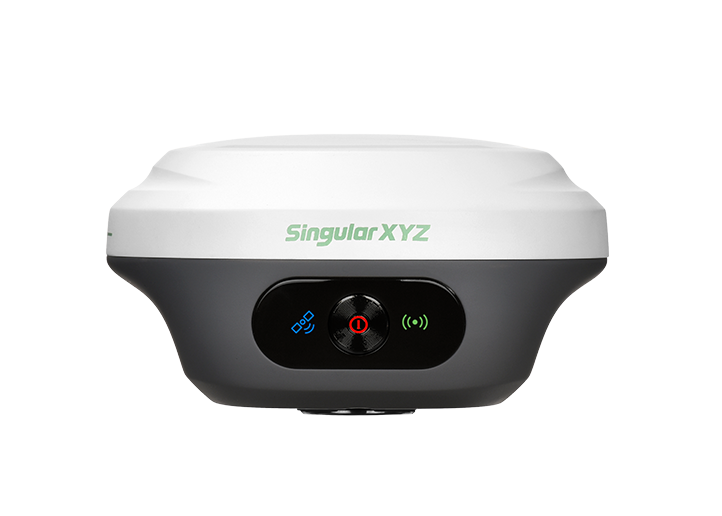
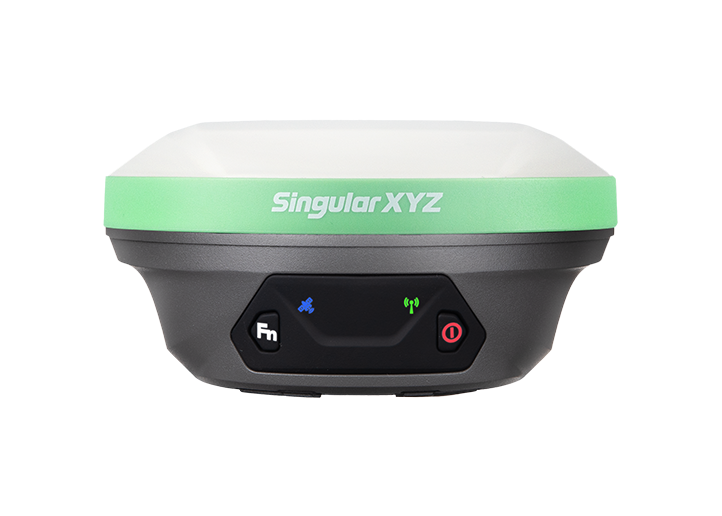
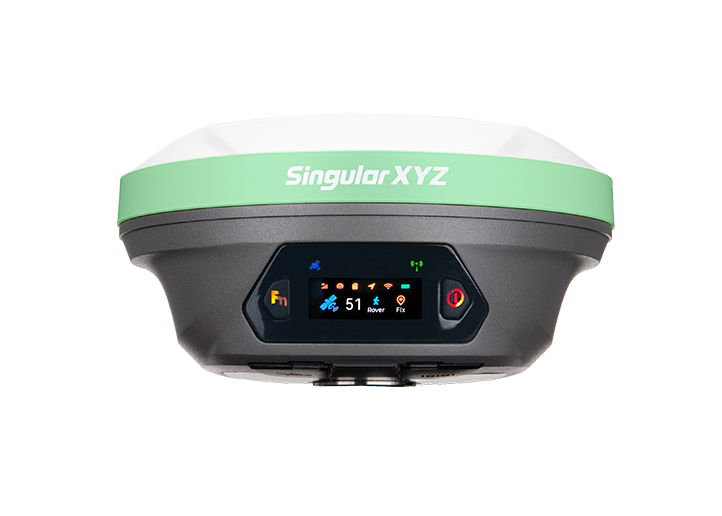
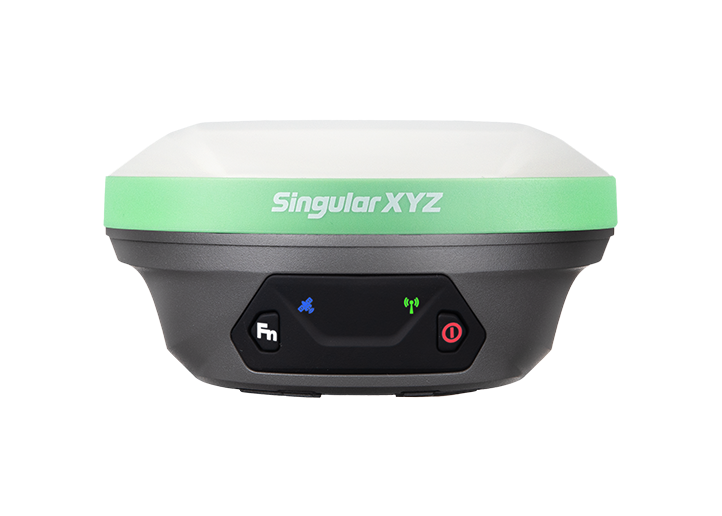
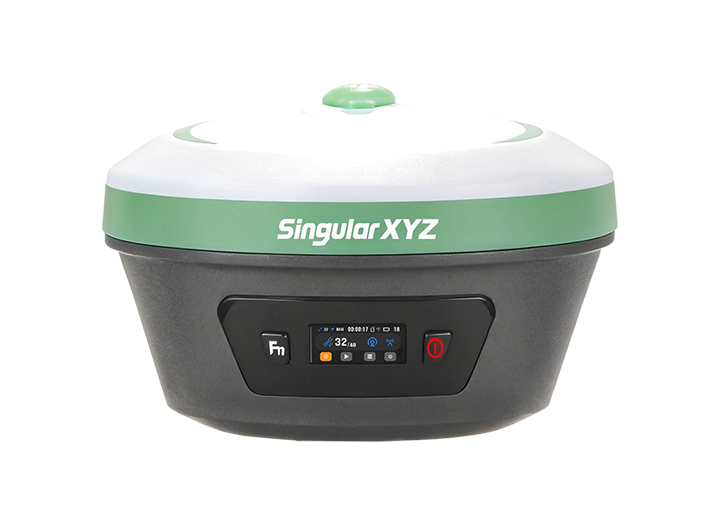
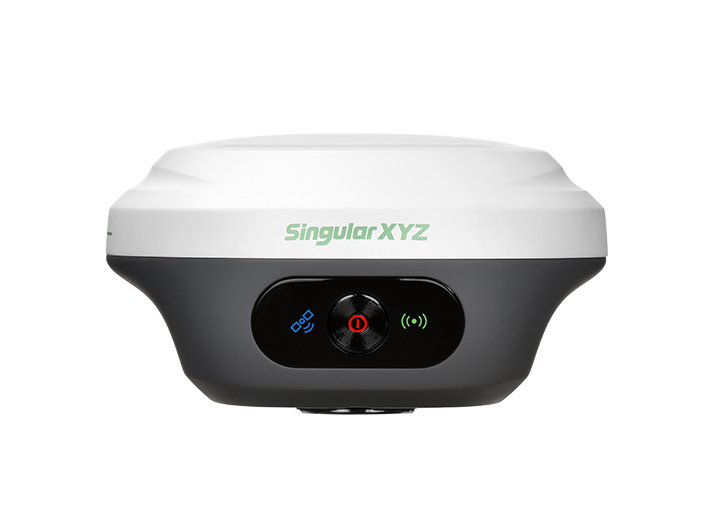
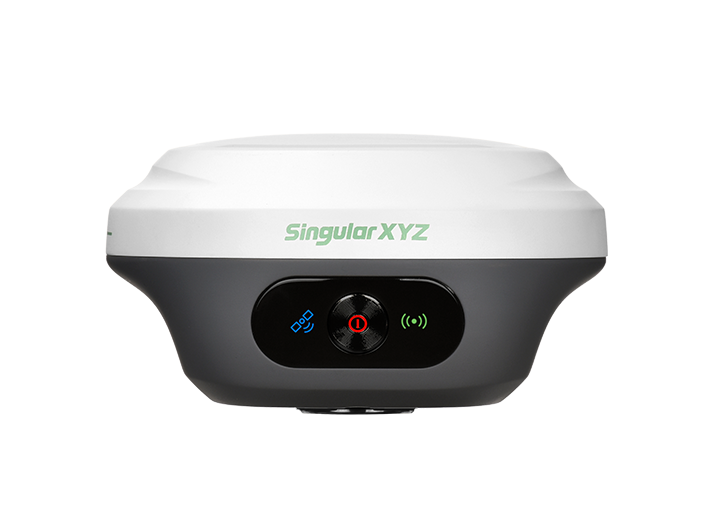
Z1 GNSS Receiver
learn more




 2026-11-10
 Gus


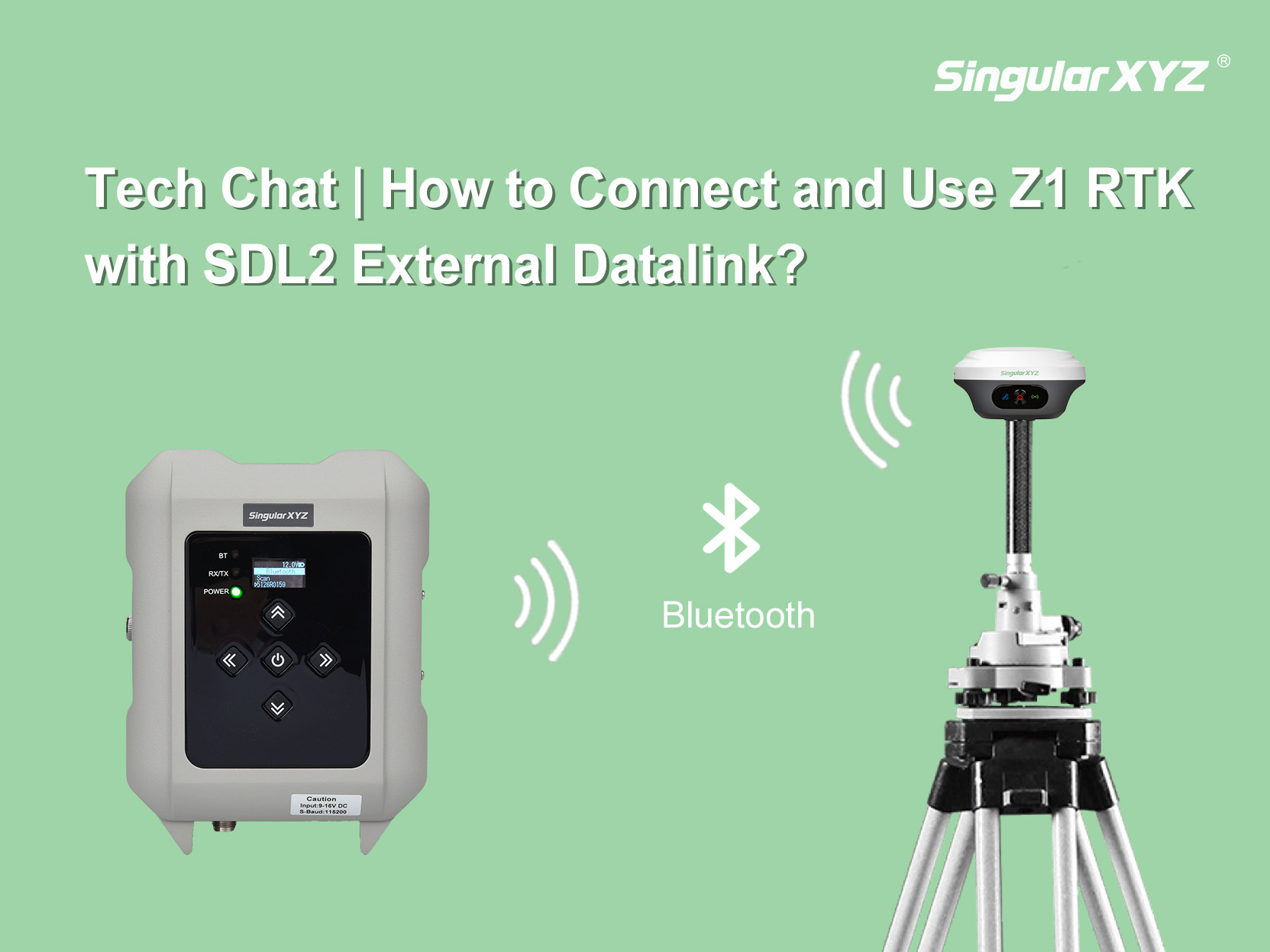
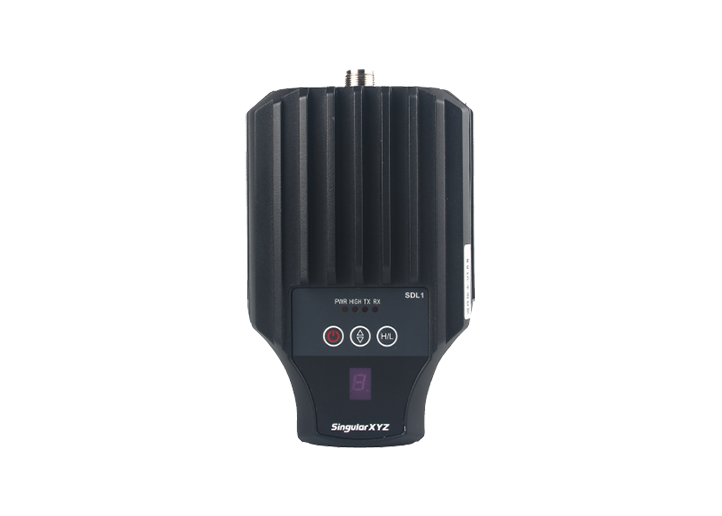
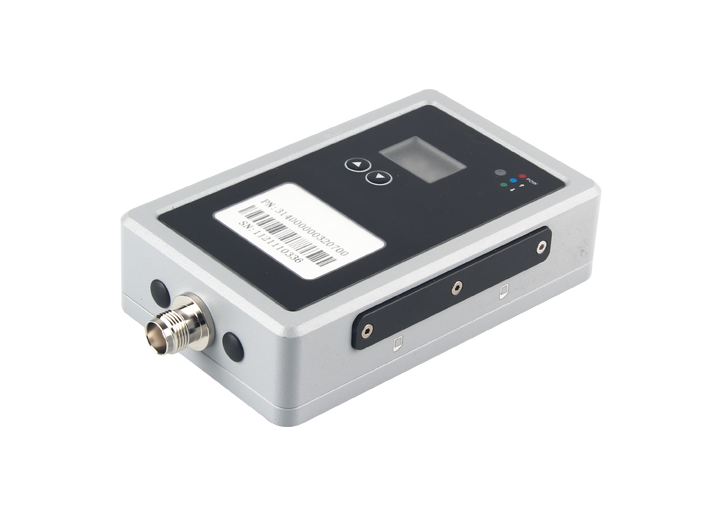
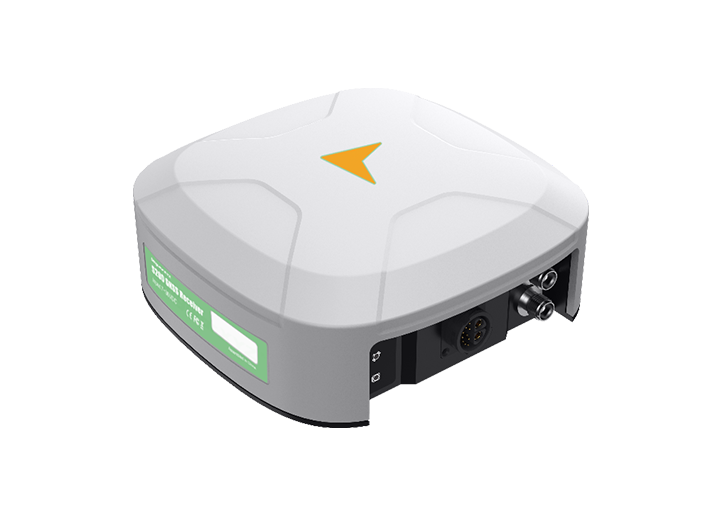
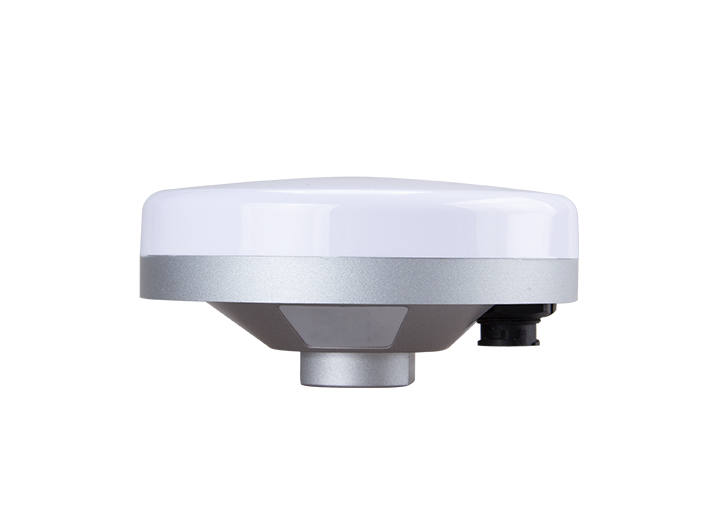
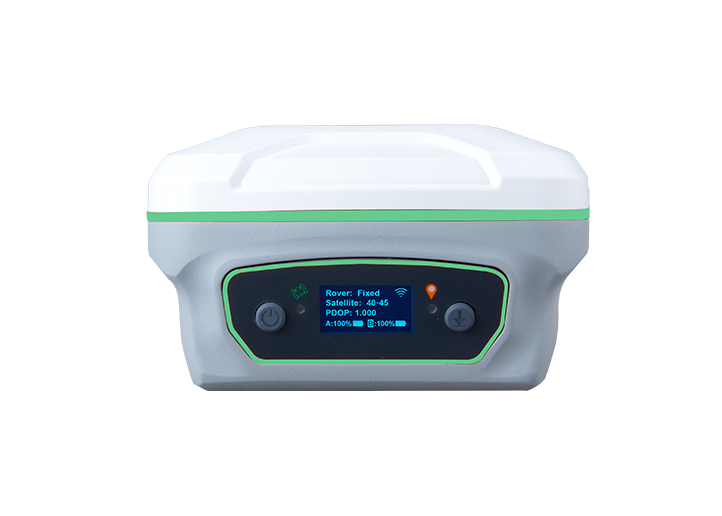
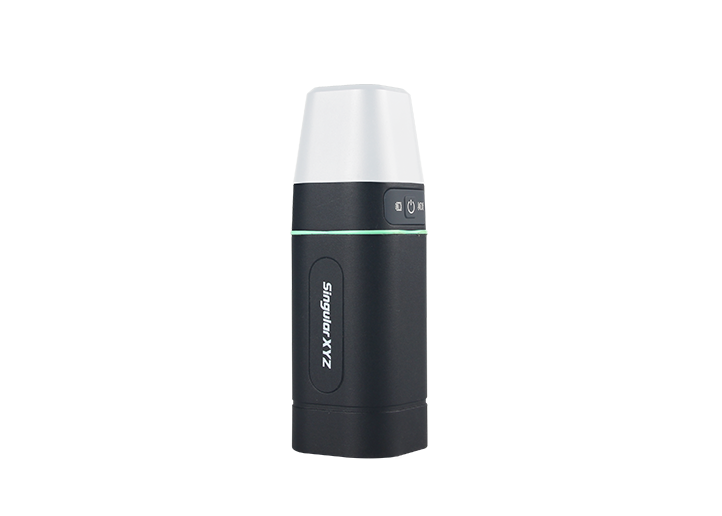
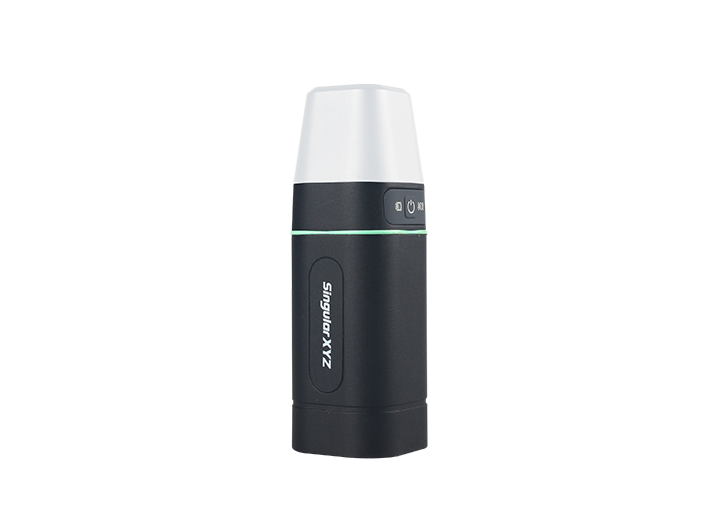
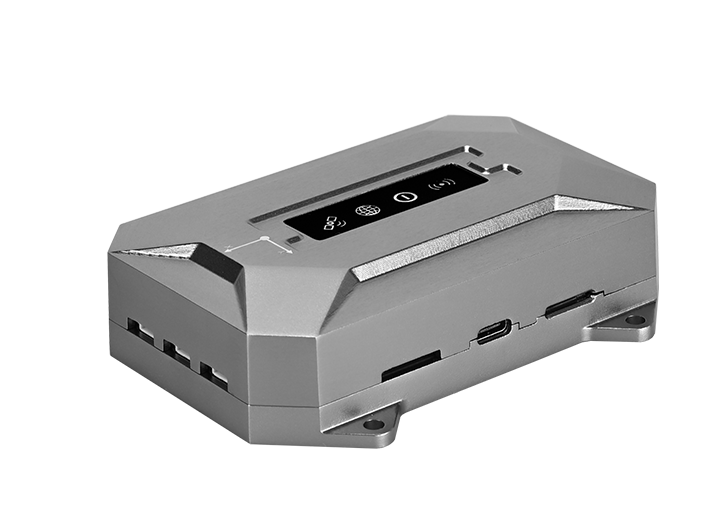
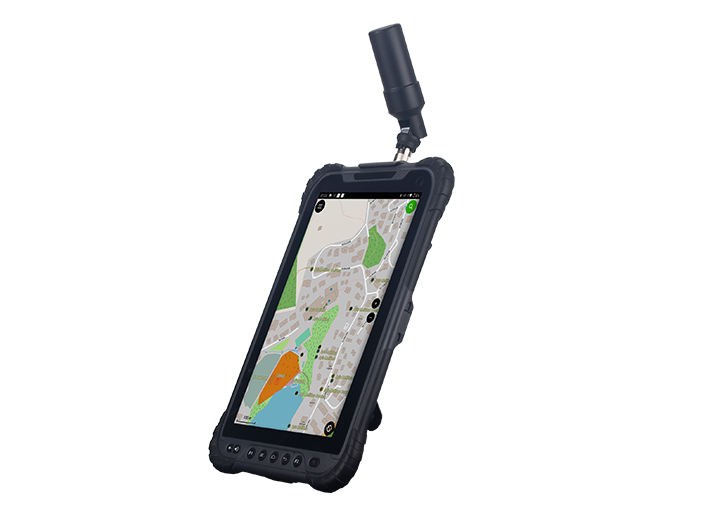
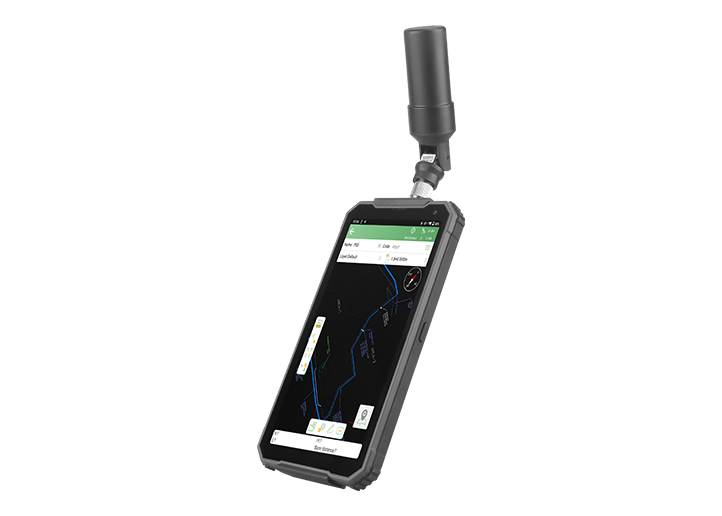
External radios such as the SDL2 are commonly connected to GNSS receivers through a serial port. However, some compact receivers, such as the Z1, do not have a physical serial port. So, how can you use an SDL2 radio with the Z1 to transmit GNSS correction data?
With a dedicated firmware version, the Z1 supports connecting to the SDL2 via Bluetooth, allowing you to use an external radio without a serial cable. Follow the steps below to complete the configuration.
Please check the following requirements:
Firmware Version: The Z1 must be running the special firmware version Z1_V4.5.0.6.S1, which supports this feature. After connecting the Z1 to SingularPad, go to Device Information to check its firmware version. If your device is running a different version, please contact our technical support team for assistance with the update.
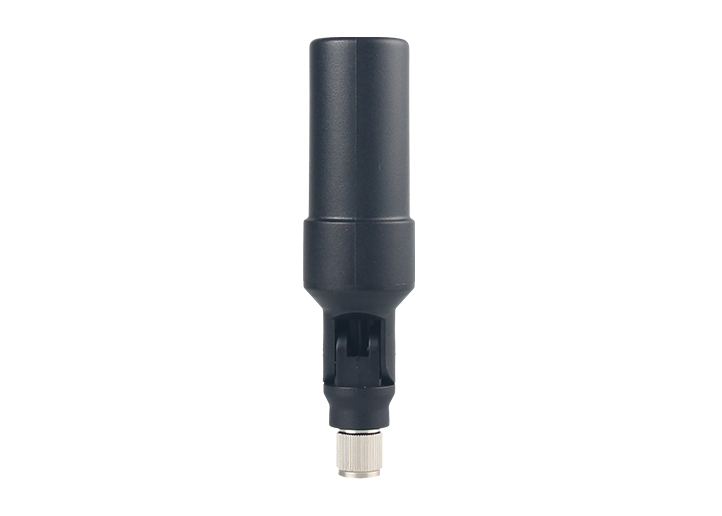
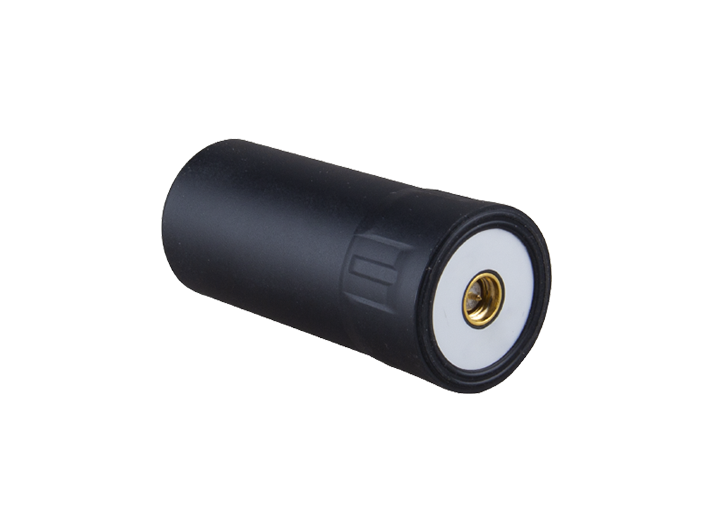
Radio Antenna: Make sure a radio antenna is connected to the SDL2 before use.
Step 1: Configure the Z1 Base Station
Power on the Z1 and wait until it enters satellite-searching mode.
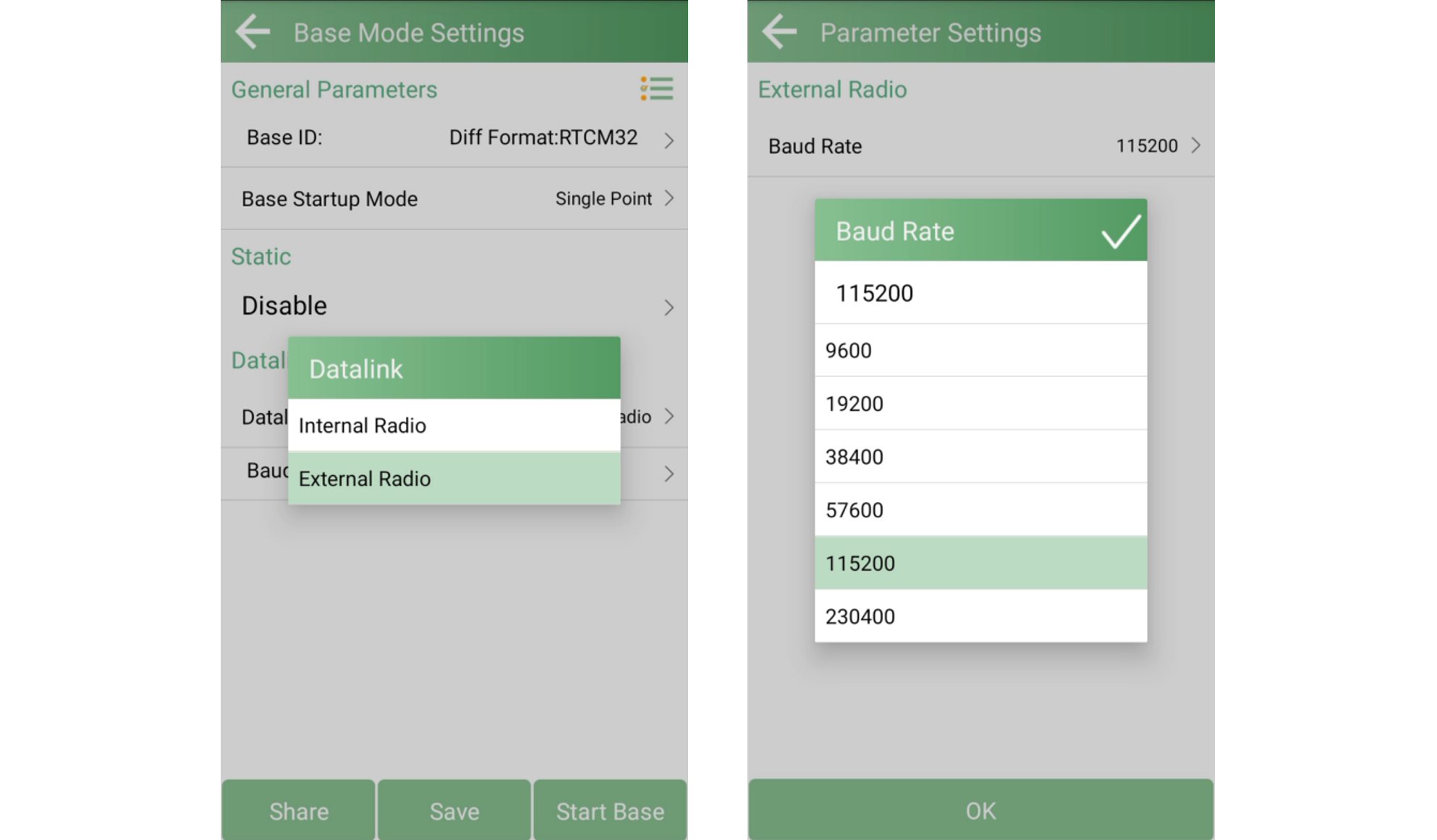
Open the BASE interface and select External Radio as the Datalink. Set the baud rate to 115200, then tap Start Base to start the base station.
Step 2: Power On and Connect the SDL2
Connect the SDL2 to a power source and press and hold the power button to turn it on.
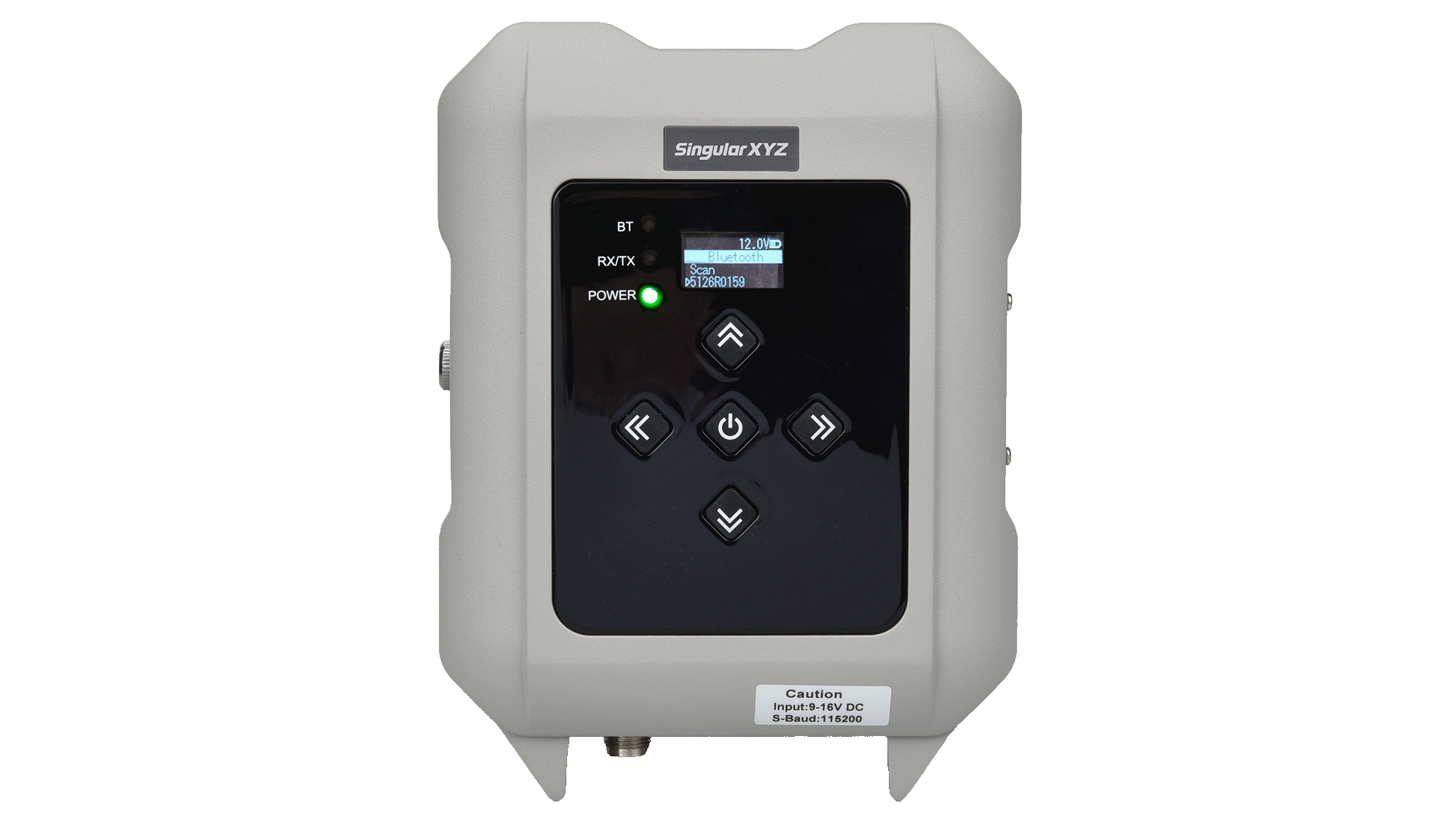
Open the Bluetooth interface on the SDL2 and tap Scan. Find and select the Z1 base station by its serial number (SN) to establish the connection.
Step 3: Configure the SDL2 Radio Settings
Once the Bluetooth connection is established, open the radio settings interface on the SDL2.
Configure the required parameters, including the radio protocol, operating mode (Transmit), baud rate, and frequency.
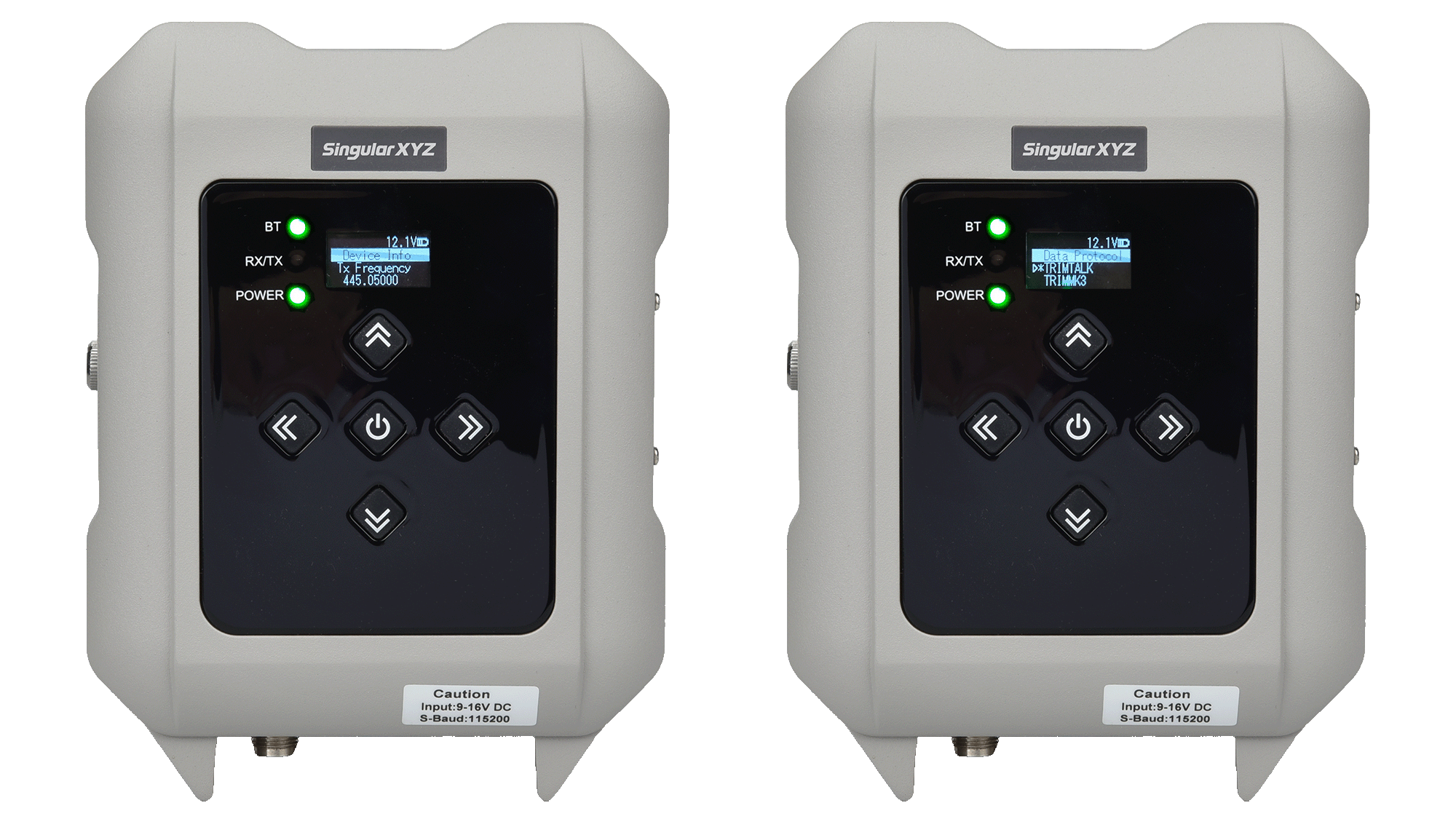
After successful configuration, the BT and RX/TX indicators on the SDL2 will start flashing, indicating that the Bluetooth connection and radio data transmission are active.
Step 4: Configure the Rover
Power on the rover and open its radio settings interface.
Set the radio parameters to match those configured on the SDL2, including the radio protocol, baud rate, and frequency.
Once the rover receives the correction data successfully, wait for it to obtain a FIXED solution.
By using the dedicated firmware and Bluetooth connection, the Z1 can work with the SDL2 external radio without requiring a physical serial port or serial cable. This setup provides a practical way to extend the Z1's radio communication capabilities and use it in base-and-rover RTK applications.