

































































 Home
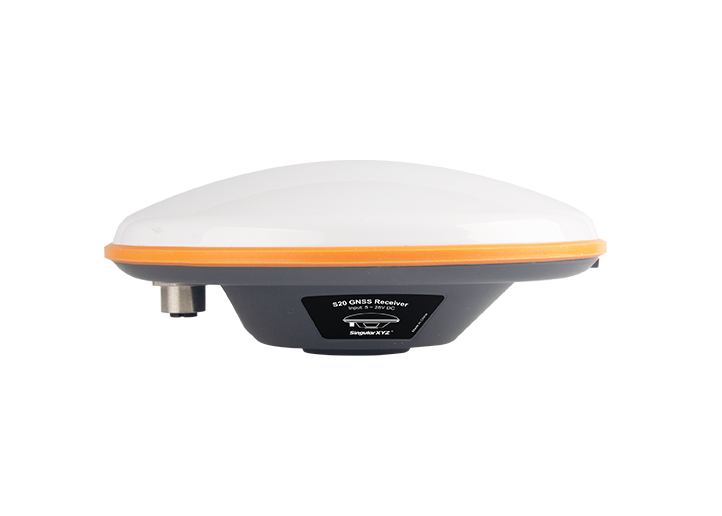
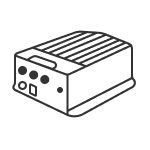
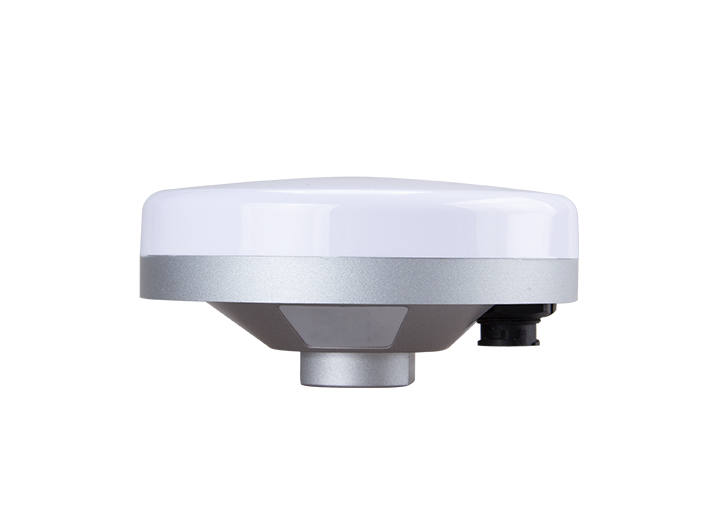
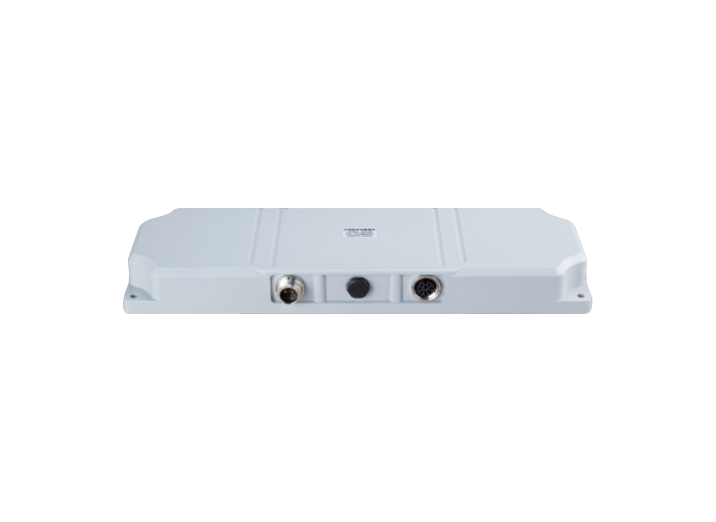
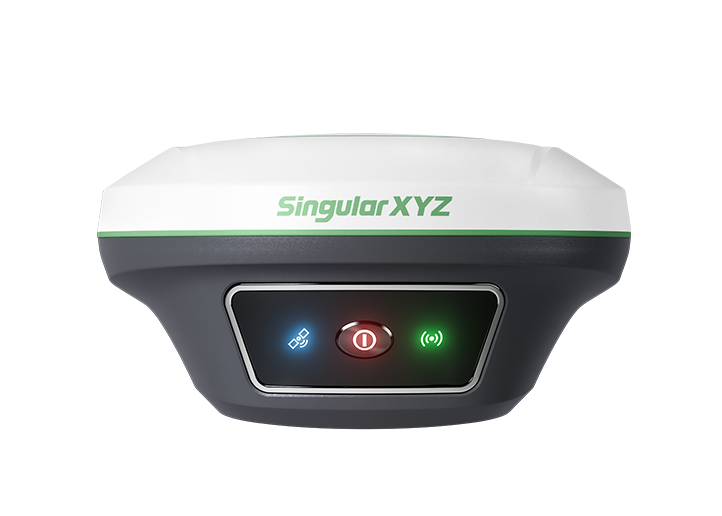
SV100 GNSS Receiver
learn more








 2026-11-24
 Kyrie


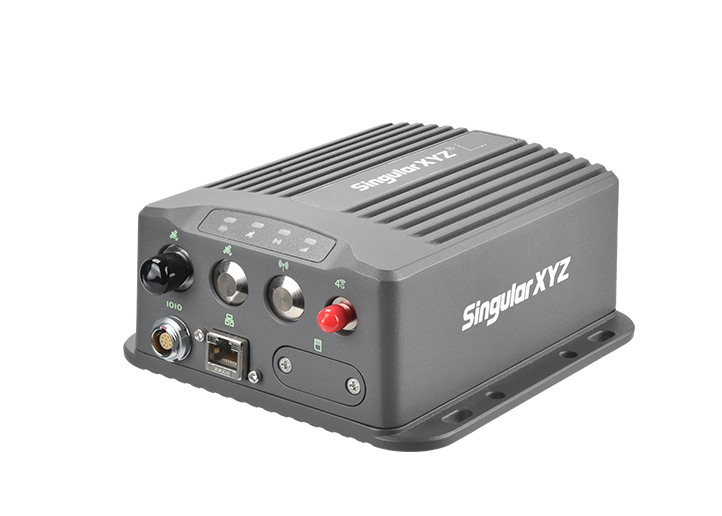
When the SV100 is used as a network base station, it needs an Internet connection to transmit correction data to rovers through the network. The SV100 supports two ways to access the Internet: wired Ethernet and mobile data via a SIM card.
This article explains how to configure both connection methods so you can choose the one that best suits your working environment.
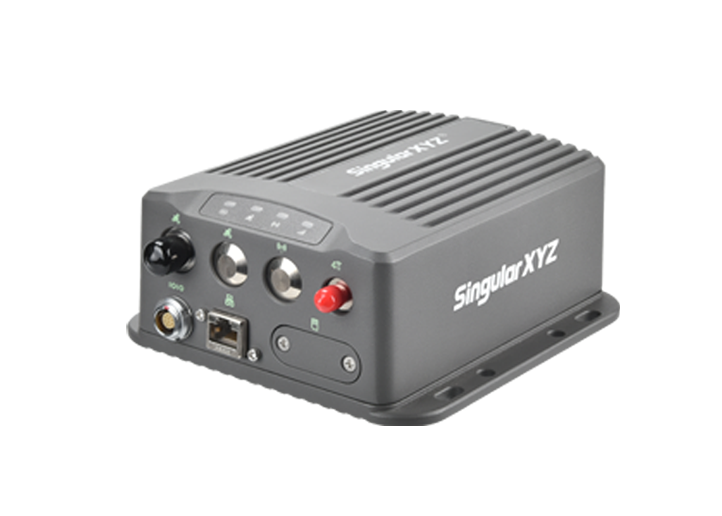
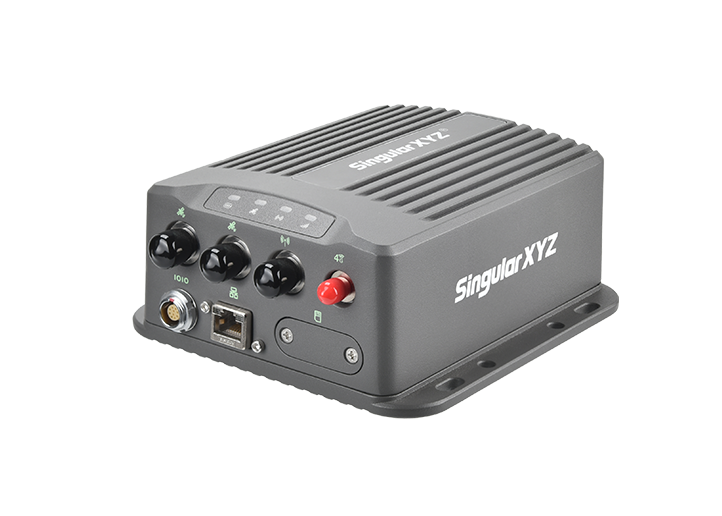
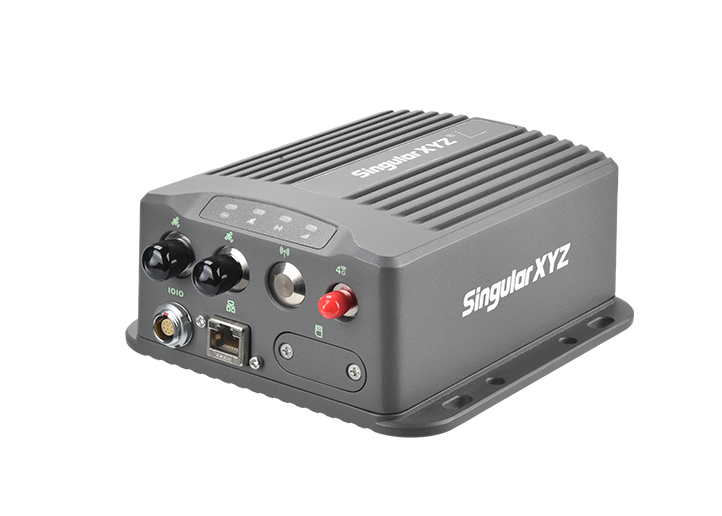
The SV100 has a built-in Ethernet port, allowing you to connect it to a router using an Ethernet cable.
Step 1: Connect the Ethernet Cable
Connect the SV100's Ethernet port to a router using an Ethernet cable.
Step 2: Access the Configuration Interface
After connecting the cable, connect your computer to the SV100 Wi-Fi network (WiFi name: SN of your SV100, Password: 12345678).
Open a web browser and enter 192.168.10.12 (Username: admin, Password: admin) to access the SV100 configuration interface.
Step 3: Open Ethernet Configuration
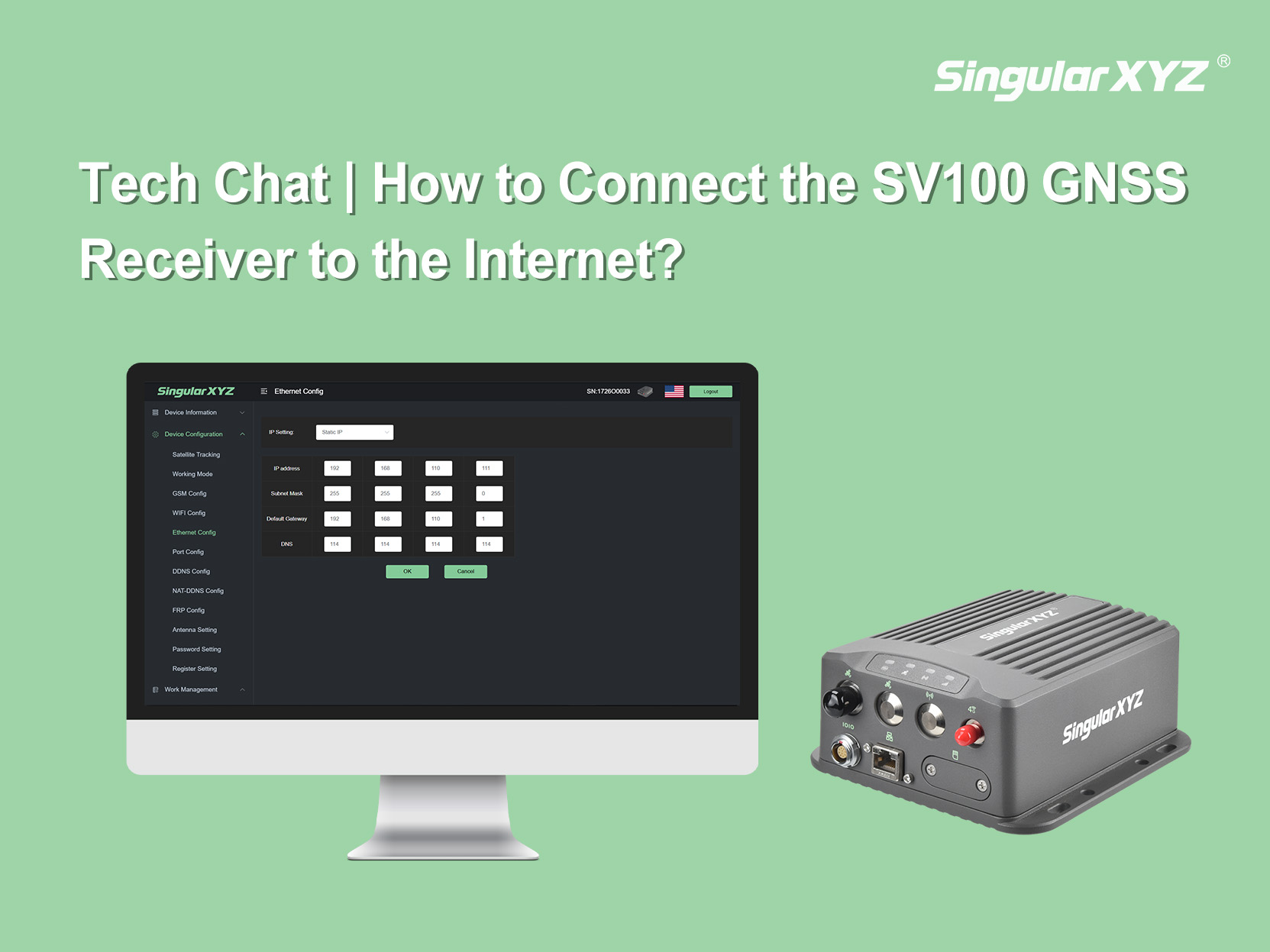
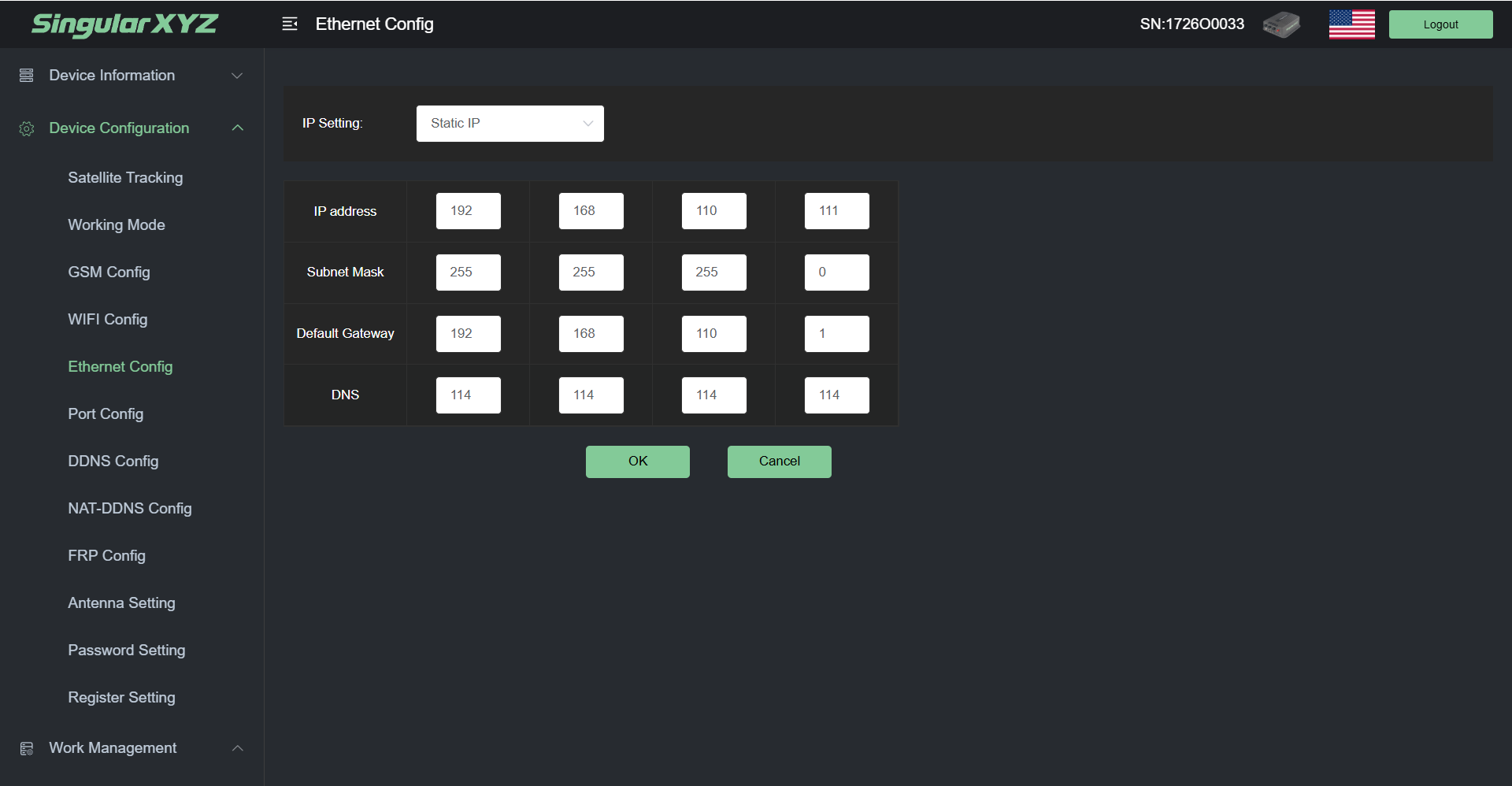
Navigate to Device Configuration > Ethernet Config, as shown below.
Step 4: Configure the IP Address
Under IP Setting, select either Static IP or DHCP.
We recommend using DHCP, which allows the router to automatically assign an available IP address to the SV100 without requiring manual configuration.
If you need to use a static IP address, follow the steps below. (Read previous blog to learn more about static IP: Tech Chat | Understanding LAN, Public, and Static IPs in CORS Setup)
A. Find the Router's Default Gateway
On your computer, open Command Prompt (CMD) and enter the following command:
ipconfig
Make sure your computer is connected to the router's Wi-Fi network before running the command.
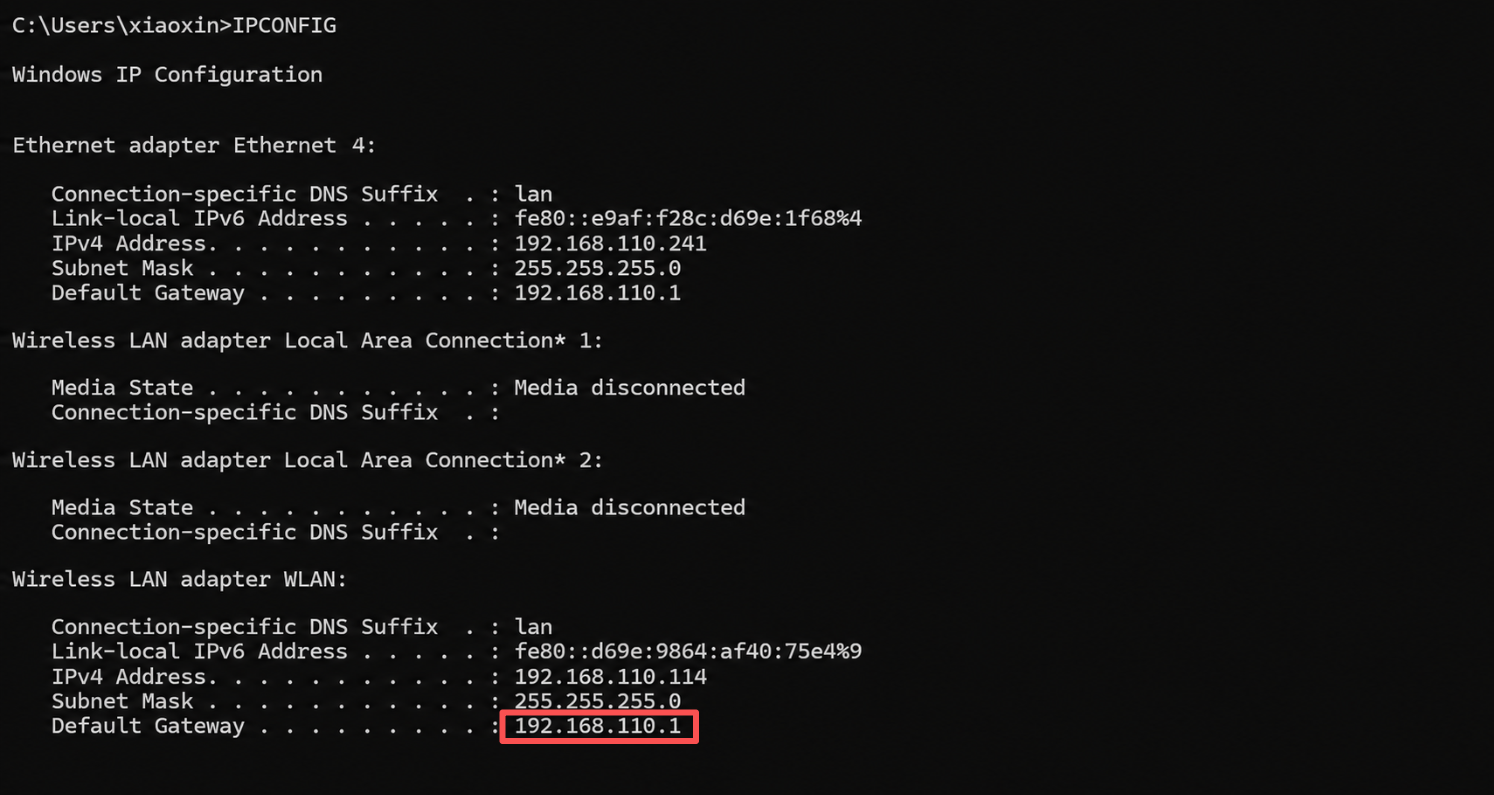 Find the Default Gateway value in the network information. This is the address you need to enter in the Default Gateway field on the SV100 static IP configuration page.
B. Configure the Static IP Address
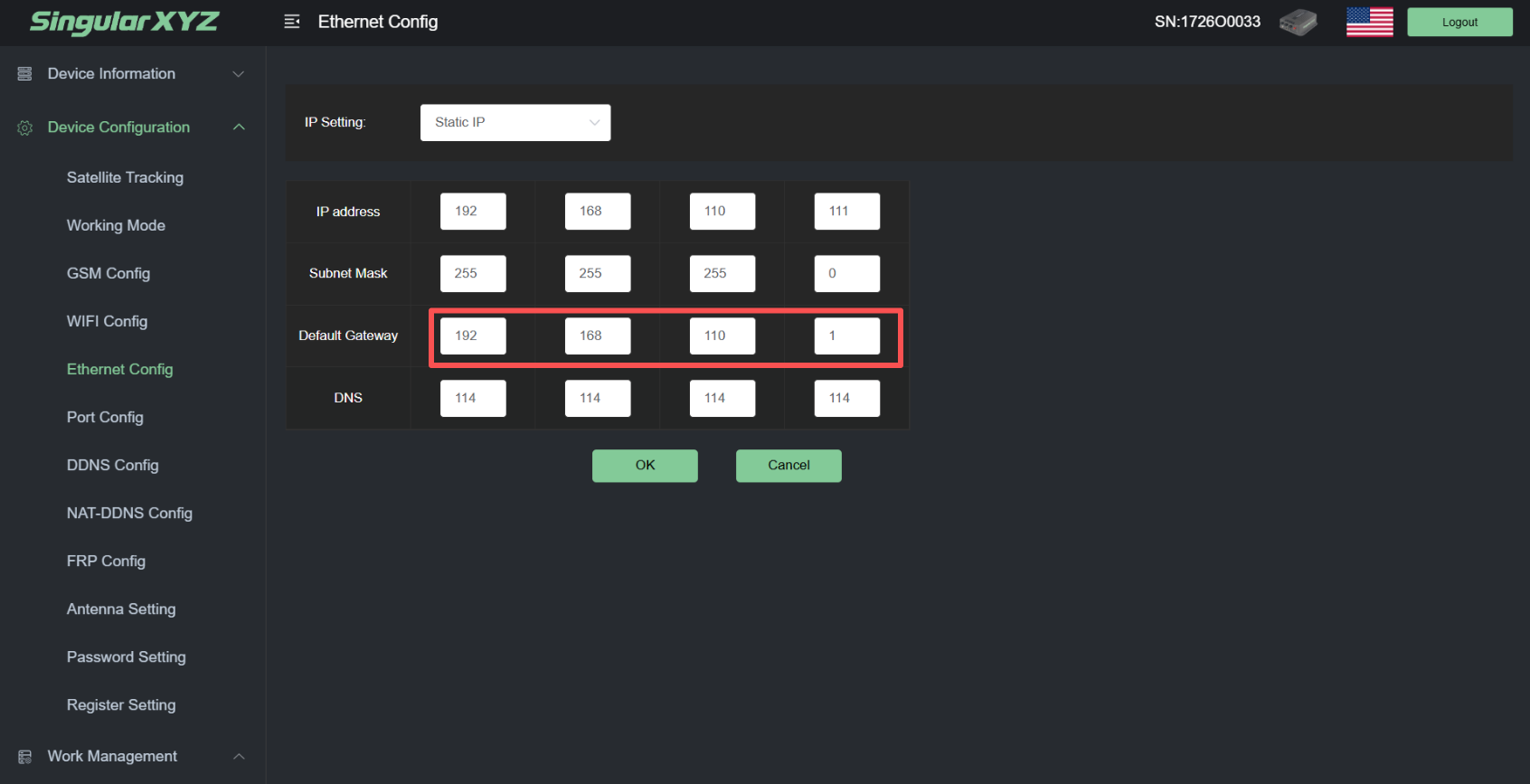
Based on the network information displayed, configure the following parameters:
IP Address: Use the same first three number groups as the default gateway, then assign an unused last number between 2 and 254. Make sure the selected IP address is not already assigned to another device on the network.
Subnet Mask: 255.255.255.0
Default Gateway: Enter the default gateway obtained from the ipconfig command.
DNS: 114.114.114.114
Click OK to apply the settings.
If a wired network connection is unavailable, you can use a SIM card to connect the SV100 to the Internet through a mobile network.
Step 1: Insert the SIM Card and Connect the Antenna
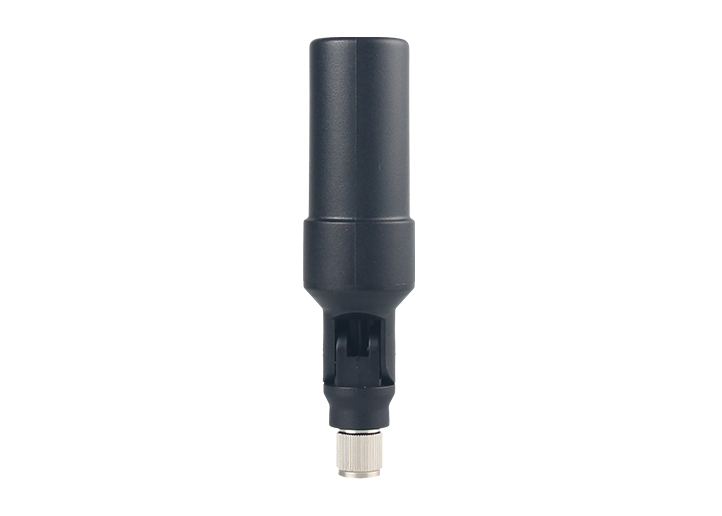
Insert a SIM card into the SV100 and connect the 4G antenna.
Step 2: Configure APN Settings
If your SIM card requires specific APN settings, enter the information in the corresponding fields. You can contact your mobile network operator to obtain the correct APN details.
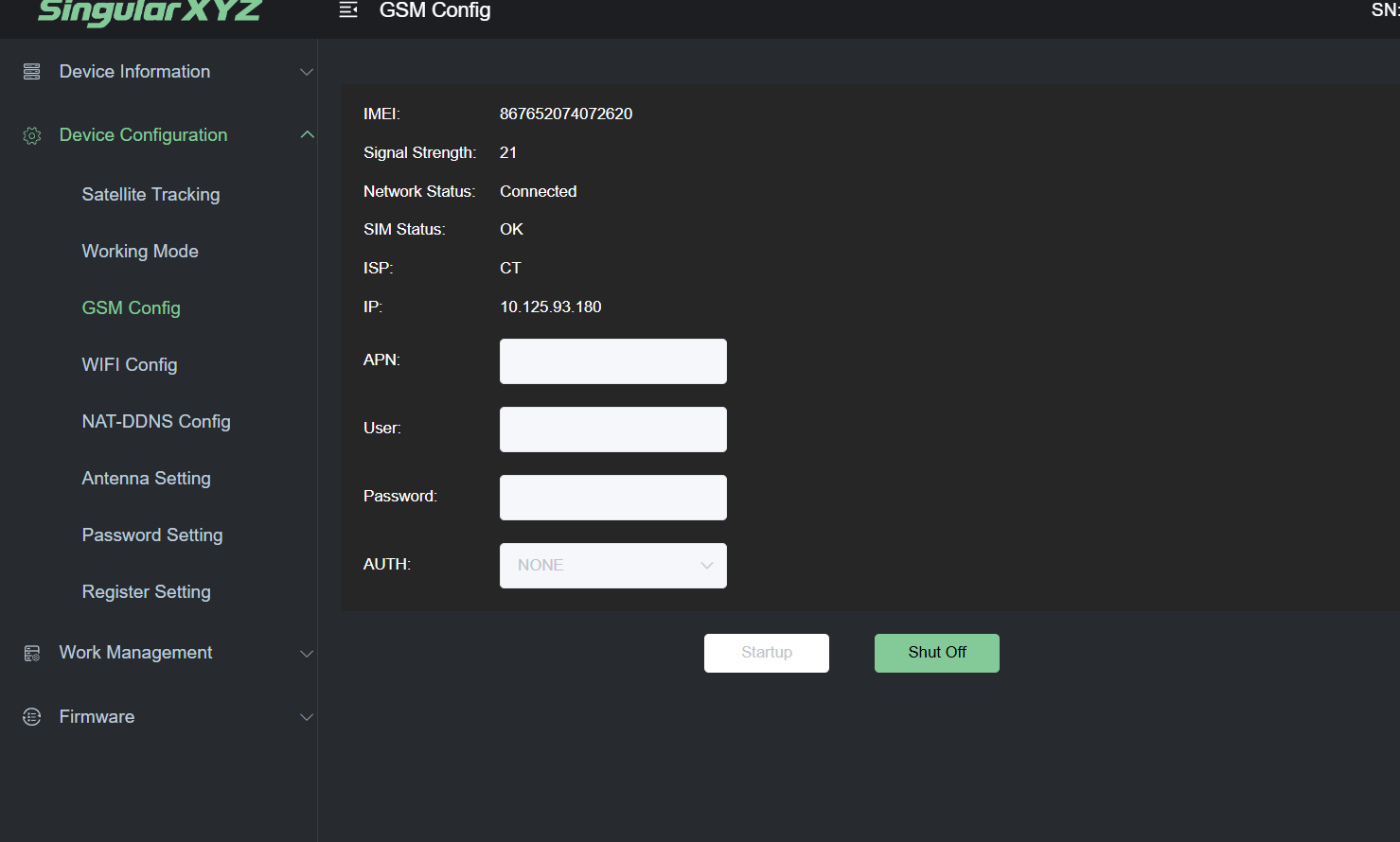
Step 3: Start the Network Connection
Once the settings are configured, click Startup to connect to the Internet using the SIM card.
After the connection is established, check the following information:
Signal Strength: Should be 20 or higher.
SIM Status: Should display OK.
IP Address: An IP address assigned by the mobile network operator should be displayed.
These indicators help you confirm that the mobile network connection is working properly.
The SV100 supports both wired Ethernet and GSM connections, giving you flexibility when setting up a network base station. Whether you use a router or a SIM card, make sure the Internet connection is working properly before using the SV100 to transmit correction data to rovers.
 2024-09-09
2024-08-27
2024-06-14
2023-08-17