

































































 Home
Home

SAgro200
Auto-Steering System
Auto-Steering System
learn more






 2026-10-26
 Kyrie
Kyrie


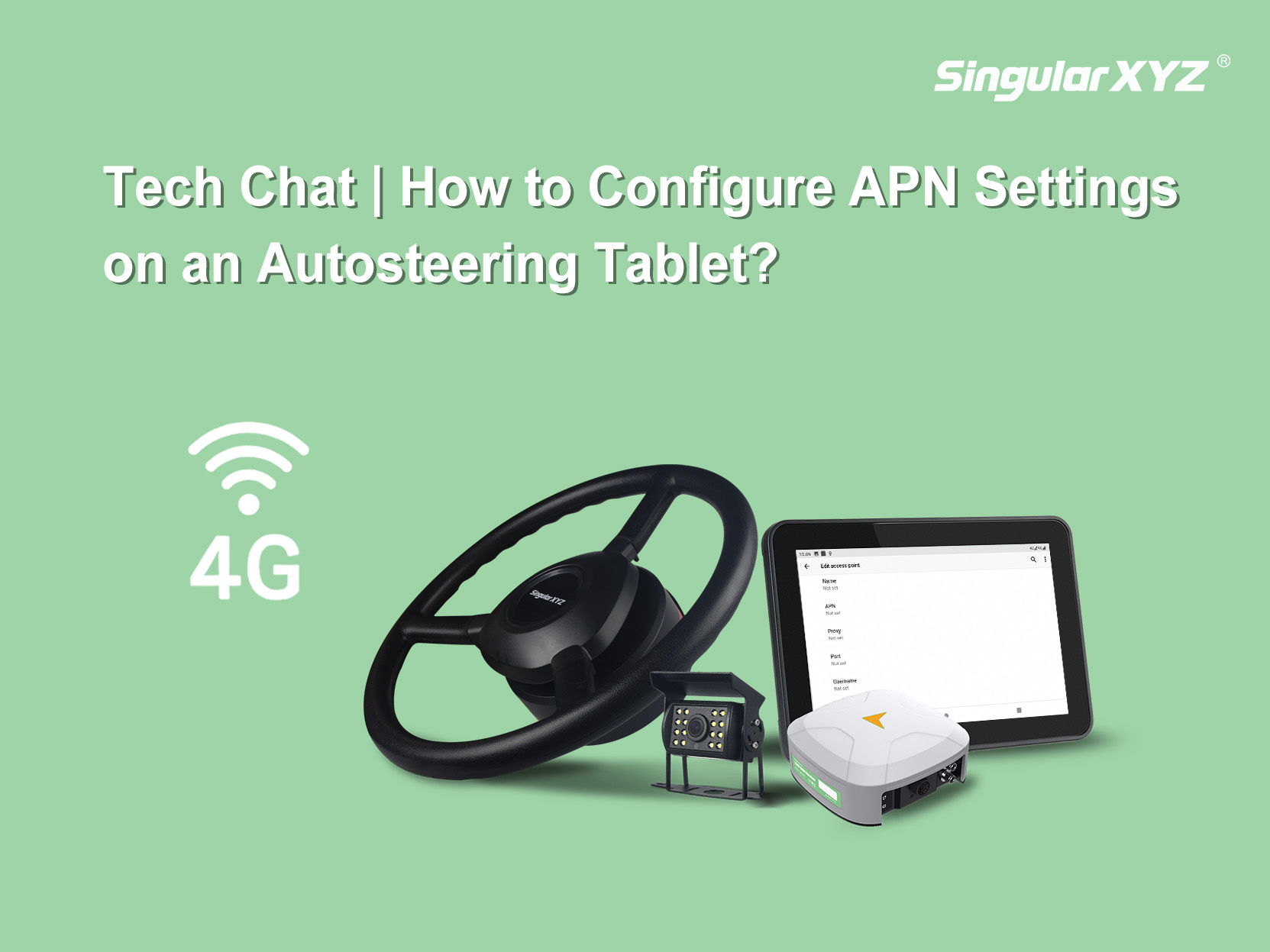
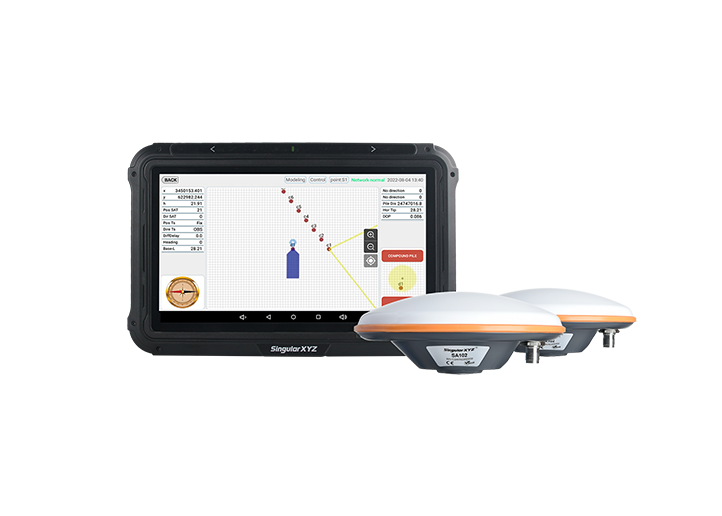
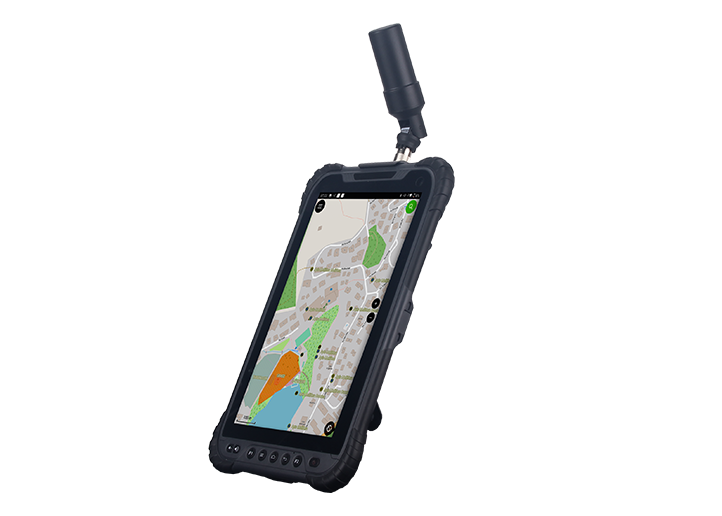
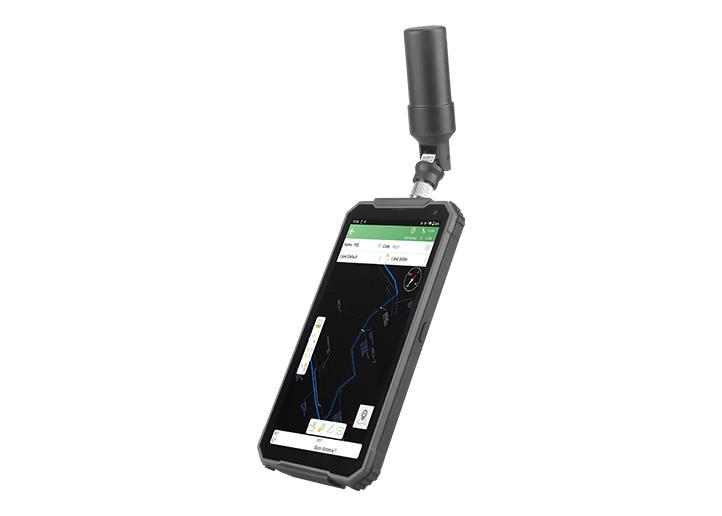
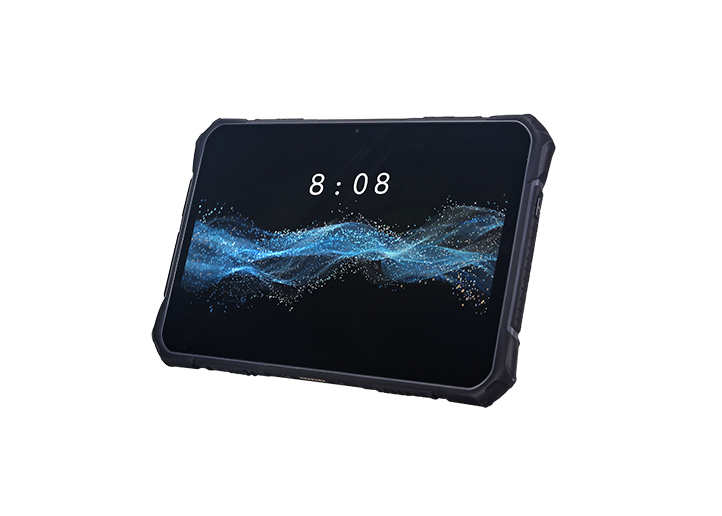
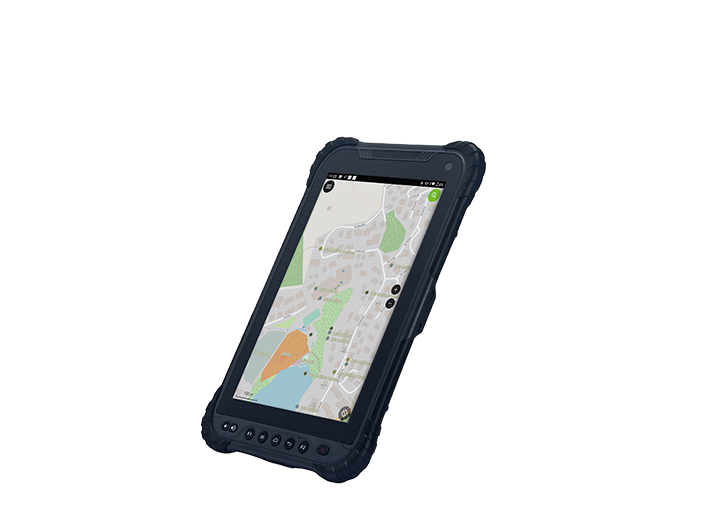
During field operations, an autosteering tablet may need a mobile internet connection to access network-based correction services and other online features. To establish this connection, a SIM card with an active data plan must be installed, and the APN (Access Point Name) settings may need to be configured according to the mobile network operator.
In this guide, we'll walk you through the steps to configure APN settings on an autosteering tablet.
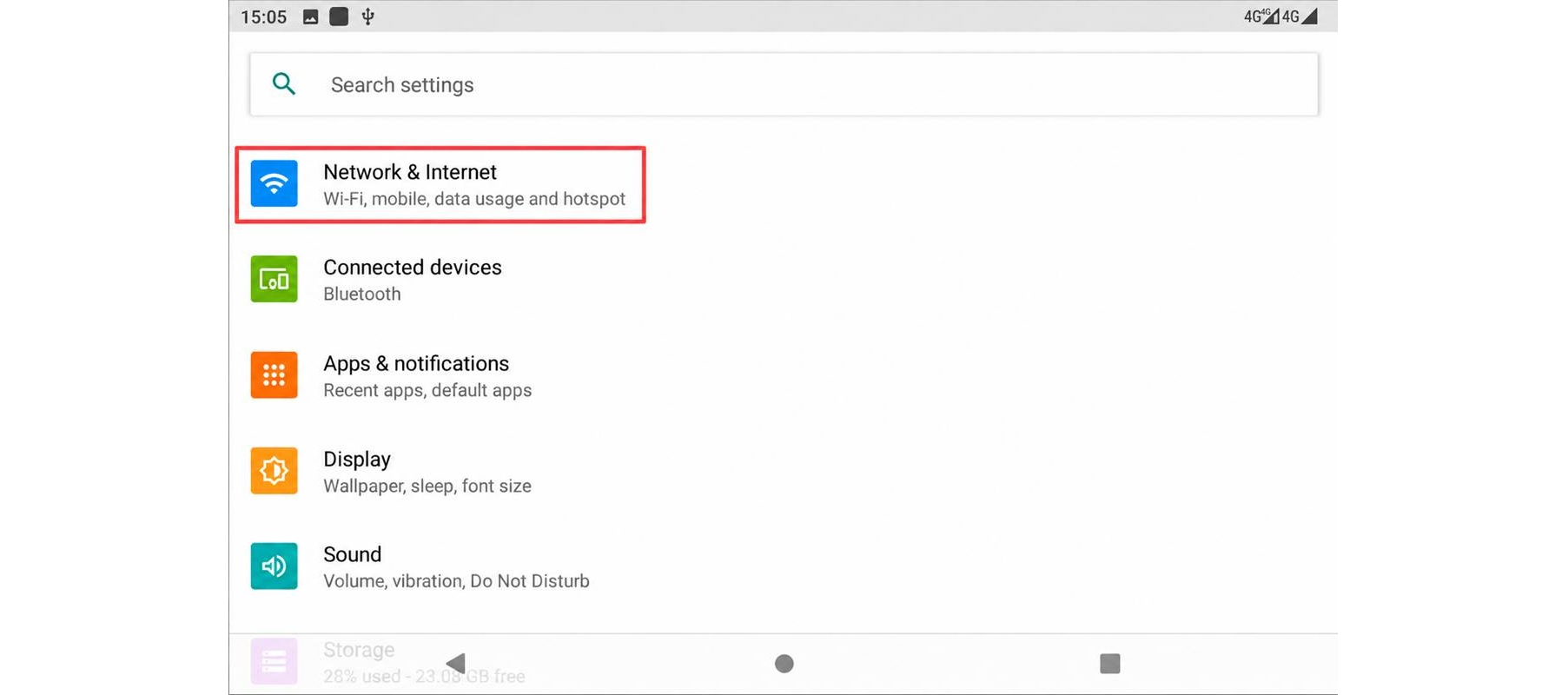
Open Settings on the tablet.
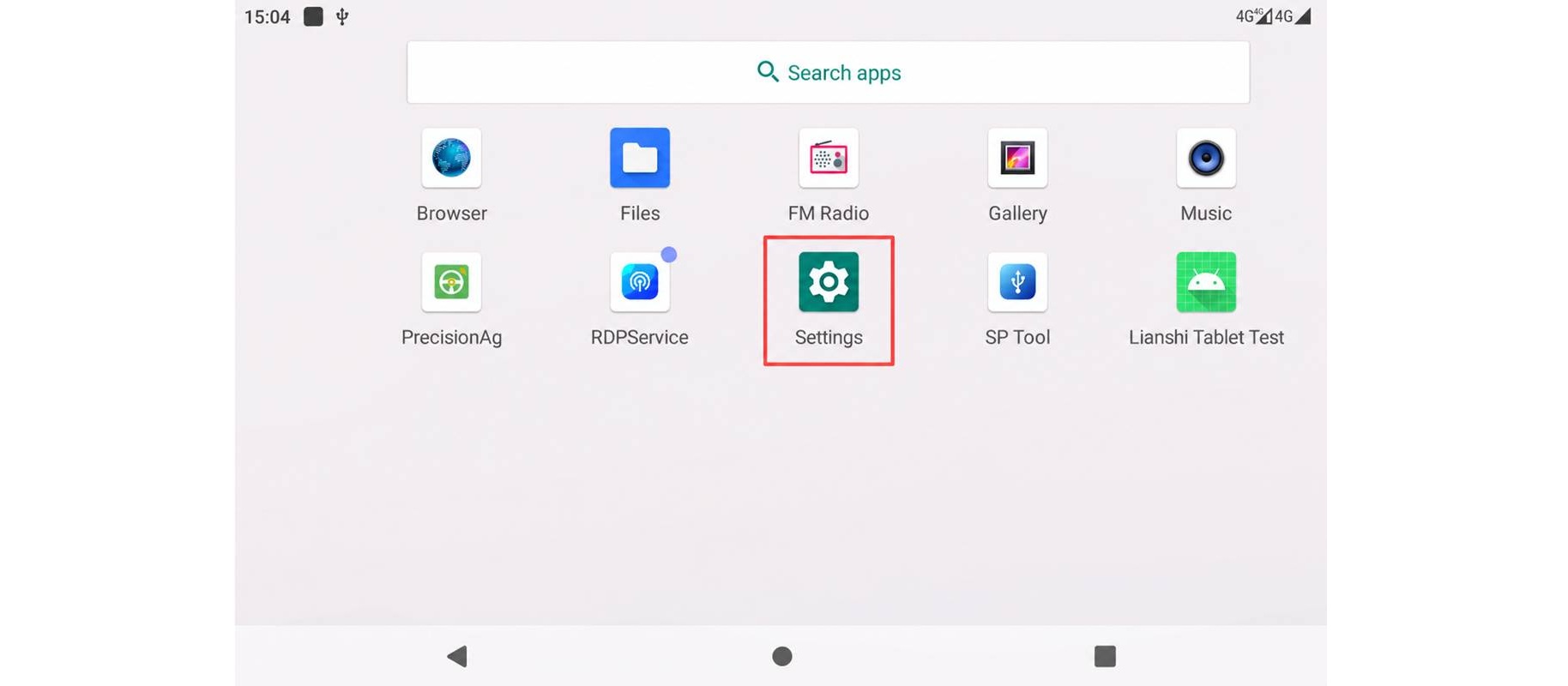
Tap Network & Internet in the Settings menu.
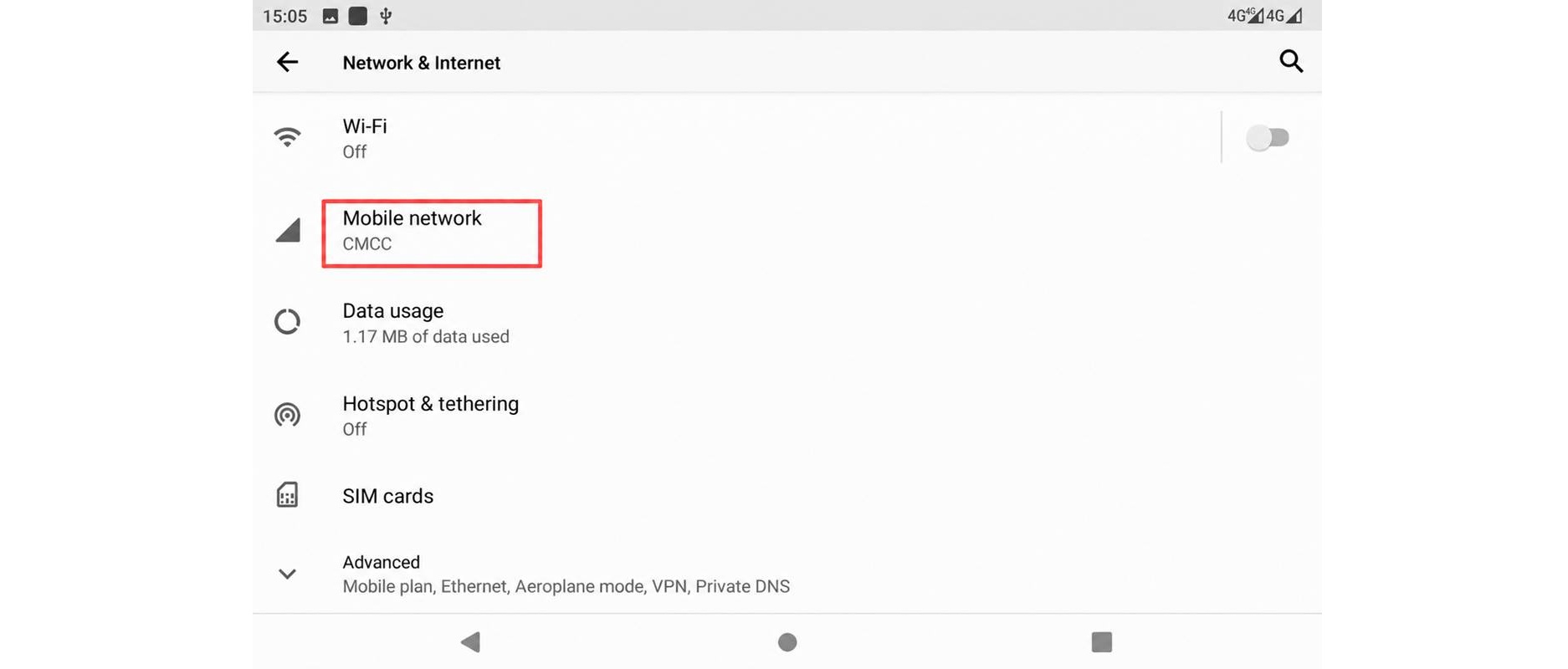
On the Network & Internet screen, tap Mobile network.
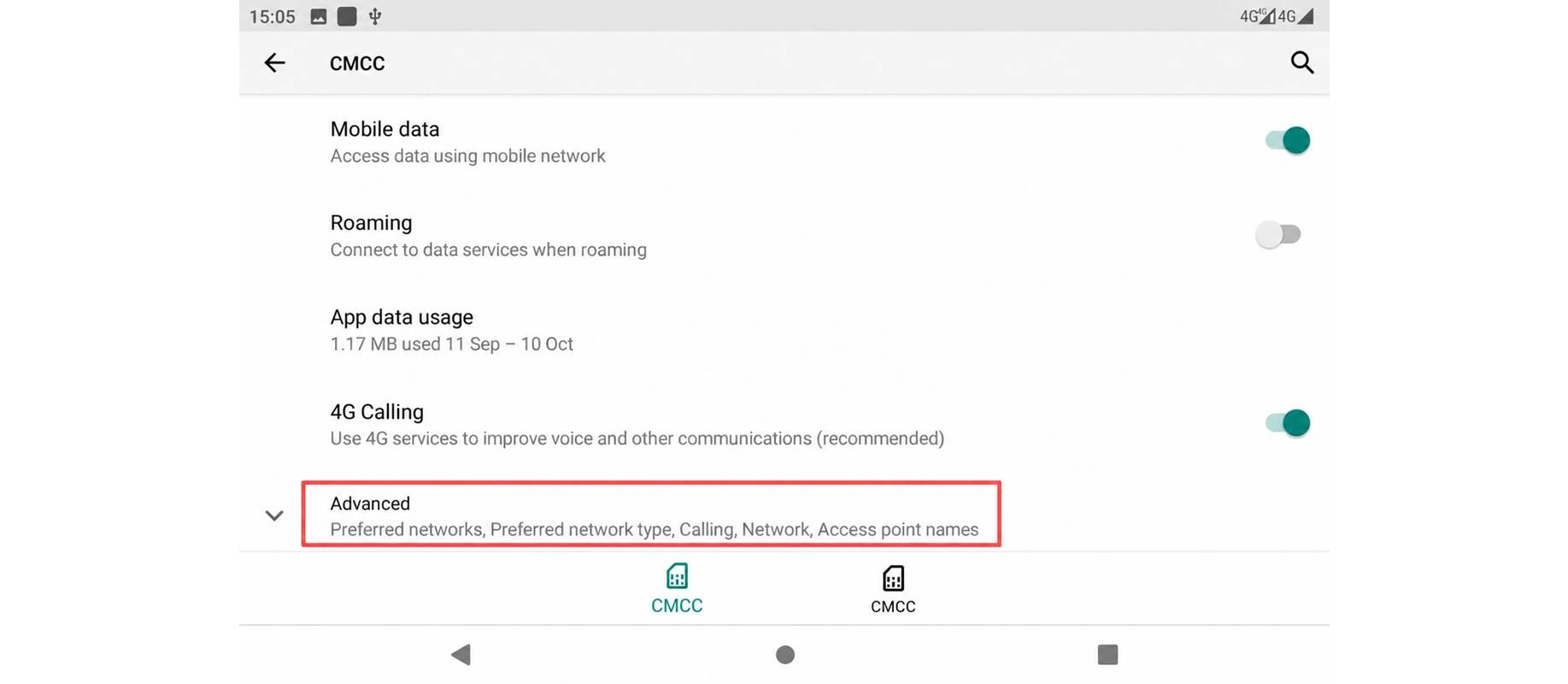
Scroll down and tap Advanced at the bottom of the screen.
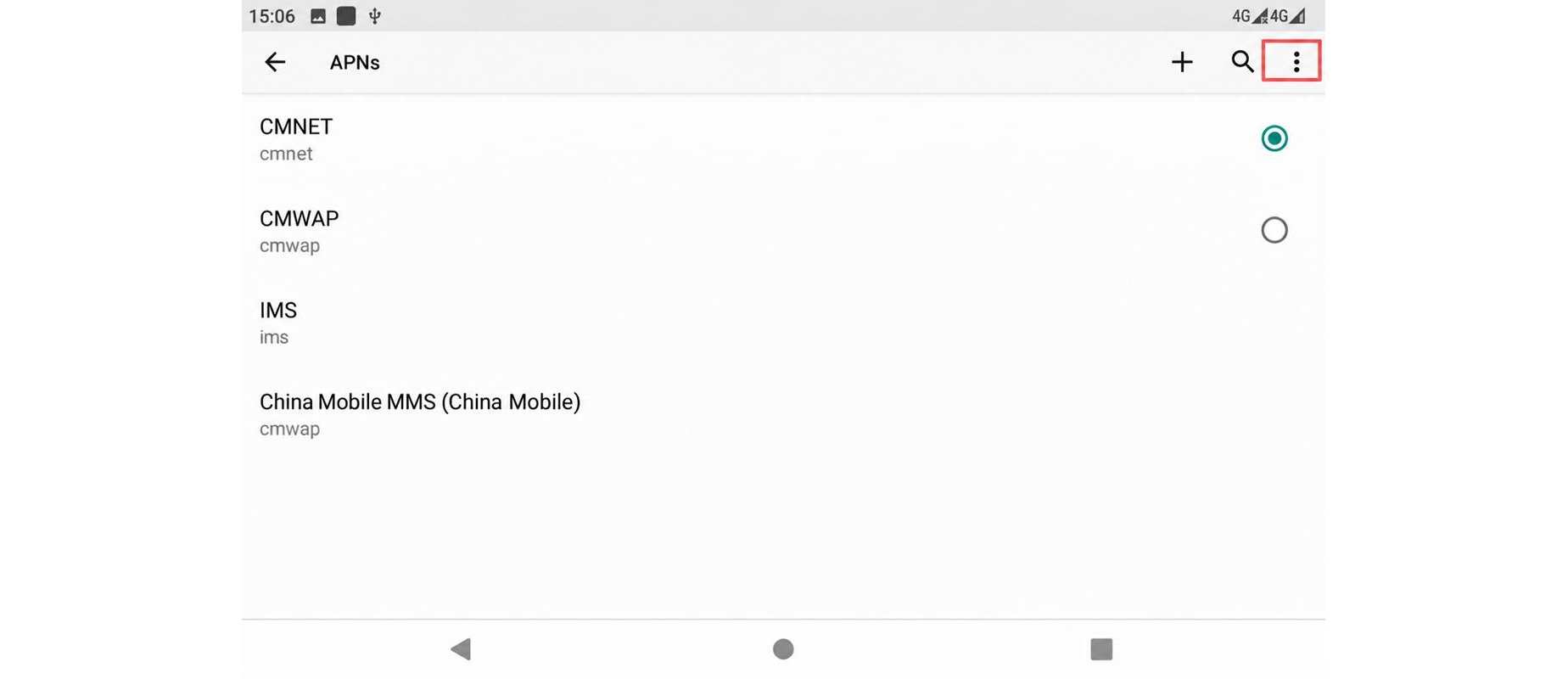
Tap Access point names to view the available APN profiles.
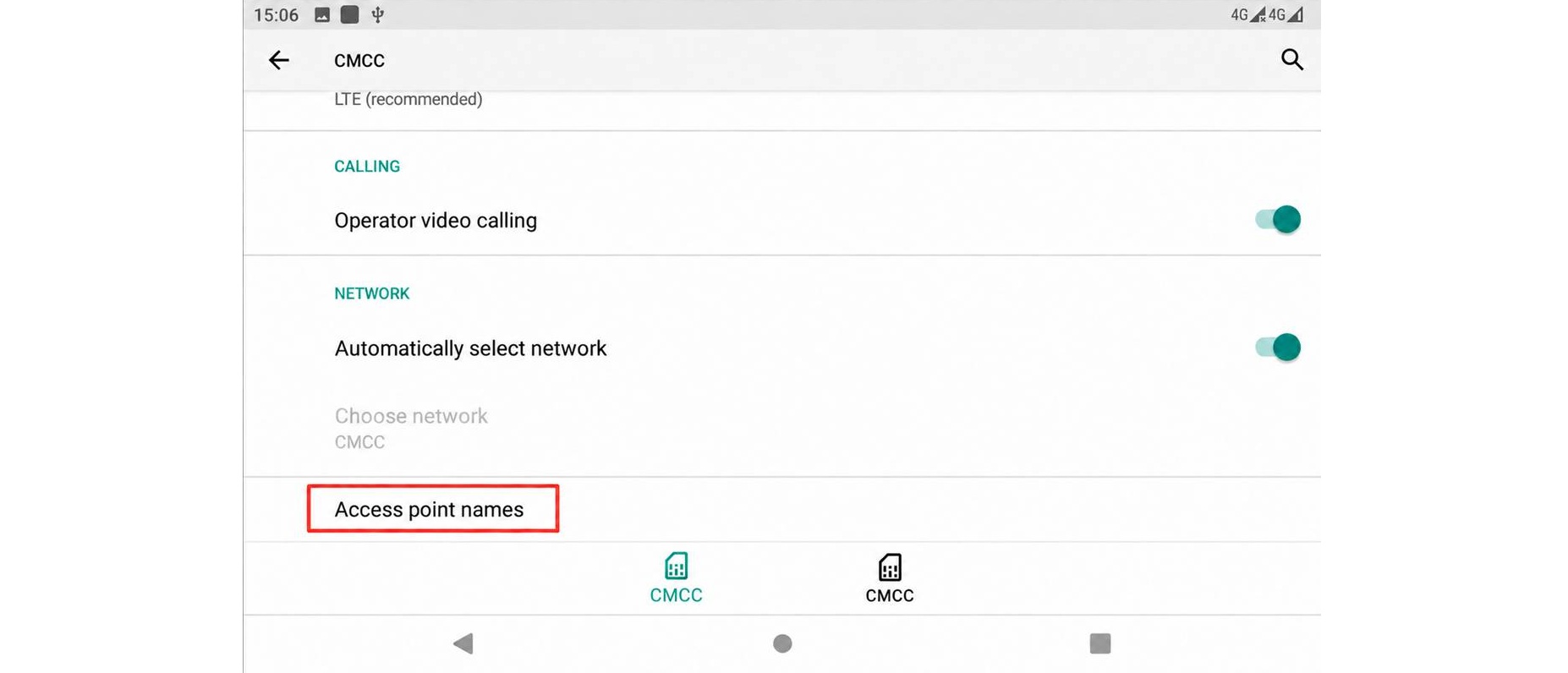
Use the menu in the upper-right corner to add a new APN, or select an existing APN profile if the required settings are already available.
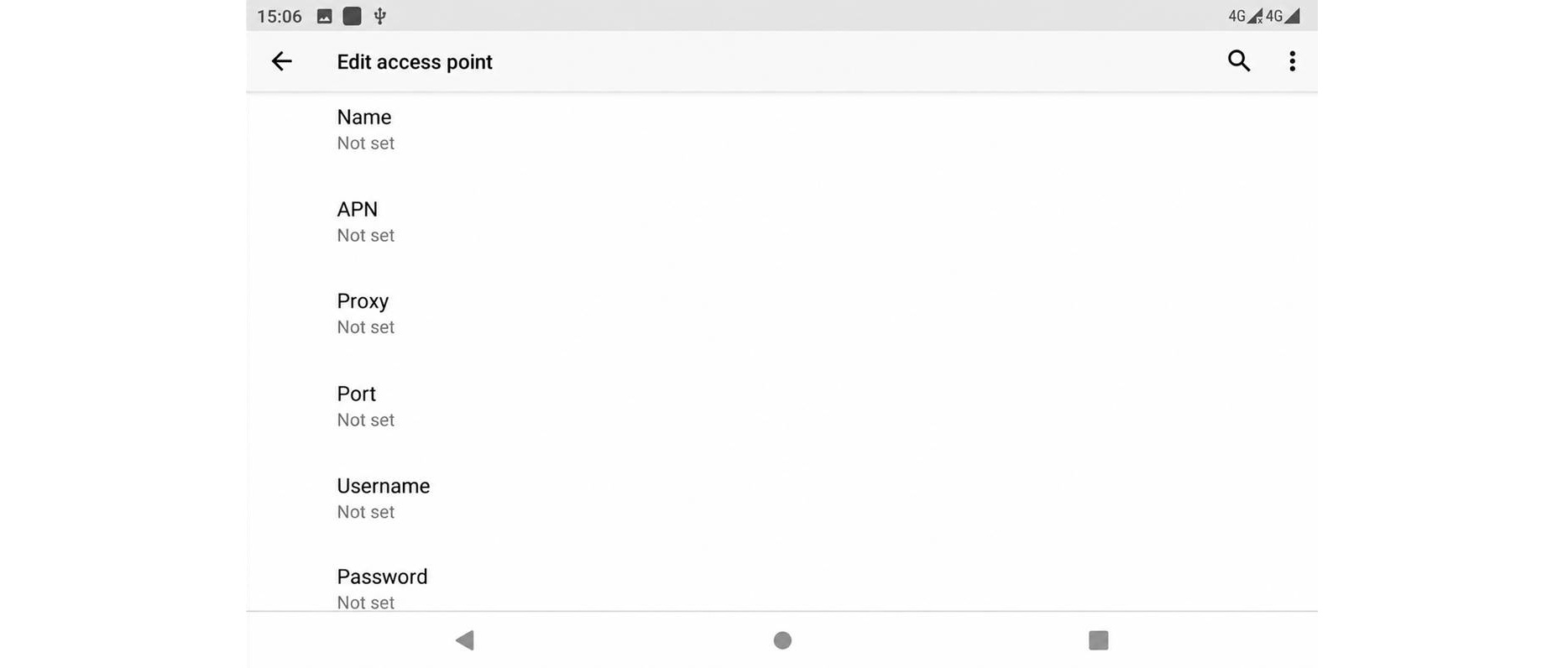
Enter the information provided by your mobile network operator. The exact fields may vary depending on the carrier and SIM card.
APN: Enter the APN address specified by your mobile network operator.
Username and Password: Enter these credentials if required by your operator.
Save the settings and select the configured APN profile. If necessary, enable mobile data or restart the tablet to apply the changes.
Correct APN settings help the autosteering tablet establish a mobile data connection for network-based services. If the tablet cannot connect to the internet after configuration, check the APN details with your mobile network operator and confirm that the SIM card has an active data plan.
Note: Menu names and navigation paths may vary depending on the tablet's Android version and system interface.