

























































 Home
Home
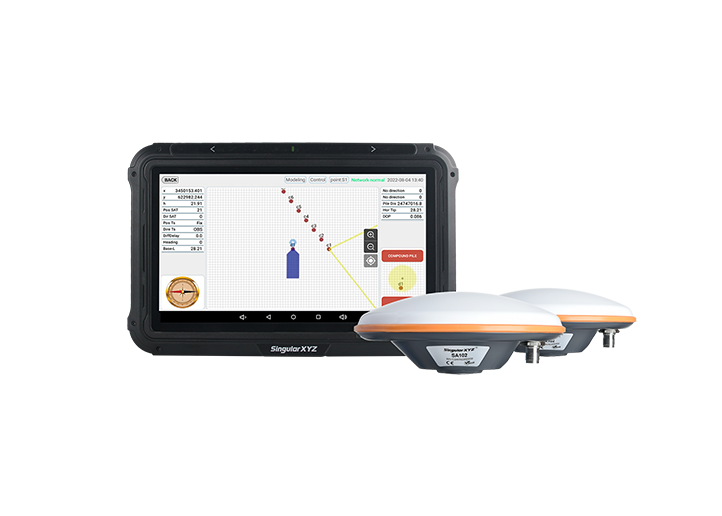
SingularPad Field Surveying Software
learn more





 2026-03-31
 Gus
Gus


During field measurements, it is often useful to record additional visual information for each point, such as site conditions or annotations. SingularPad provides a Photo & Sketch function that allows users to attach images and notes directly to measured points.
This blog introduces how to use this function and export the associated data.
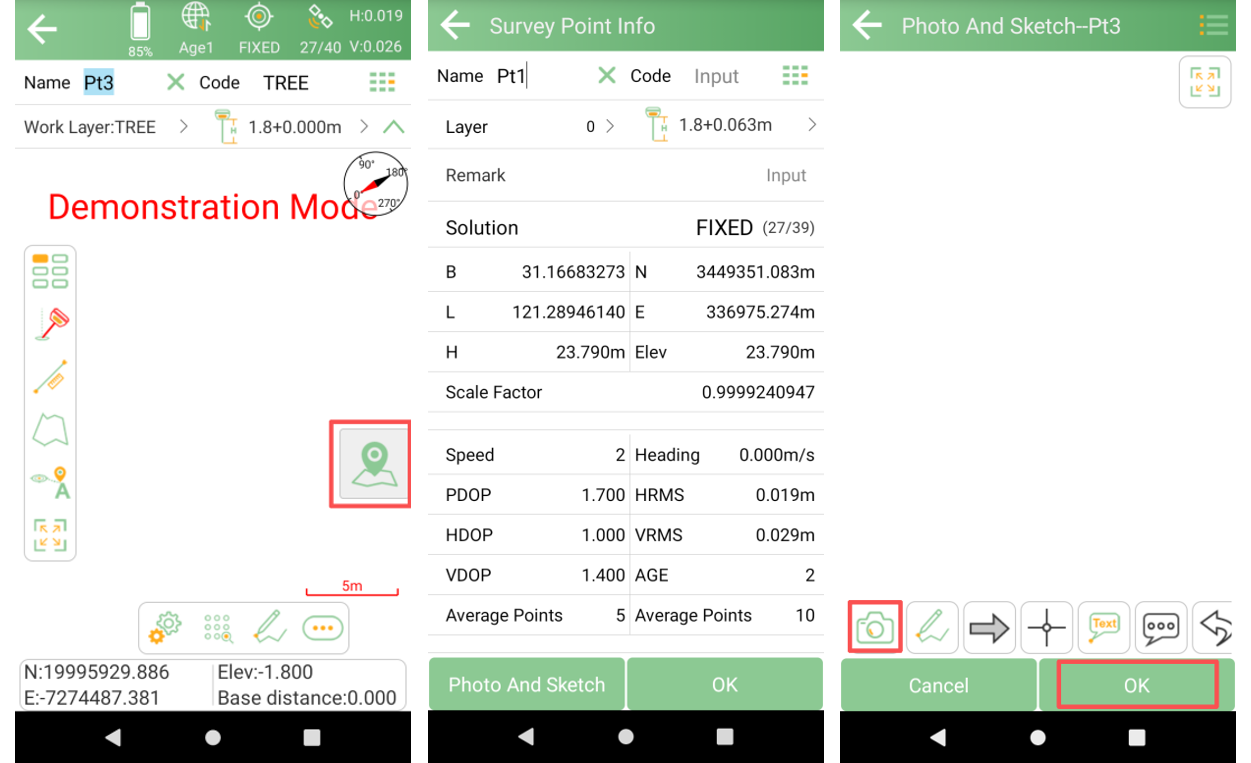
After completing a measurement, tap the Photo & Sketch button to enter the interface.
You can:
Take photos
Add sketches or annotations
Adjust related settings
After finishing the edits, tap OK to save the information to the point.
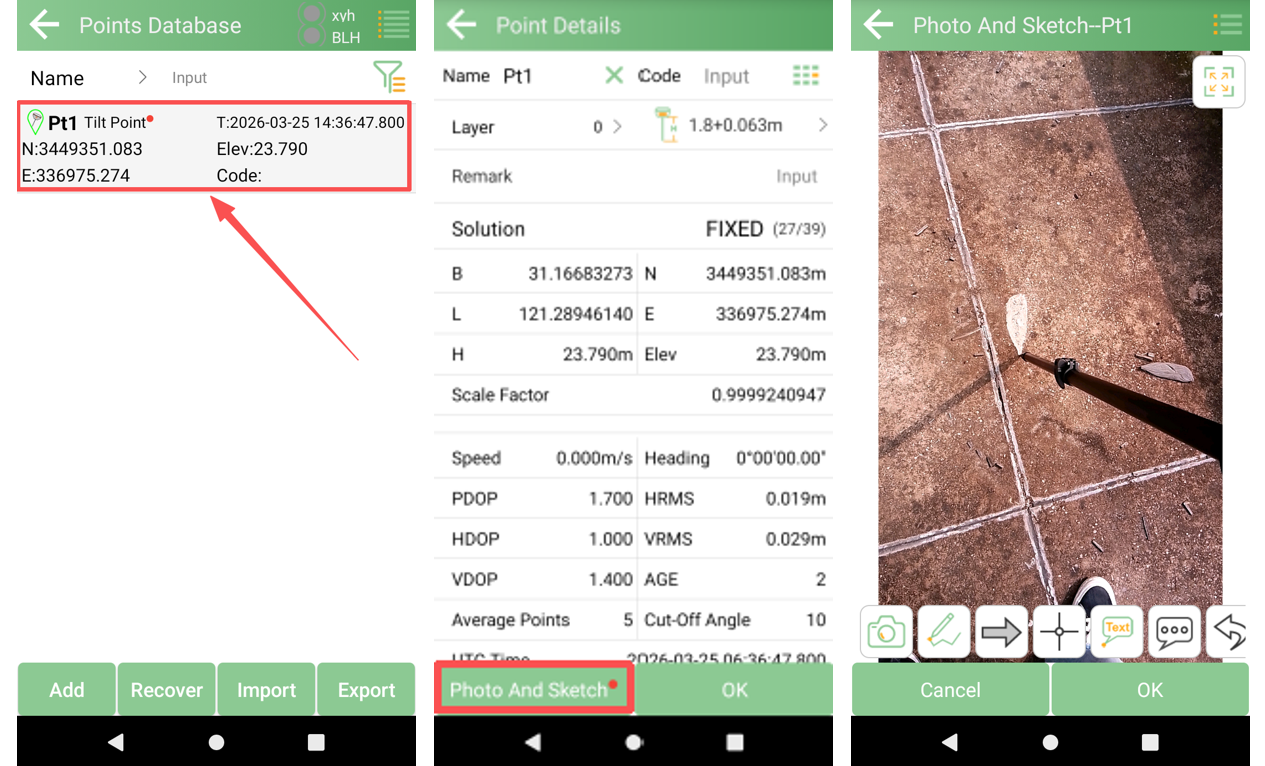
Enter the Point Database, then tap Point Detail to view the photos and sketches associated with the selected point.
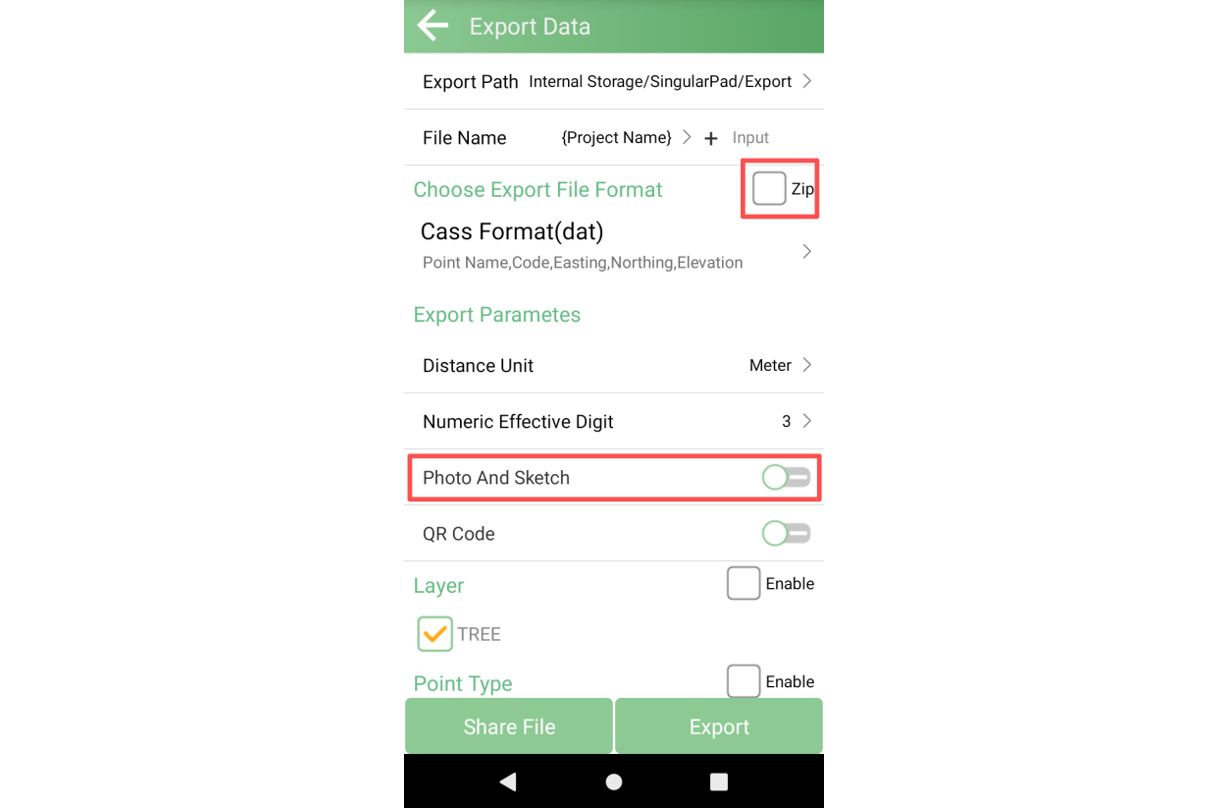
If you need to export the photos together with the point data:
Go to Export Data
Select ZIP as the export format
Enable the Photo & Sketch option
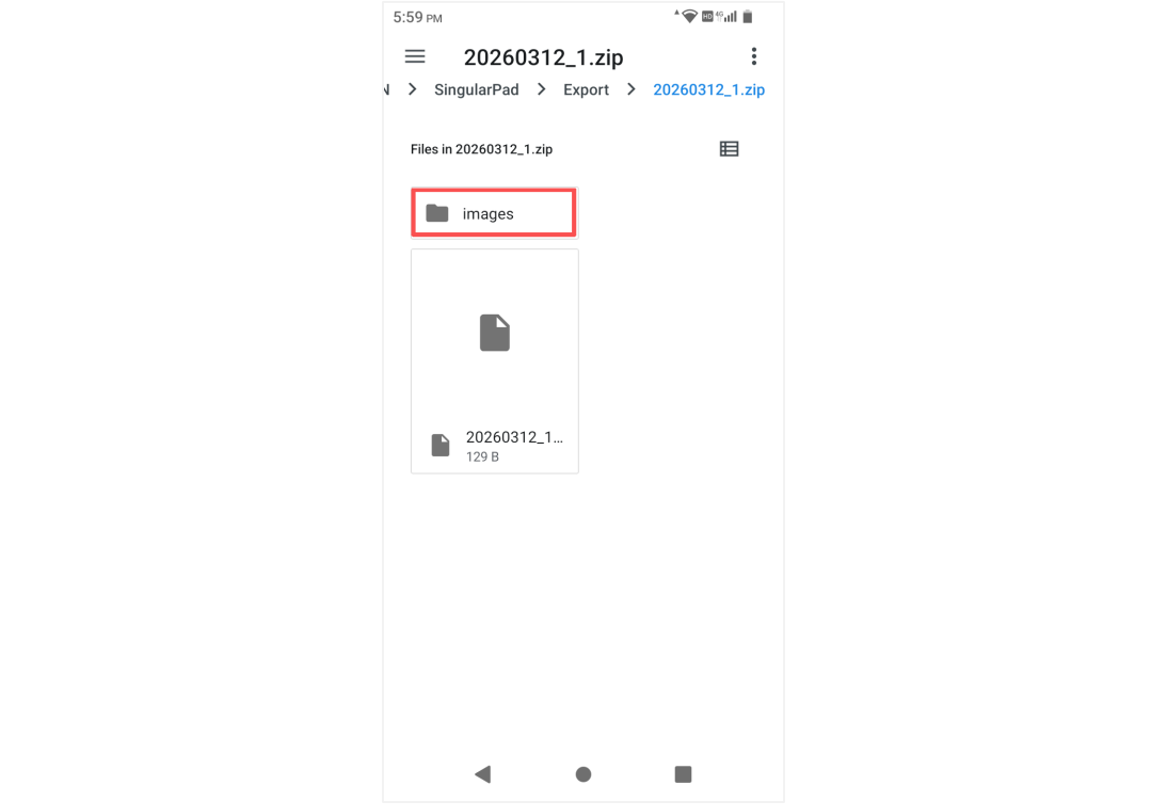
After exporting, go to the Export folder to view the output files, which will include both the point data and the associated images.
The Photo & Sketch function in SingularPad allows users to enrich point data with visual records, making it easier to review and share field information. By exporting the data together with images, users can keep a complete record of their measurements for further use.