



















































































 Home
Home
Horus Visual & Laser
GNSS Receiver
GNSS Receiver
learn more













 2026-06-22
 Kimberly


To continuously enhance product performance and improve user experience, new firmware updates are released periodically across SingularXYZ devices.
If you are wondering how to upgrade your device firmware, this guide will walk you through all available upgrade methods and key points to keep in mind during the process.
Different RTK series support different firmware upgrade methods. Please refer to the table below for an overview.
| Device Type | Wi-Fi | USB | Software |
|---|---|---|---|
| X1 Series | ✅ Section 1.1 | ✅ Section 2 | ❌ |
| Orion One Series | ✅ Section 1.1 | ✅ Section 2 | ❌ |
| Z1 Series | ✅ Section 1.2 | ❌ | ❌ |
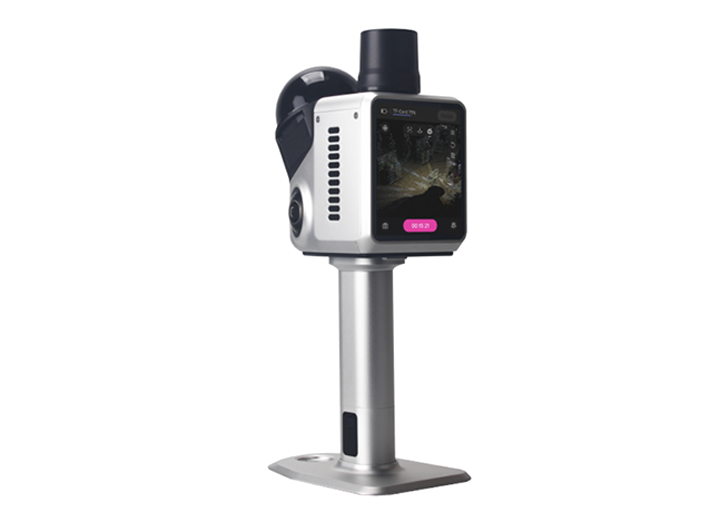
| Horus | ✅ Section 1.1 | ✅ Section 2 | ❌ |
| Xbase | ✅ Section 1.1 | ✅ Section 2 | ❌ |
| SV100 | ✅ Section 1.1 | ✅ Section 2 | ❌ |
| P2 Series | ✅ Section 1.3 | ❌ | ❌ |
| S20 | ✅ Section 1.4 | ❌ | ❌ |
| Y1 | ✅ Section 1.5 | ❌ | ✅ Section 3 |
Next, we will introduce the available firmware upgrade methods, including Wi-Fi, USB, and software-based upgrades.
1.1 For X1 Series, Orion One Series, Horus, Xbase, and SV100 series
The Wi-Fi upgrade procedure is identical for the X1 Series, Orion One Series, Horus, Xbase, and SV100 series. The only difference is the firmware package used for each model.
Using Orion One as an example, the upgrade procedure is as follows:
Power on the receiver. For the X1 Series, Orion One Series, Horus, Xbase, and SV100, Wi-Fi is enabled automatically after startup.
On your computer or mobile device, search for the Wi-Fi network containing the receiver SN.
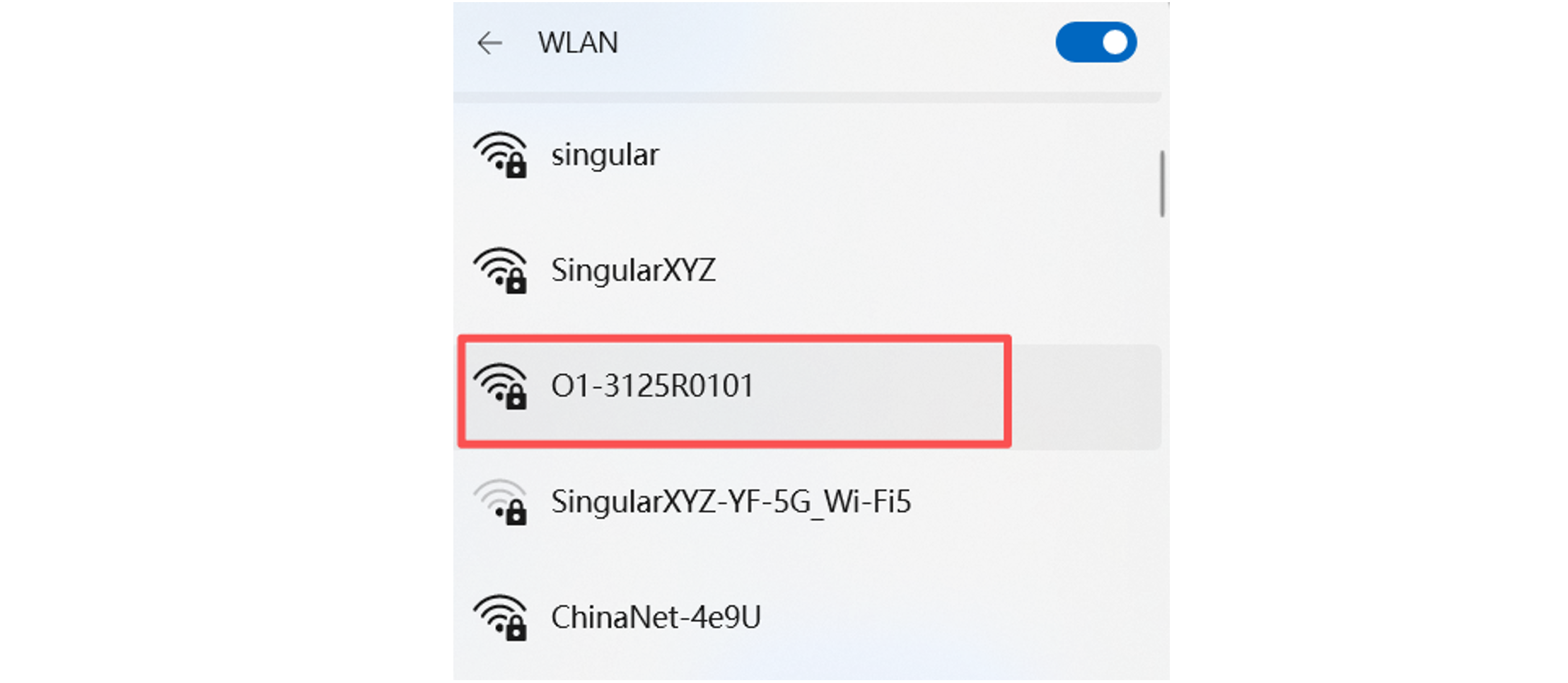
Connect to the Wi-Fi network. The default password is 12345678.
Open a web browser and enter 192.168.10.12 in the address bar.
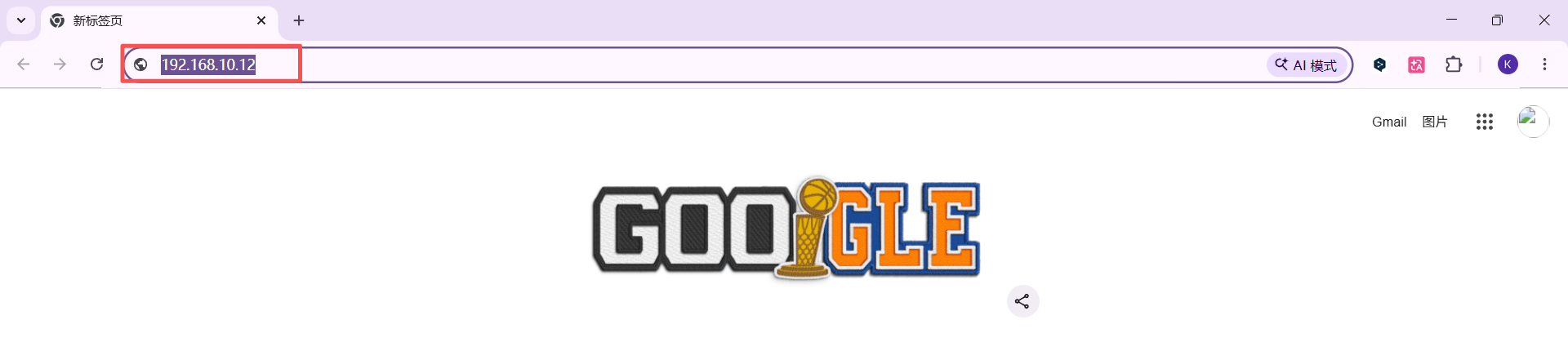
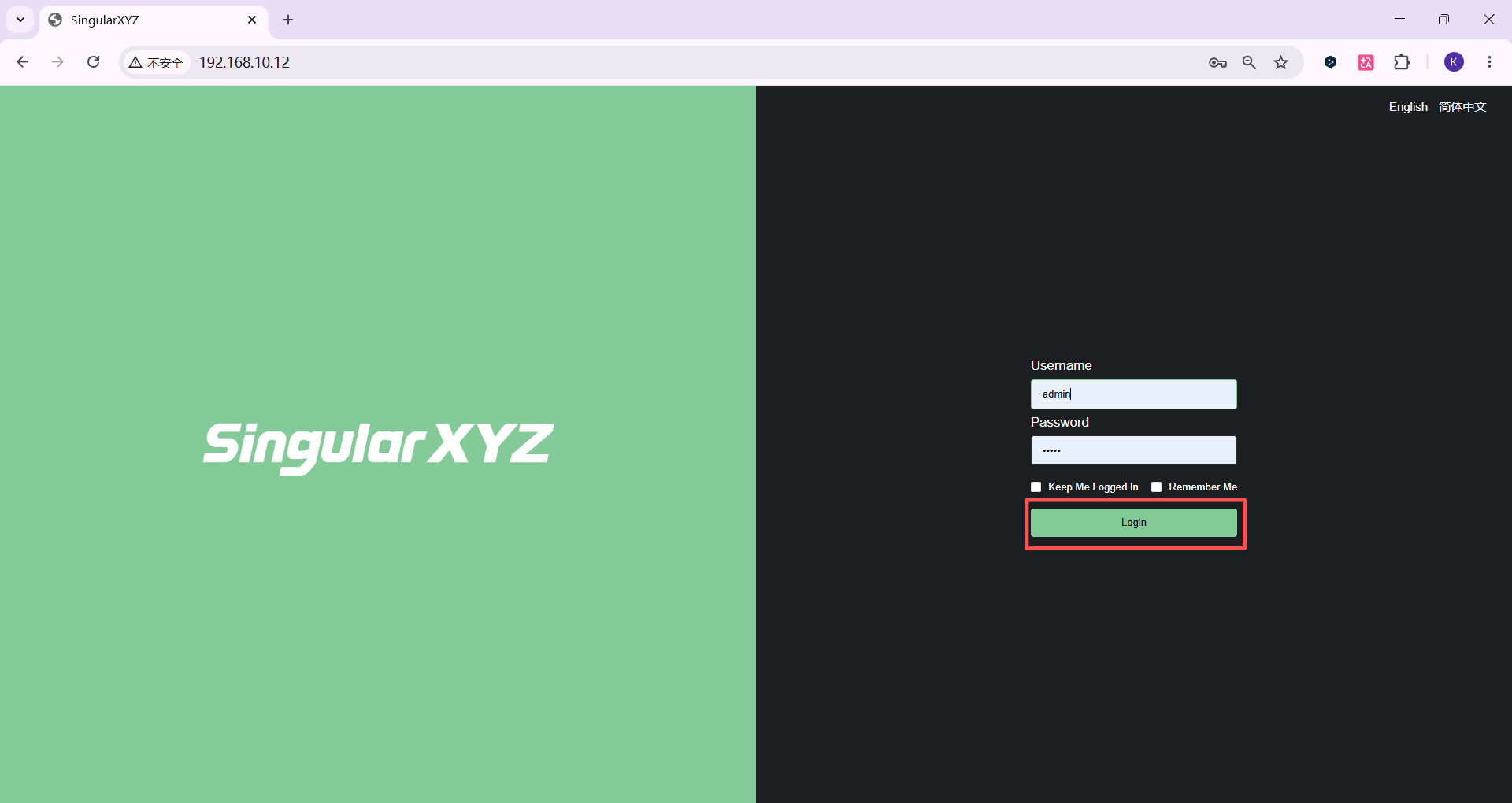
Enter the username and password. Both are admin, then click Login.
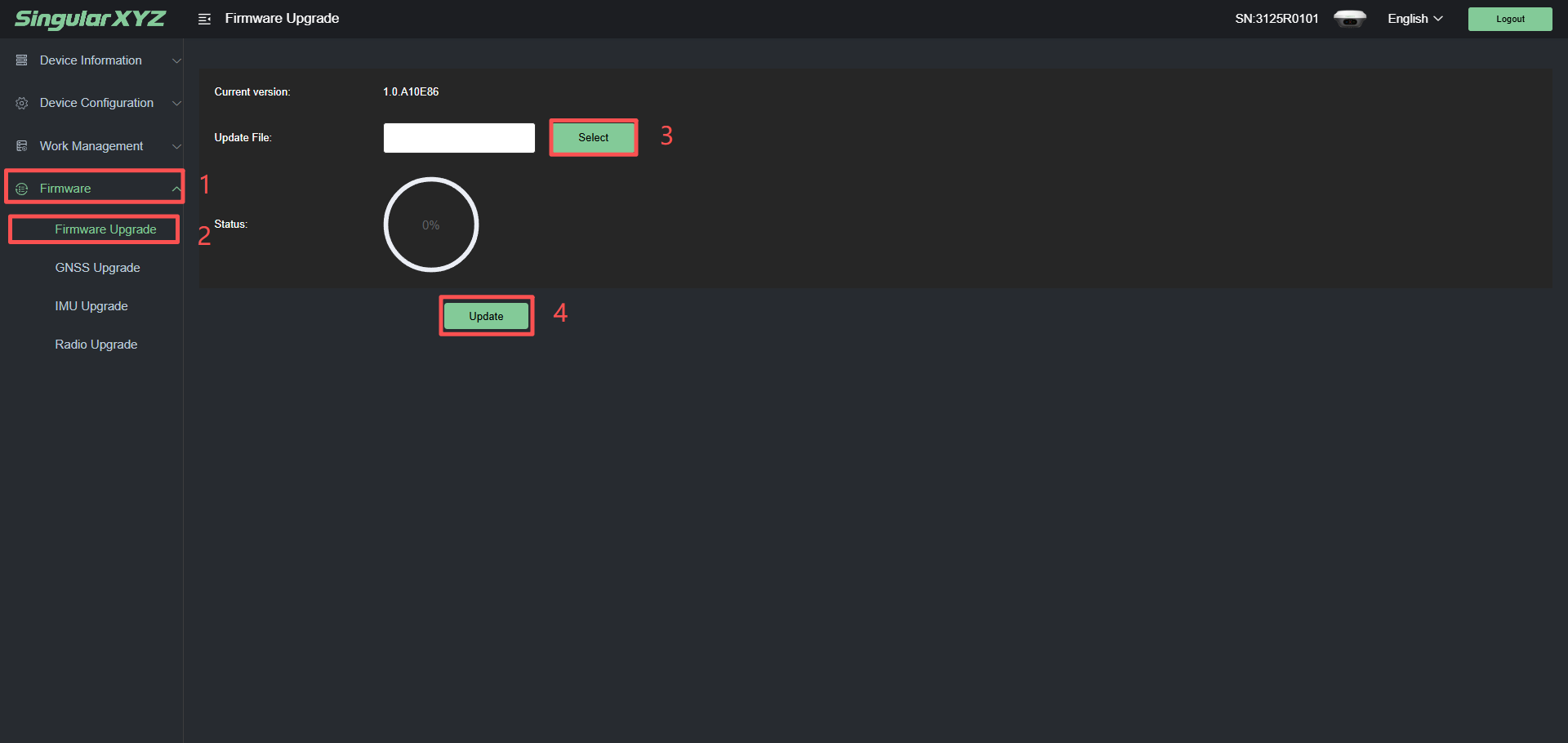
Go to Firmware → Firmware Upgrade, select the firmware package, and click Update. Wait for the upgrade process to complete. When the progress indicator reaches 100%, the upgrade is finished.
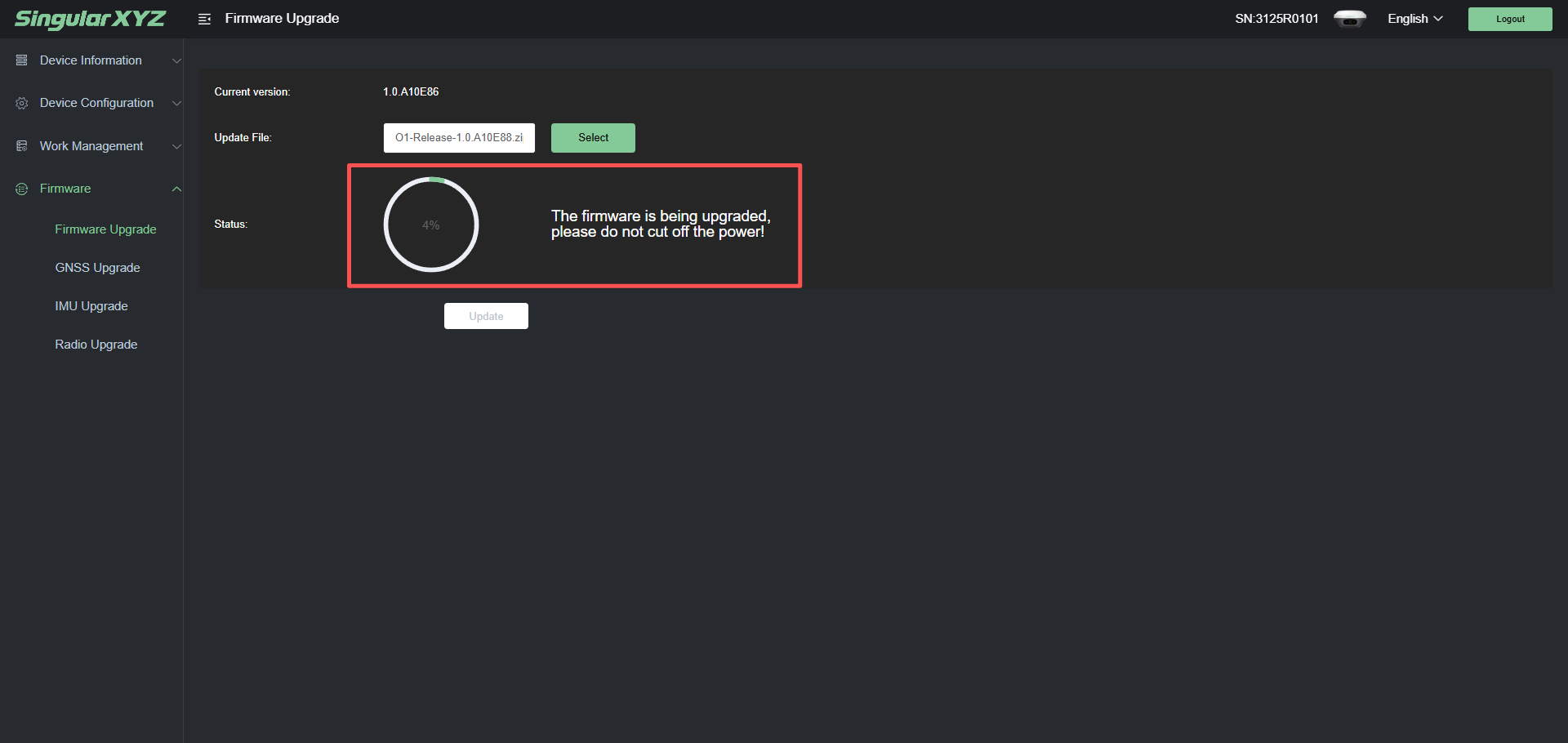
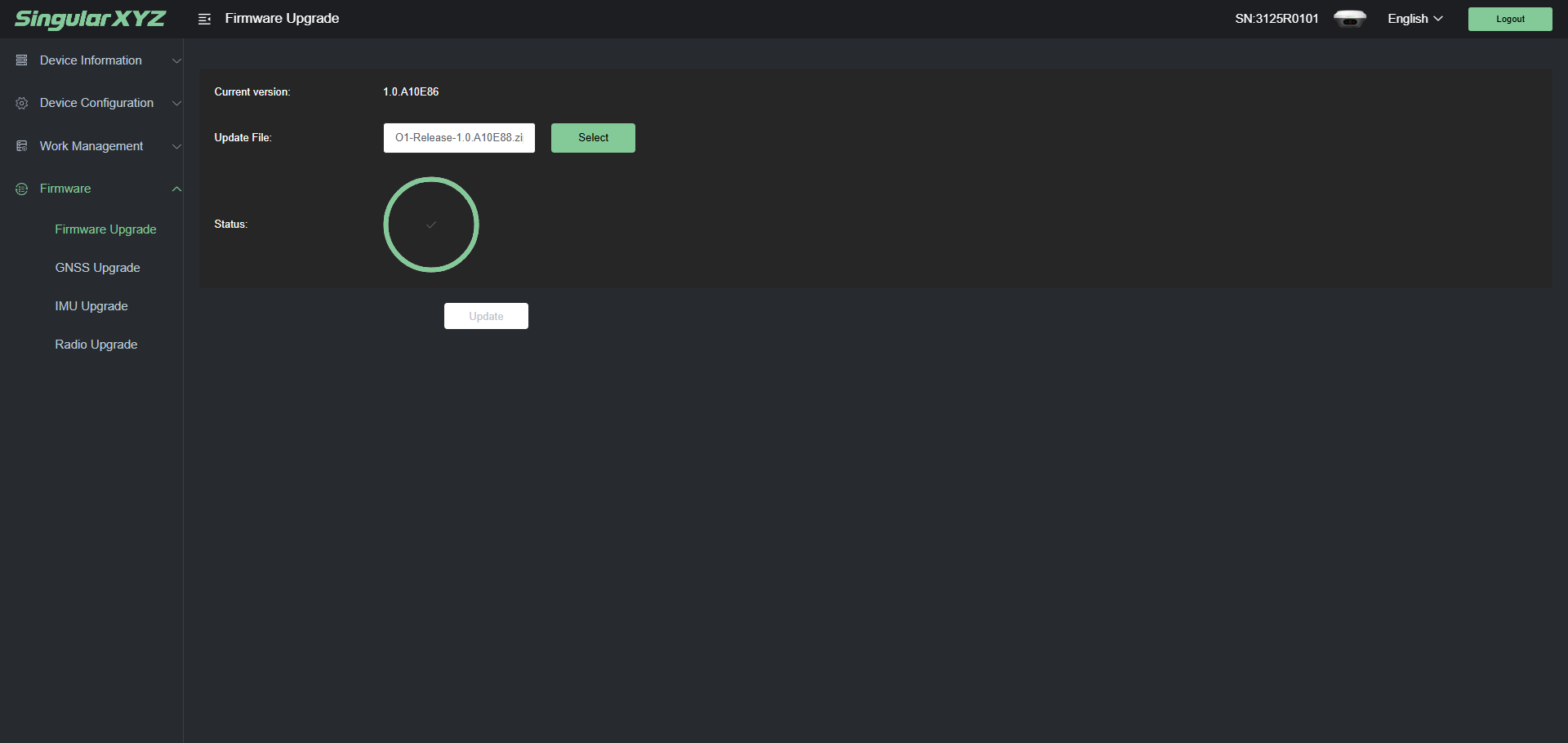
Many firmware releases are provided as compressed packages because they may contain additional upgrade resources besides the receiver firmware itself.
When upgrading the receiver, please upload the original firmware package directly and do not extract the compressed file. Extracting the package before upgrading may cause the upgrade process to fail.
The Wi-Fi function on the Z1 Series is disabled by default and must be enabled manually.
Go to SingularPad → Device → Device Settings → Enable Wi-Fi, then tap OK.
Please note that enabling Wi-Fi will automatically disable Bluetooth, causing the receiver to disconnect from SingularPad.
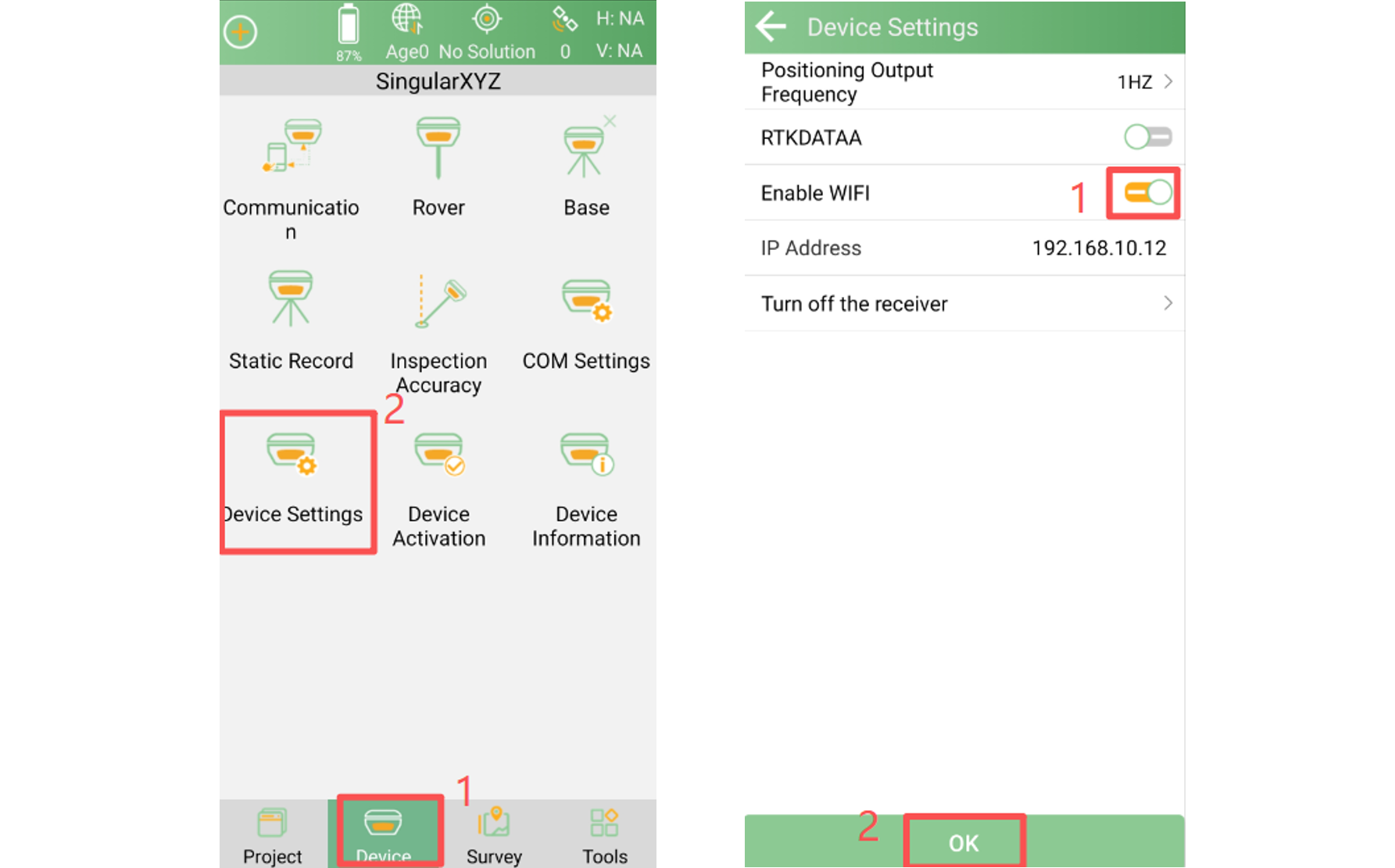
After Wi-Fi is enabled, follow the same upgrade procedure described above in section 1.1.
Power on the receiver and switch it to Wi-Fi Mode via the front panel.
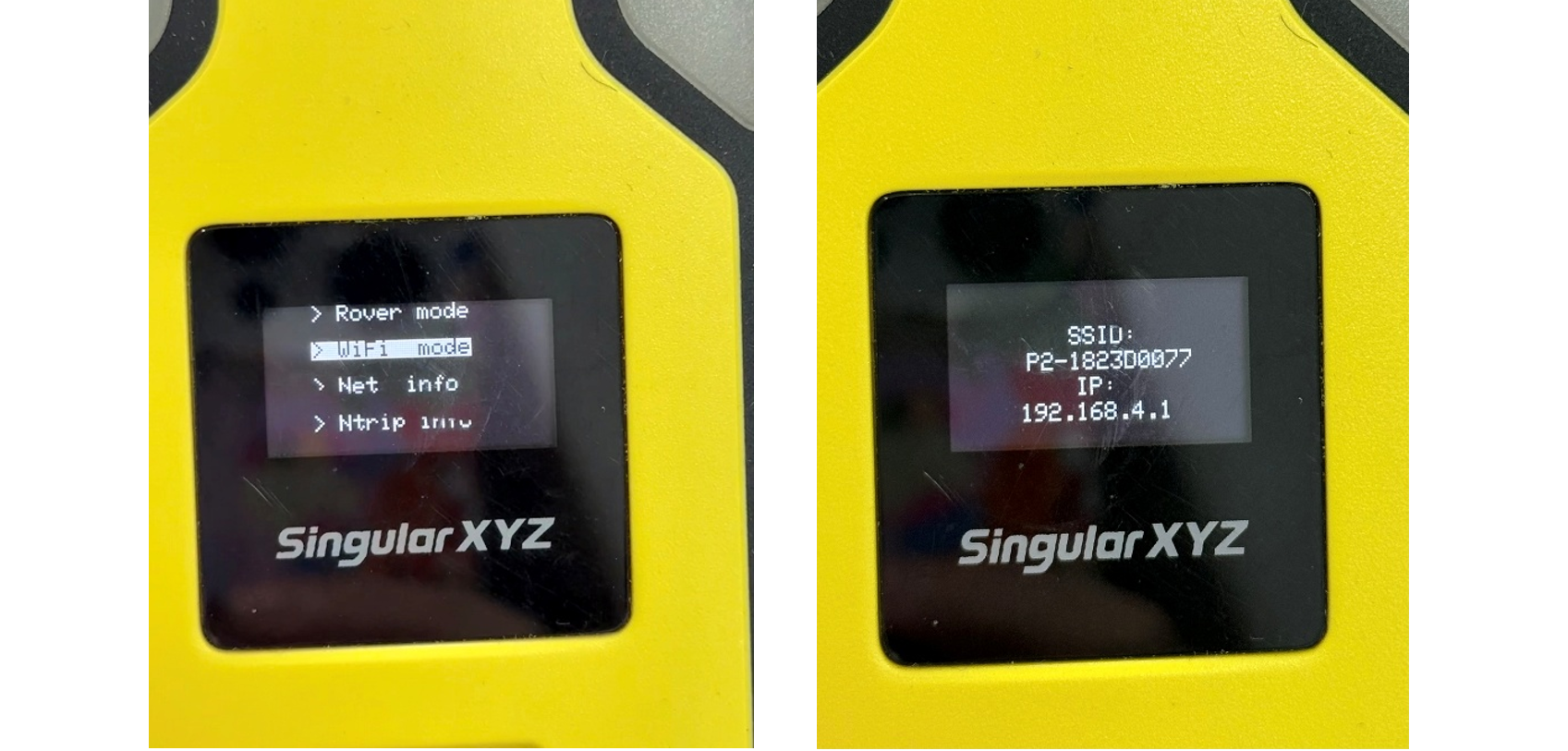
Connect to the receiver's Wi-Fi network.
Open a web browser and enter 192.168.4.1.
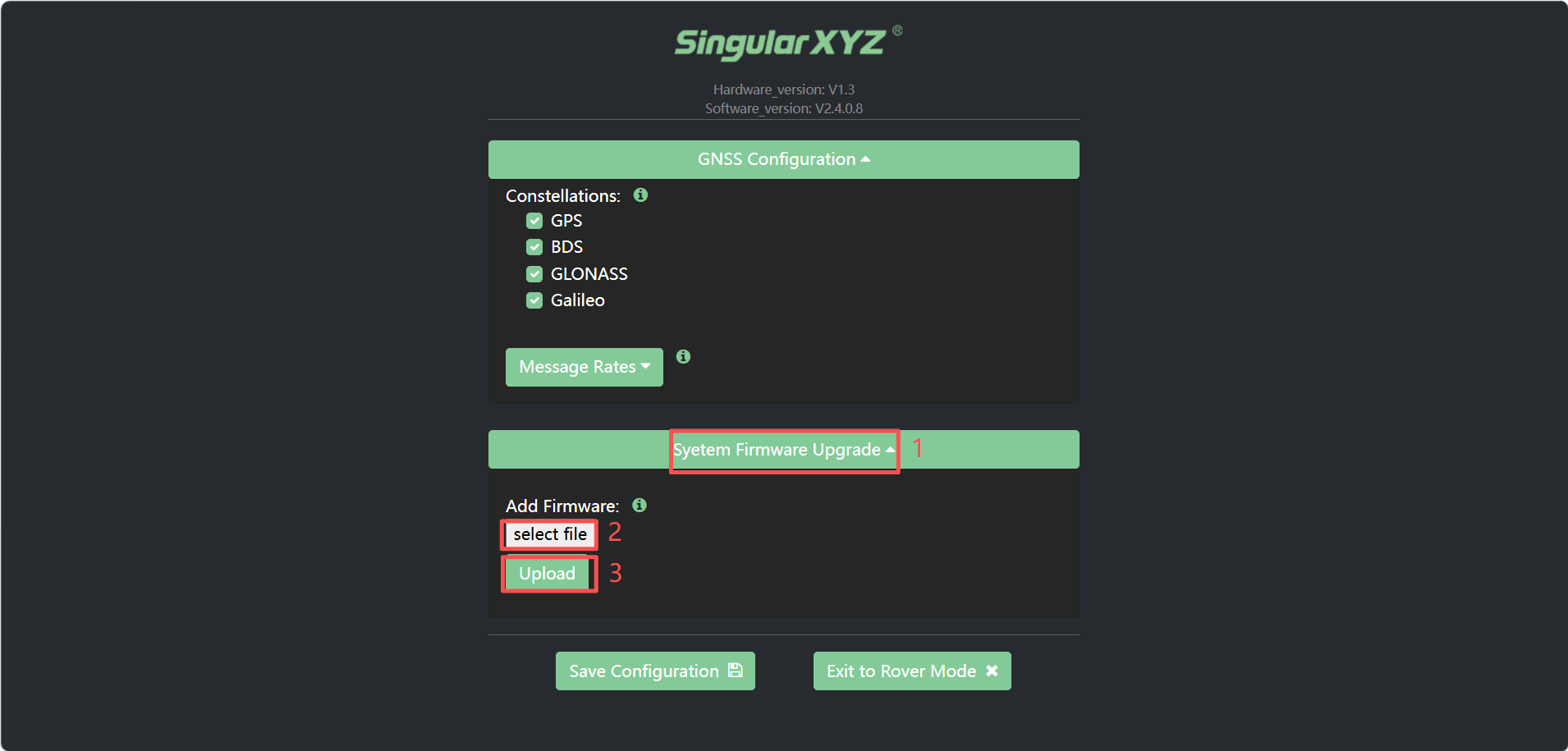
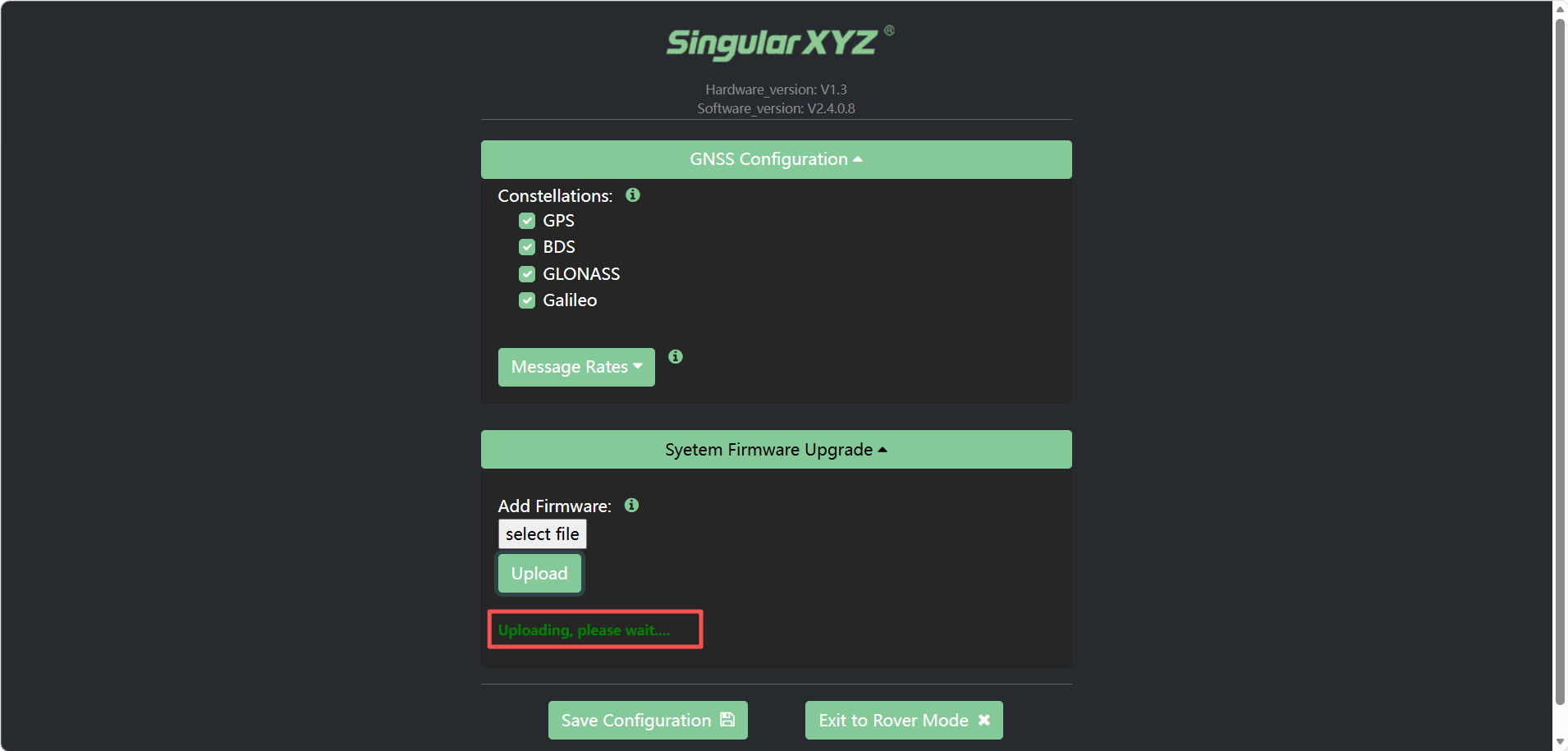
Go to System Firmware Upgrade → Select File → Upload. Wait for the upgrade process to complete. The P2 will restart automatically after the upgrade.
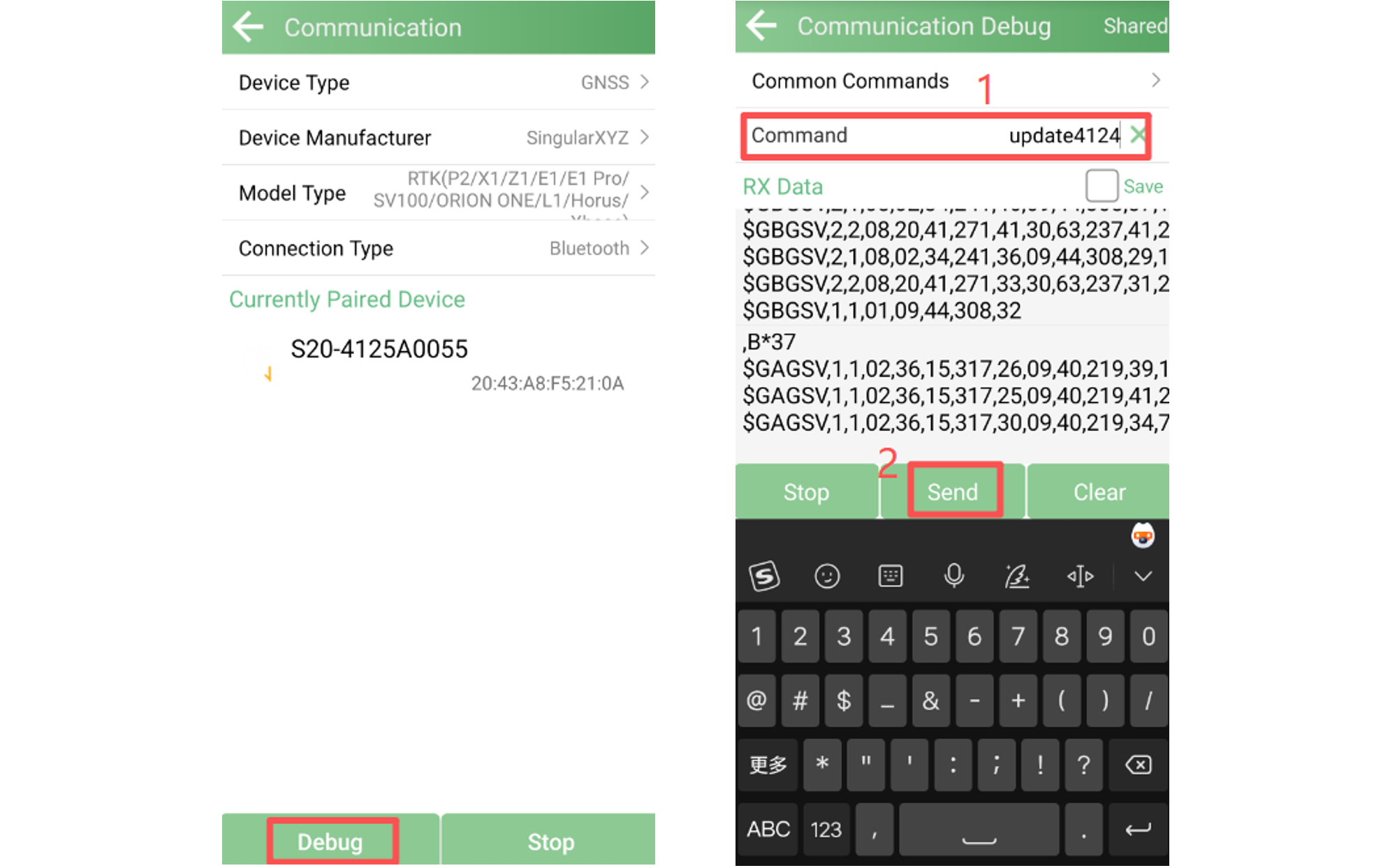
Connect the S20 to a power source and connect it to SingularPad.
Go to Communication → Debug, enter "update4124" in the command field and click Send to enable Wi-Fi.
Connect to the S20 Wi-Fi network.
Open a web browser and enter 192.168.4.1.
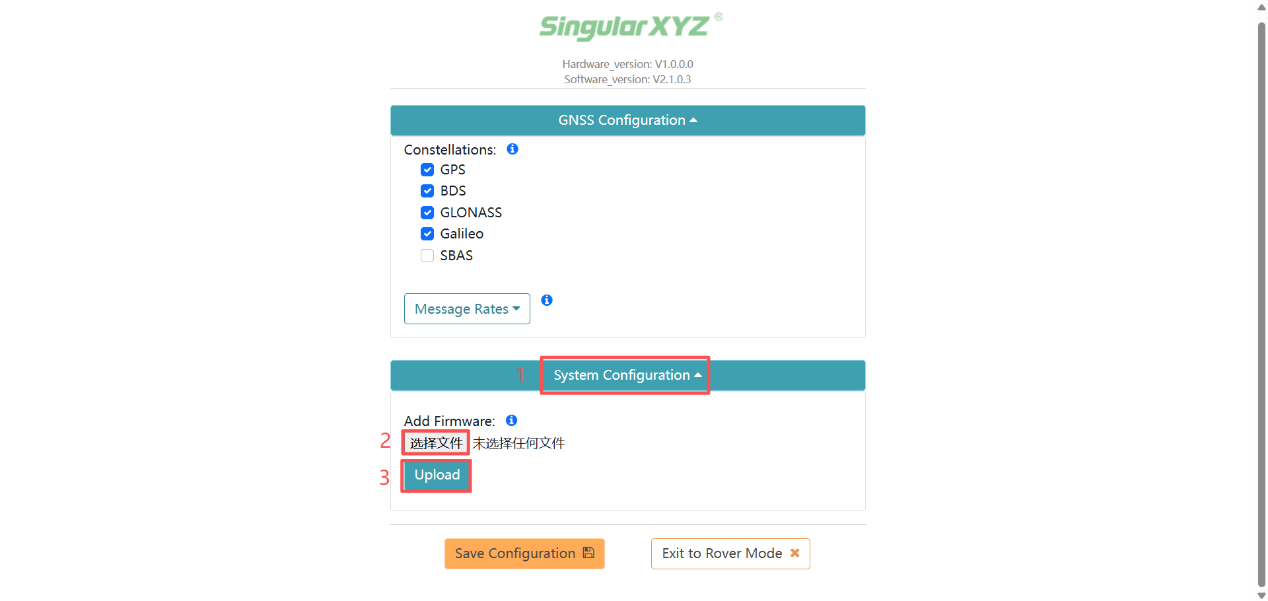
Access the web interface and perform the firmware upgrade following the same procedure described above in section 1.3.
After powering on the Y1, Wi-Fi is enabled automatically.
Connect to the Y1 Wi-Fi network.
Open a web browser and enter 192.168.1.8 to access the web interface
Go to Firmware Update → System Upgrade, click Browse to select the firmware file, and click Install to upgrade the firmware.
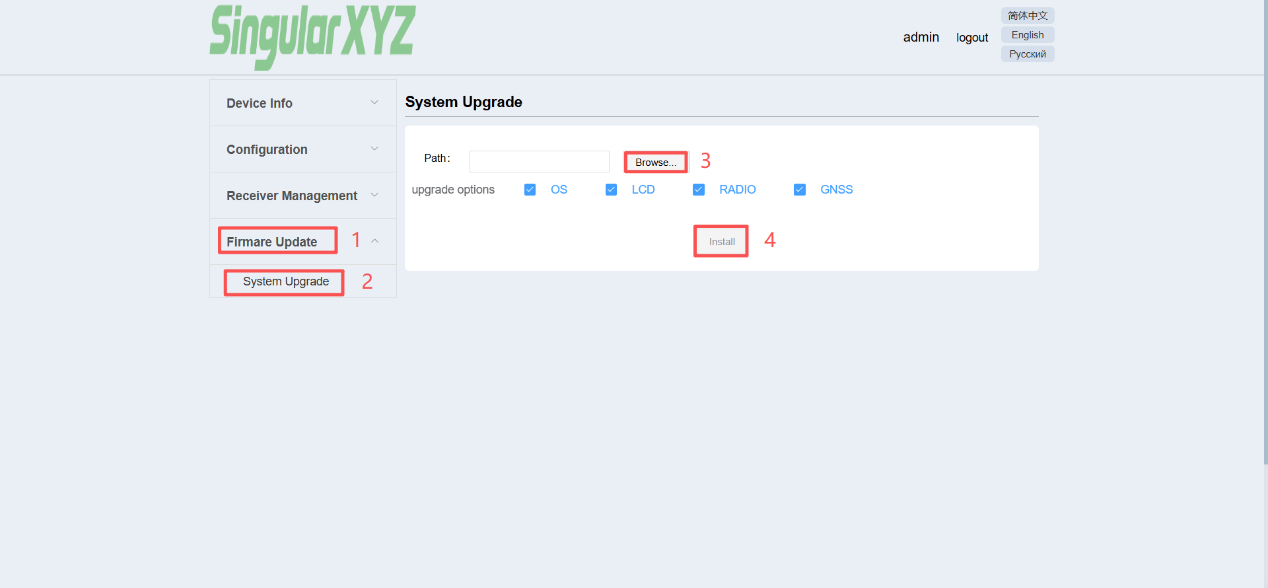
The USB upgrade method is available on selected receiver models.
Power on the receiver and connect it to a computer using a Type-C cable.
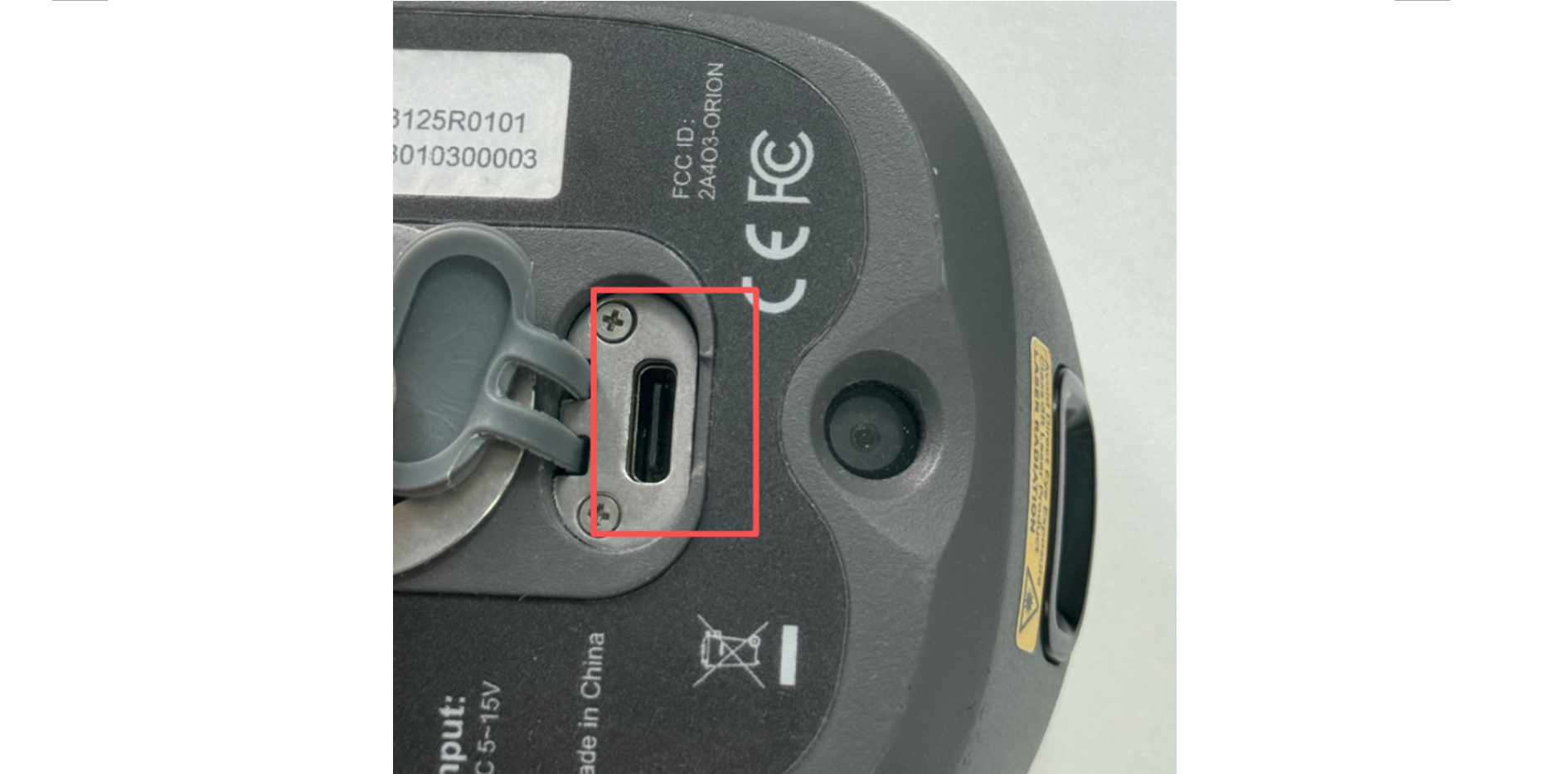
The receiver will appear as a removable storage device on your computer.

Copy the firmware package to the root directory of the receiver storage.
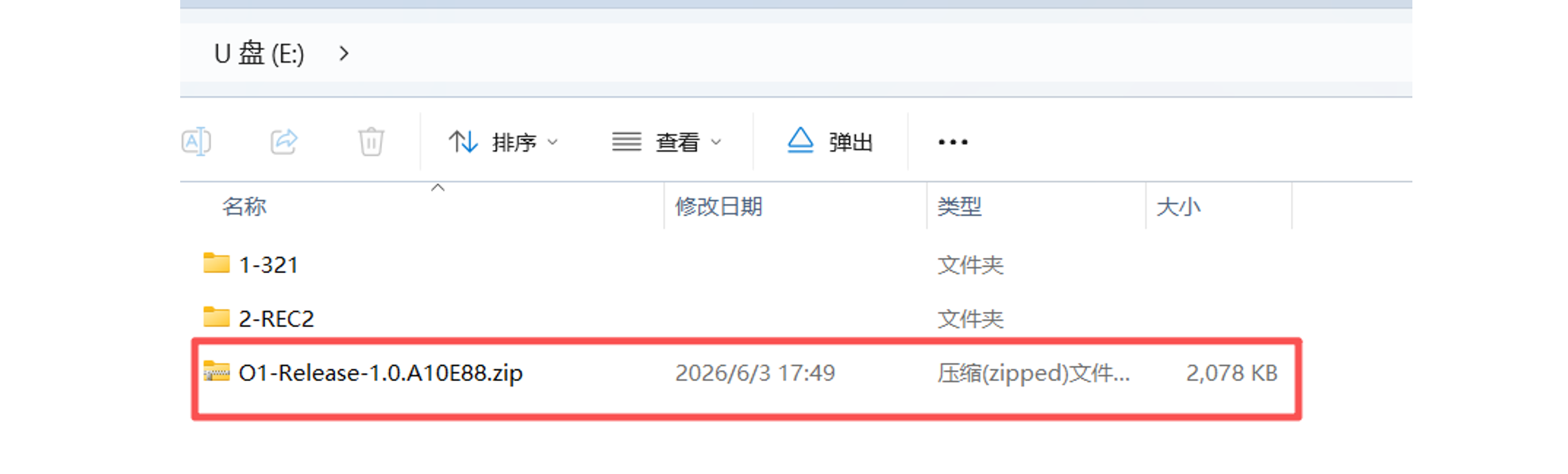
Restart the receiver.
After the receiver restarts, reconnect it to the computer. If the firmware package has disappeared from the receiver storage, the upgrade has been completed successfully.
Currently, software-based firmware upgrades are supported only on the Y1.
Connect the Y1 to SingularSurv. Go to More → FW Upgrade
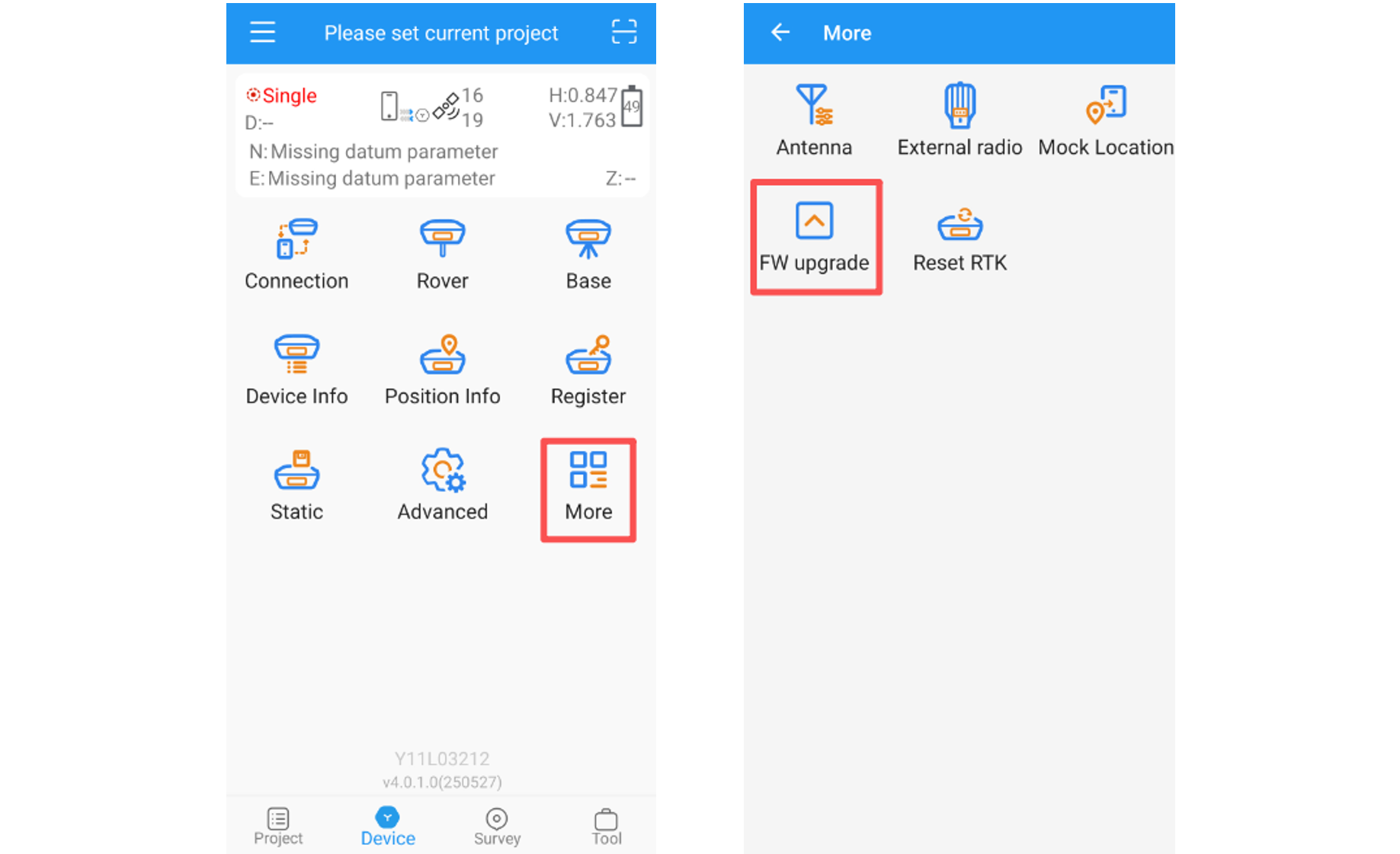
Select the firmware package from the location where it was downloaded.
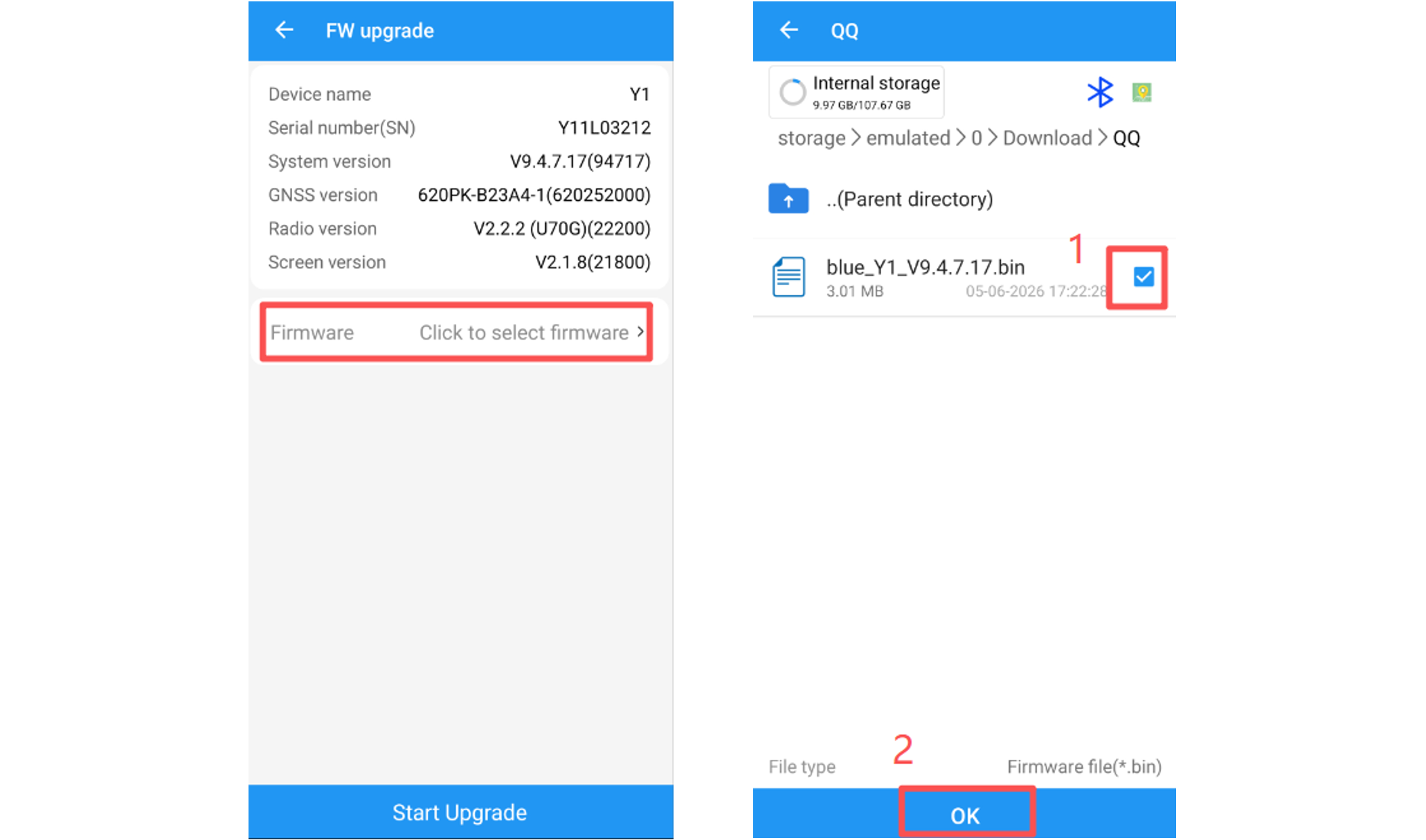
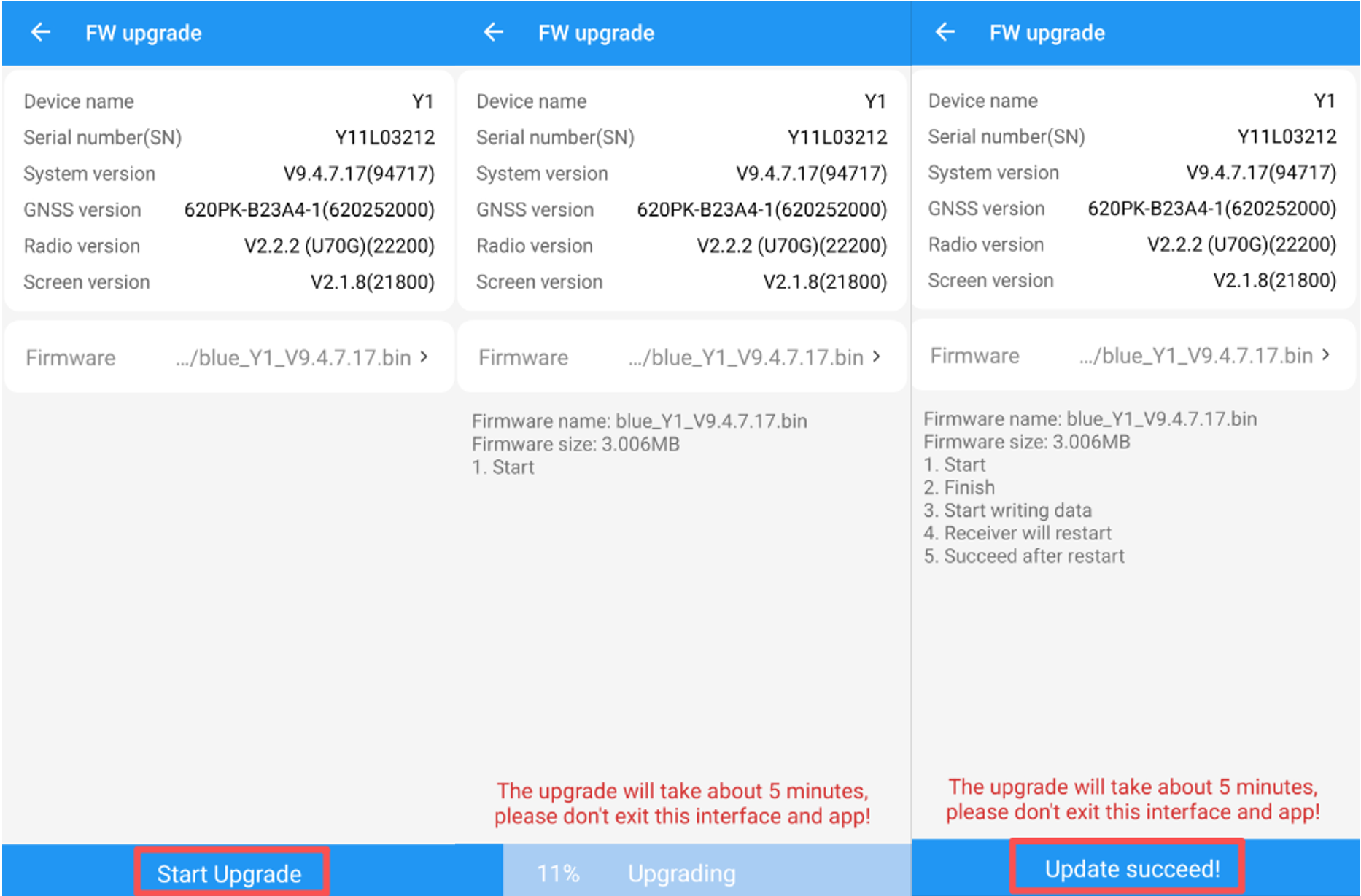
Click Start Upgrade and wait for the upgrade process to complete.
After the upgrade is finished, the receiver will emit a long beep and restart automatically.
Firmware upgrades are an important part of maintaining optimal device performance and accessing the latest features. Although upgrade methods vary between product series, the overall process is straightforward once the appropriate method is identified.
If you encounter any issues during the upgrade process or are unsure which firmware package is required for your device, please contact the SingularXYZ technical support team for assistance.